

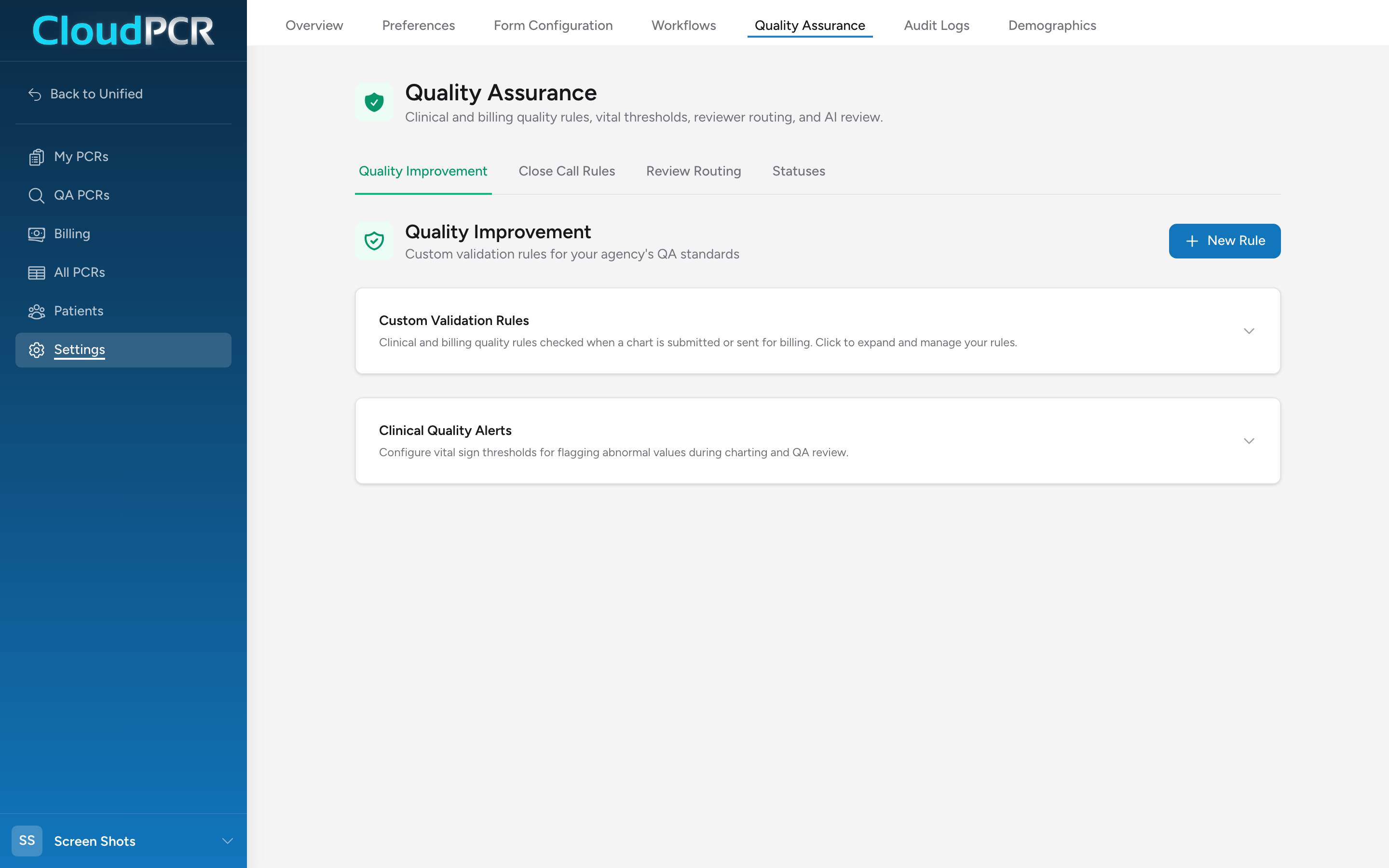
The Quality Assurance page in Settings is where your agency decides what gets checked on every chart and who reviews the ones that matter. It has four tabs, and each one answers a different question.
Before you start: Settings is admin-only. If you do not see Settings in the menu, your account does not have an admin role.
Open the page
- From the menu, click Settings.
- Click Quality Assurance.
The four tabs
- Quality Improvement — write your agency's own validation rules in plain English and let the AI build them, set vital sign thresholds that flag abnormal values, and turn AI chart review on or off. This tab answers: what should CloudPCR check automatically?
- Close Call Rules — a ready-made catalog of pre-submission checks carried over from the previous CloudPCR, each with an on/off switch. This tab answers: which of the standard checks does my agency want?
- Review Routing — QA groups, the rules that decide which submitted charts each group reviews, and who is in each group. This tab answers: which charts get a human reviewer, and who?
- Statuses — the review stages a reviewer can put a chart in. Four are built in; add your own here if your agency follows extra steps. This tab answers: what stages does a chart move through while we review it?
How it all fits together
When a crew submits a chart, three things happen in order:
- Validation runs. State and national rules, your custom validation rules, and any close call rules you turned on all check the chart. Anything set to block stops the submission until it is fixed.
- Routing runs. The chart is matched against your QA group rules. The first matching group gets it, and its reviewers see it on the QA PCRs page.
- AI review runs, if you set it to automatic. Otherwise reviewers can run it on demand from the review page.
AI Clinical Review
At the bottom of the Quality Improvement tab, the AI Clinical Review section controls whether reviewers get AI help:
- Enable AI Review — the on/off switch. As the page notes, patient identifying information is never sent.
- On-demand — reviewers click Run AI Review themselves on a chart's review page.
- Automatic on submission — the AI review runs on every chart as it is submitted, so results are already waiting when a reviewer opens it.
Click Save AI Settings to apply. See Reviewing a PCR for what the AI review looks like to a reviewer.
Where to start
If your agency is new to CloudPCR, set things up in this order: turn on the close call rules you relied on before, then build review routing so high-risk charts get human eyes, then add custom rules for the checks that are specific to your agency. The vital sign thresholds ship with sensible defaults — adjust them when your medical director wants different numbers.
Leave Statuses alone at first. The four built-in stages cover most agencies, and it is easier to see which extra stage you actually need once your reviewers have worked a few weeks of charts.