

Custom validation rules are checks your agency adds on top of the state and national validation — things like "every stroke chart needs a GCS" or "narratives on refusals must mention capacity." You do not build the rule by hand. You describe it in plain English and CloudPCR's AI turns it into a working rule you review and save.
Before you start: You need an admin role. Rules live in Settings → Quality Assurance, on the Quality Improvement tab.
Create a rule
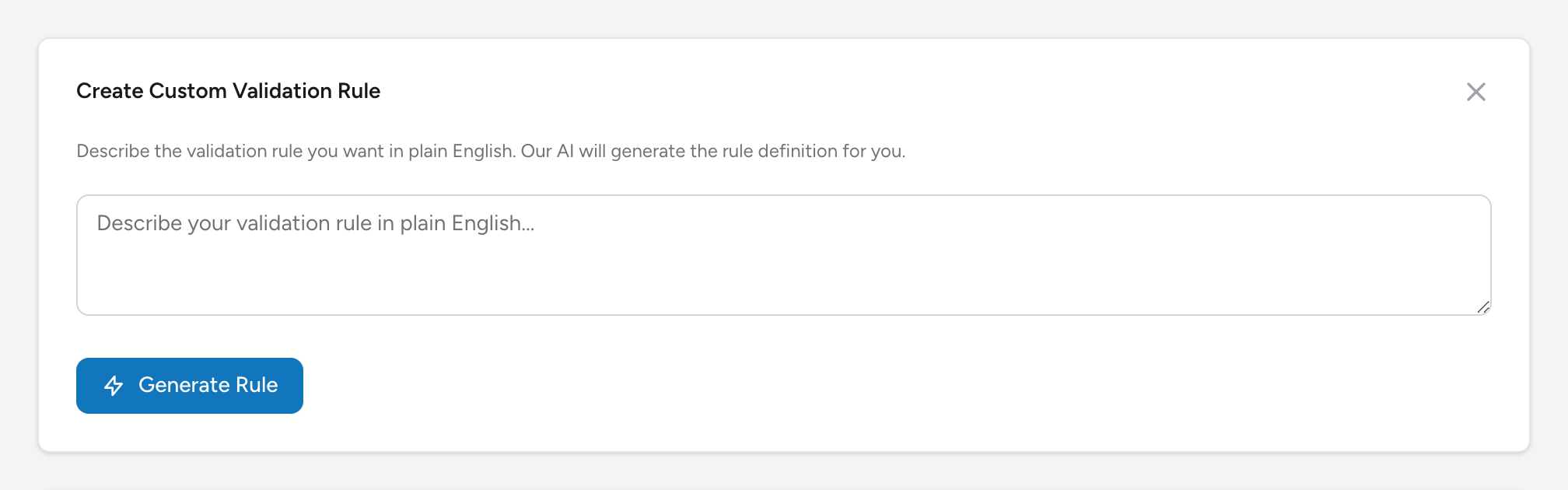
- On the Quality Improvement tab, click New Rule.
- In the description box, write what you want checked, in plain English. For example:
Require a Glasgow Coma Score on at least one set of vitals when the primary impression is a stroke. - Click Generate Rule. The button reads Generating... for a few seconds while the AI works.
- An AI Generated Rule Preview appears with everything filled in. Review and adjust each part:
- Rule Name — the short name shown in your rule list.
- Validation Message — the sentence the crew sees on the chart when the rule fires. Make it tell them what to fix.
- Applies to — Clinical QA, Billing QA, or both. As the on-screen hint says, a clinical rule that also affects reimbursement belongs to both.
- Severity — Block submission, Warn, or Info. Block stops submission. Warn allows submission but is flagged. Info is report-only.
- When to check — When the chart is submitted, or Only before billing (pre-bill). Pre-bill rules never block chart submission; they are checked when a chart heads to billing.
- Why this matters (optional) — a note shown with the rule so future admins and reviewers know why it exists.
- Click Save Rule. The rule is active immediately and applies to the next chart submitted.
Managing your rules
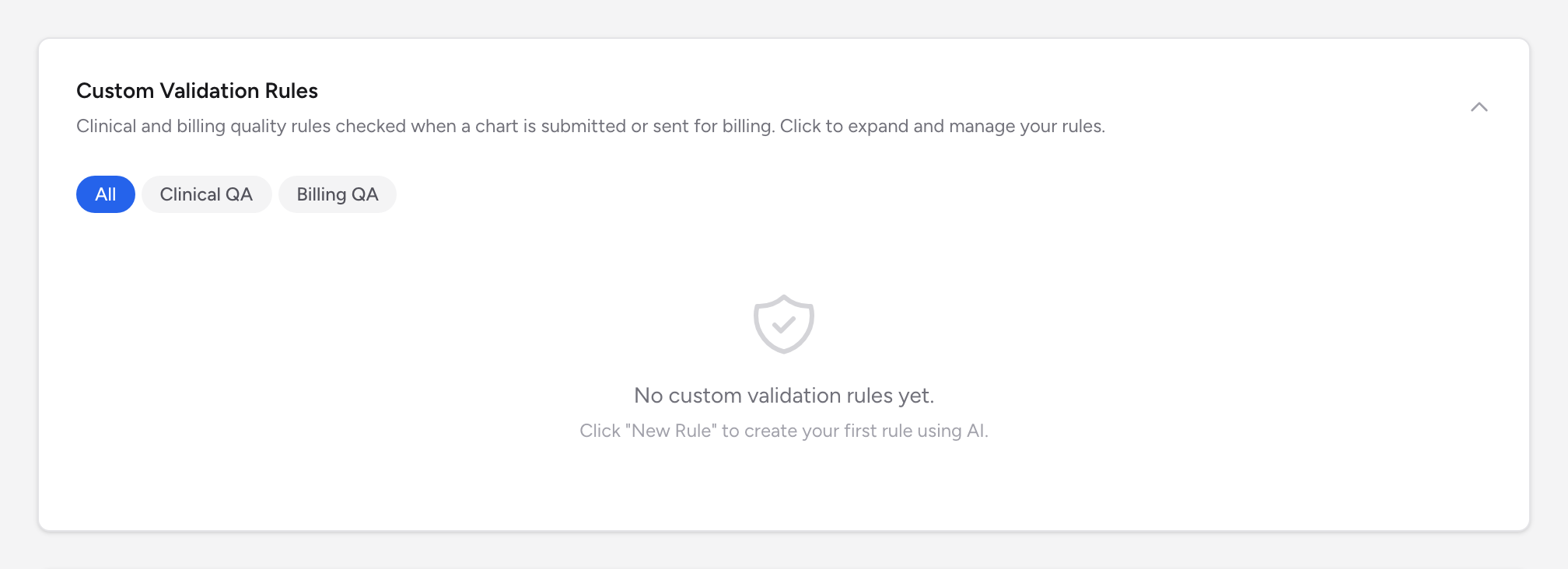
Click Custom Validation Rules to expand the list. You can filter it with the All, Clinical QA, and Billing QA pills. On each rule:
- Click the severity badge to cycle it between Block, Warn, and Info.
- Use the toggle to turn the rule off without deleting it.
- Click the trash icon to delete it. To change a rule's wording or logic, delete it and generate a fresh one — saved rules cannot be re-edited.
Rules marked Required by Unified Solutions with a lock icon are platform-wide and cannot be changed by your agency.
Tips for writing rules the AI gets right
- Name the part of the chart. "Patient age", "narrative", "vitals", "disposition" — the AI maps your words onto real chart sections, and naming the section removes the guesswork. If the AI cannot tell what part of the chart you mean, it asks you to rephrase rather than guessing.
- One rule per rule. "Require GCS on strokes" and "require a 12-lead on chest pain" are two rules. Combined sentences generate muddled logic.
- Say the condition and the requirement. The pattern "when X, require Y" generates cleanly: when the impression is stroke, require a GCS; when the patient was not transported, require a refusal signature.
- Start new rules at Warn. Let a rule run for a couple of weeks and see how often it fires before promoting it to Block submission. A blocking rule that fires wrongly stops crews at end of shift.
- Read the message as a crew member. The Validation Message is what a tired medic reads at 3 a.m. "Add a GCS to at least one vitals set" beats "GCS documentation requirement not met."
- Whether Warn blocks depends on your Preferences. If your agency's validation strictness is set to require warnings to be resolved, a Warn rule blocks submission too.
- A rule that never fires deserves a look. If a rule seems to do nothing, check its wording and regenerate — a rule pointed at the wrong part of the chart fails quietly rather than stopping crews.
Where rules show up
Rule results appear in the chart's validation panel alongside state and national findings, using your Validation Message. Info-level rules do not show a message to the crew — use Info only for rules you track in review, not ones crews need to act on. See The validation panel for what crews see.