
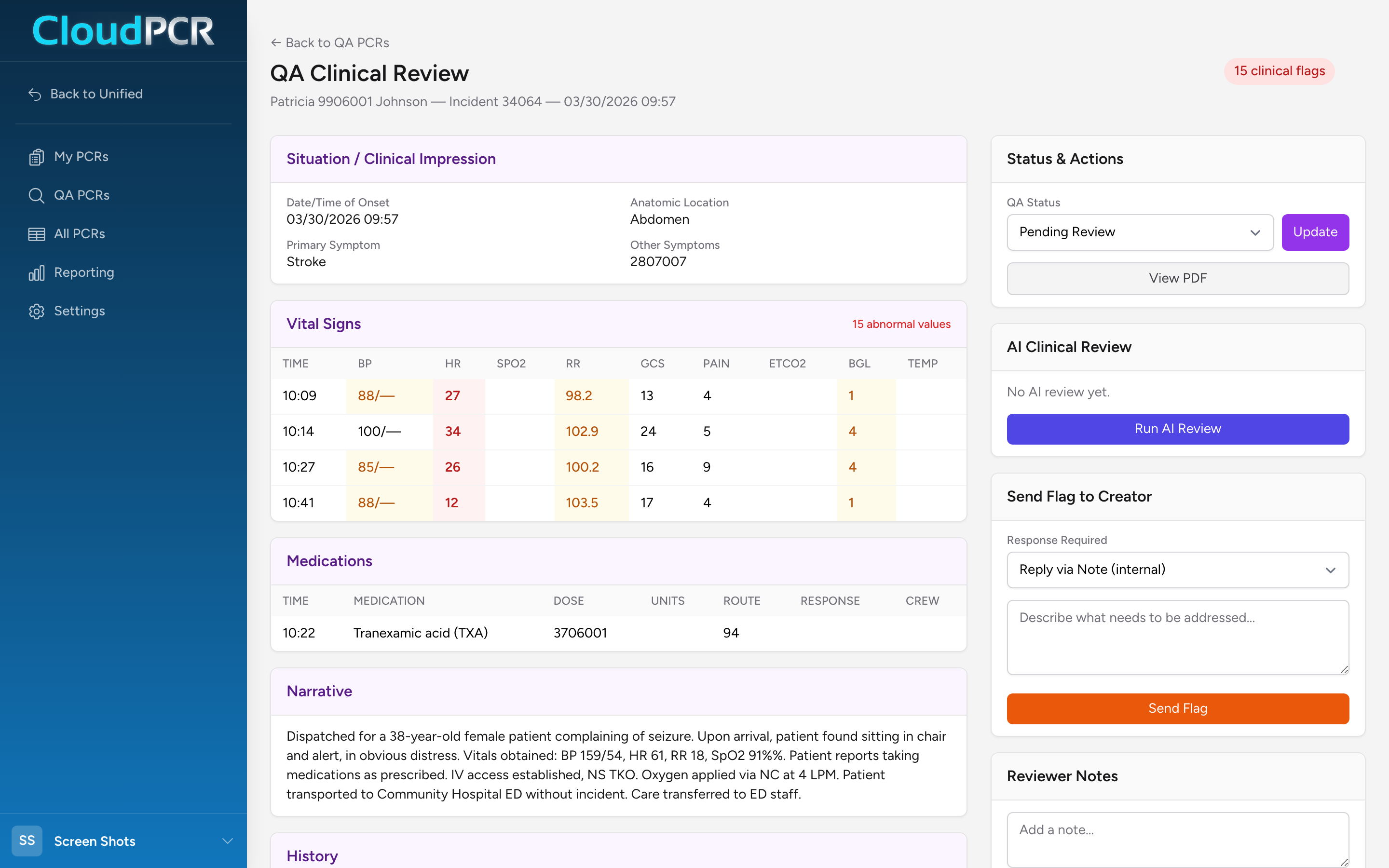
Clicking into a PCR from the QA PCRs queue opens the QA Clinical Review screen. It is a read-only view of the full chart with reviewer tools on the right.
What is on the screen
Header: patient name, incident number, incident date. Badges show the clinical flag count and the current QA status. A ← Back to QA PCRs link returns you to the queue.
Left side — the PCR. Read-only cards summarize each section in the order they appear on the PCR: Situation / Clinical Impression, Vital Signs (abnormal values highlighted), Medications, Procedures, Cardiac Arrest (if any, in a red-outlined card), Physical Exam, Narrative, History, Protocols, Disposition, Times, and any Addenda.
Right side — reviewer tools, split into cards.
Updating the QA status
- In the Status & Actions card, open the QA Status dropdown.
- Pick the new status:
- Pending Review — not yet picked up.
- In Review — you are working on it.
- Needs Changes — the creator needs to fix something.
- Approved — the PCR passes review.
- Click Update.
Those four are the stages the review process itself runs on. If your agency has added stages of its own, they sit in the same dropdown underneath, and you pick them the same way. See Adding your own QA statuses.
You often do not need to set the status by hand. Opening a PCR from the queue moves it from Pending Review to In Review automatically, and sending a flag (below) sets it to Needs Changes for you.
The View PDF button opens the PCR as a printable PDF in a modal — useful for reading a full narrative or exporting a copy.
AI clinical review
In the AI Clinical Review card, click Run AI Review. CloudPCR runs an automated review and returns:
- A quality badge — excellent, good, adequate, or needs improvement.
- A short summary paragraph.
- Scores for Documentation and Clinical Decision.
- A findings list with severity tags (critical, moderate, minor, info).
- A strengths list.
Click Re-run AI Review to run it again after the creator makes changes. The AI review is a starting point — you are still the reviewer of record.
Sending a flag to the creator
- In the Send Flag to Creator card, pick what kind of response you need:
- Reply via Note (internal) — the creator replies with an internal note.
- Add Addendum (official ePCR) — the creator must add a formal addendum to the record.
- Type your message explaining what needs to change.
- Click Send Flag. The creator gets a notification.
Every flag on the PCR — open, responded, or resolved — is listed in the Flag History card below the Send Flag form. When the creator responds, the flag status changes to responded and a Resolve button appears on that flag. Click it once you are satisfied with the response.
Reviewer notes
The Reviewer Notes card is for your own record-keeping. Type a note and click Add Note. Notes stay with the PCR and are visible to other reviewers.
An example
A cardiac arrest PCR is in your queue. Open it. The Narrative mentions ROSC but the Vital Signs card does not show a ROSC time and the Cardiac Arrest card does not either. Send a flag: Reply via Note, message "ROSC was achieved per the narrative — please add the ROSC time on the Assessment tab so the registry pulls it correctly." Set QA Status to Needs Changes and click Update. The medic gets a notification, opens the PCR, fixes the time, replies, and the flag shows as responded. Click Resolve on the flag, then set status to Approved and click Update.