
Before you start: Time Management is admin-only. Timecards must be approved before the hours count as final for payroll.
From the navigation, click Time Management. This is where a pay period gets reviewed and locked down.
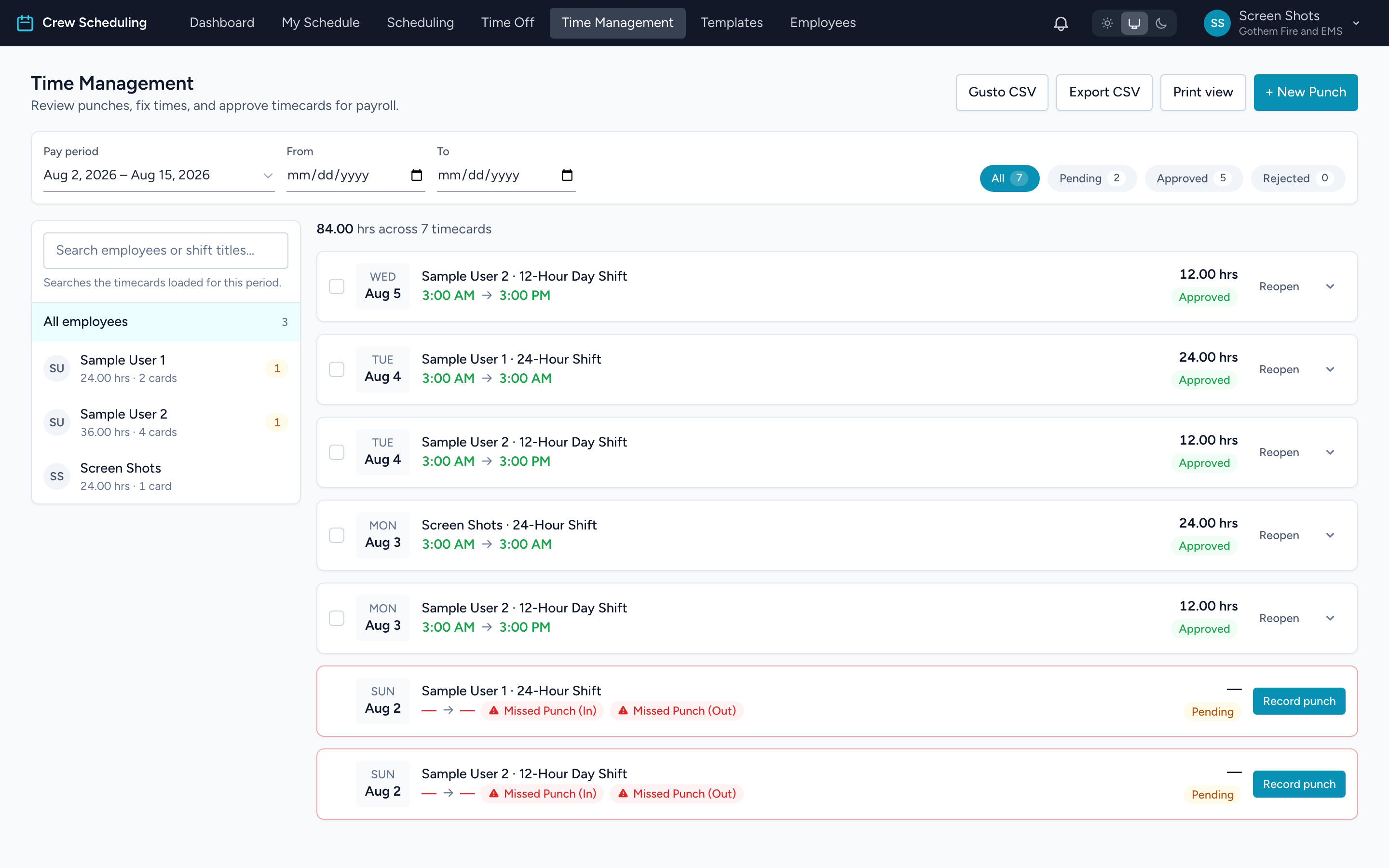
Narrowing the list
- Pay period, From, and To control the date range. The status pills — All / Pending / Approved / Rejected — carry live counts.
- The panel on the left lists everyone with time in the period, their hours, and an orange count of cards still pending. Click a person to see only their cards.
- The search box narrows by employee name or shift title.
Reading a timecard
Each card is one shift's worth of time: the date, employee, shift, punch-in and punch-out, and total hours. Punch times are green when on time and red outside the grace window, with chips like In Late or Out Early. A red-edged card with Missed Punch is a scheduled shift nobody punched for — click Record punch on it to enter the real times.
Approving
- One card: click Approve.
- Several: tick their checkboxes, pick a status, click Apply.
- The whole view: click Approve all pending, which names the count before you confirm.
- Approved something too soon? Reopen puts a card back to pending.
Missed Punch cards
A Missed Punch card is a placeholder, not a timecard. It appears when a scheduled shift has finished and no punch was ever recorded against it, so the gap is visible instead of silently missing at payroll time. It holds no hours and counts toward nobody's pay.
- To clear it, click Record punch and enter the real times. The card becomes an ordinary timecard and stops showing as missed.
- There is nothing to reject. Reject acts on hours, and a Missed Punch card has none, so the option is not offered.
- If the crew really did not work it, the shift itself is what to remove — delete or archive the shift from the schedule and the card goes with it.
Seeing a Missed Punch card and a card with real times for the same person and day? That means the punch landed on a different shift than the scheduled one, usually an ad hoc shift created when the employee clocked in with no matching shift open. The card with the real times is the one that counts. Record the times on the placeholder if you want the schedule and the timecard to line up, and leave the real punches alone — do not reject them.
Rejecting is deliberately not a bulk action — it can cost someone pay, so it goes through its own guided step.
A good rhythm at the end of a period: work the Pending pill person by person, fix what needs fixing, then export for payroll.