
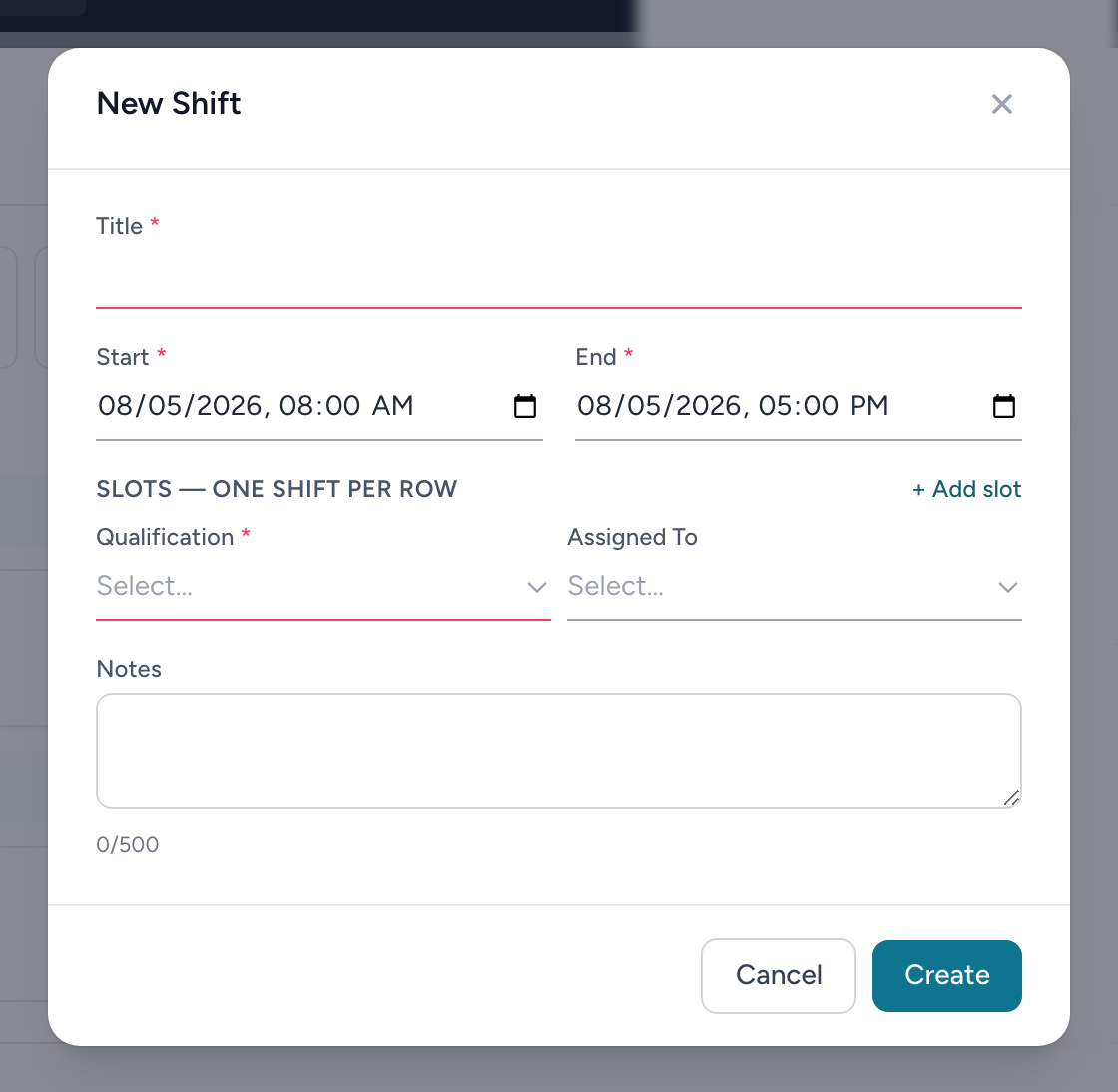
Shifts are created from the day overview (+ Create shift) and edited by clicking a shift anywhere on the schedule. For recurring patterns, build a template instead of creating shifts one at a time.
Creating shifts
- Give the shift a Title (crews see it on their calendars —
Medic 3 DaysbeatsShift). - Set the Start and End date and time. Overnight and multi-day shifts are fine — just set the real end.
- Fill in the Slots. Each row becomes one shift: pick the Qualification it requires, and either pick a person in Assigned To or leave it as Open shift to fill later by bids or assignment.
- Need the same shift for more people? Click + Add slot for each. The button reads Create 3 shifts when three rows are filled, so you always know what you are about to make.
- Add Notes if the crew needs them, then click Create.
Editing a shift
Open the shift and change its title, Qualification, Assigned To, times, or notes, then click Save. Setting Assigned To back to Open shift vacates it.
Removing a shift
Click Archive in the edit window (or the trash icon in the day overview). Archived shifts leave the schedule but stay on timecards and reports — nothing worked is ever lost.