
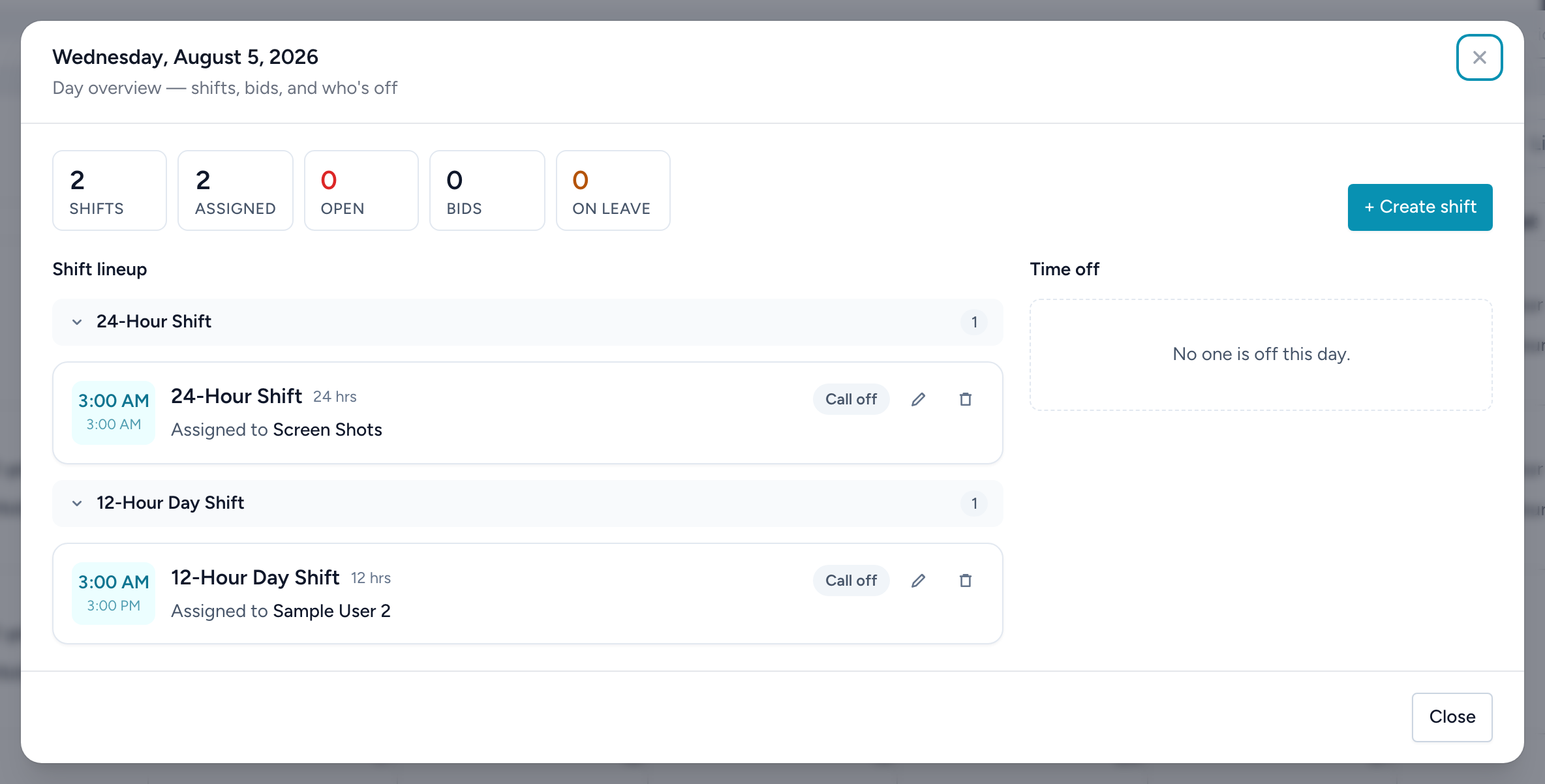
Click any day on the Full Schedule to open the day overview — the command center for that date.
The top row
Five counters summarize the day: Shifts, Assigned, Open (red), Bids, and On leave. Next to them, + Create shift adds a new shift on this date.
The shift lineup
Shifts group under their template's name (ad-hoc ones collect under Individual shifts); click a group header to collapse it. Each shift card shows its time, role, hours, and who has it — or Unassigned in red. The buttons on a card:
- Call off (assigned shifts) — take the employee off the shift; see calling off an employee.
- Availability (open shifts) — lists everyone who marked that day available and is not already working, with their hours this week. Click Assign on a candidate. The app checks the assignment first: hard problems block it, softer ones (like overtime) warn and ask.
- N bids — expands the shift's bids: each bidder's qualifications, hours for the week, and hours if approved. Approve assigns the shift and denies the other bids; Deny declines one; Cancel approval undoes an award before the shift starts and reopens it for bids.
- The pencil icon edits the shift; the trash icon archives it (it comes off the schedule but stays on timecards and reports).
Time off
The side panel lists everyone off that day with their request status — the context you need before assigning someone or approving another request.