
Before you start: this page is admin-only. Employees manage their own requests under My Schedule.
From the navigation, click Time Off. Two tabs, same requests:
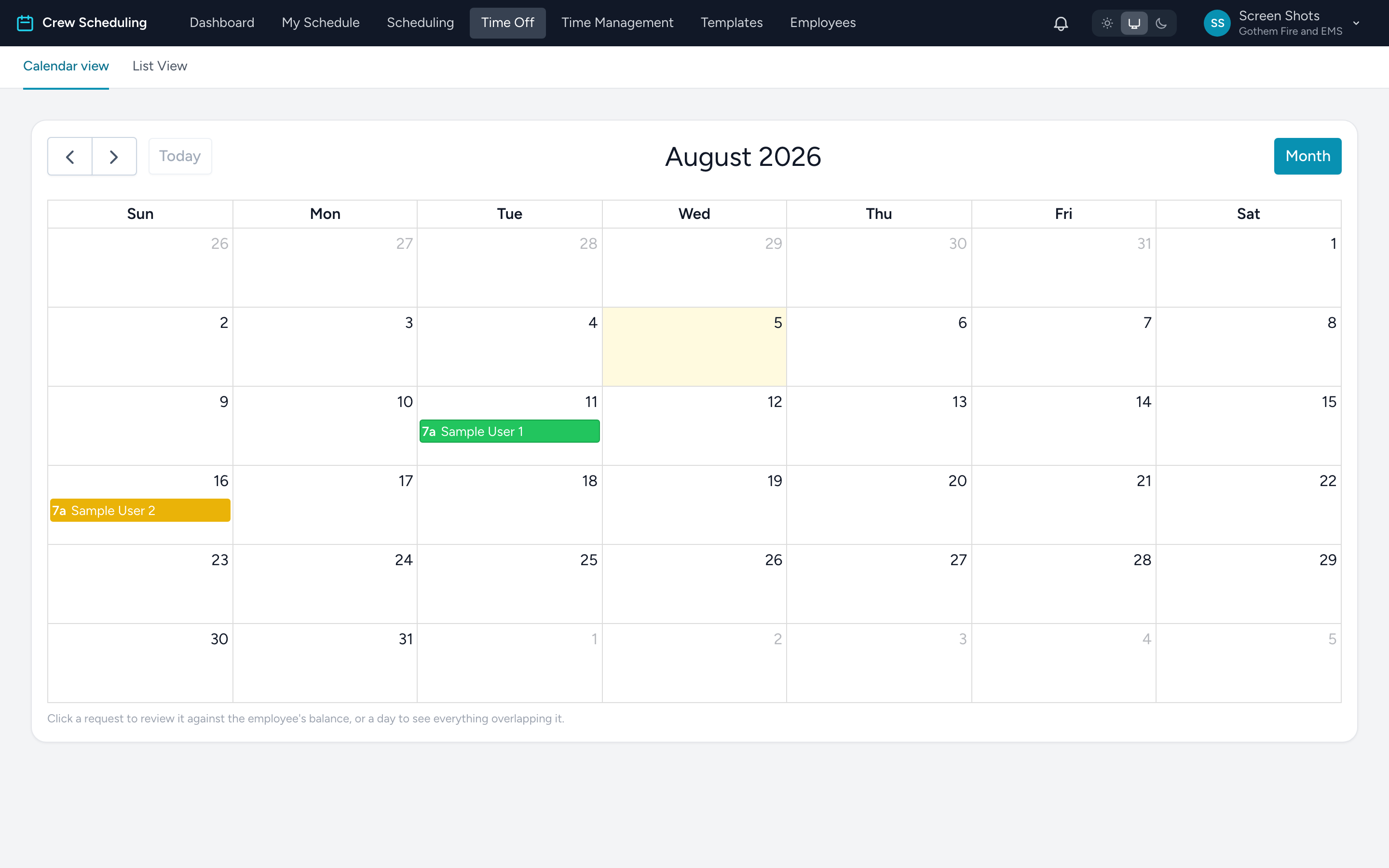
- Calendar view — every request laid over a month grid, colored by time-off type. Click a request to review it; click a day to see everything overlapping that day.
- List View — a table you can narrow by Employee, with an Include past checkbox for history.
Reviewing a request
Clicking a request on the calendar opens a review window with the employee's full balance picture for that time-off type: Current balance, Upcoming approved, Other pending, Available now, This request, and Left if approved. If approving would push the balance below zero, the window says so in red before you act.
Approving
- Click Approve on the request (in either tab or the review window).
- The approval window asks one question: If a shift overlaps — choose what happens to any scheduled shift inside the window, such as keeping the employee on it or taking them off so it reopens.
- Click Approve. The hours are deducted from the balance and the employee is notified.
Denying and undoing
- Deny asks you to confirm — the employee sees the request as denied, and their balance is never touched.
- Cancel approval on an approved request refunds the balance and puts things back the way they were.
Tip: before approving, glance at the day overview for those dates — the On leave counter tells you how thin you already are.