
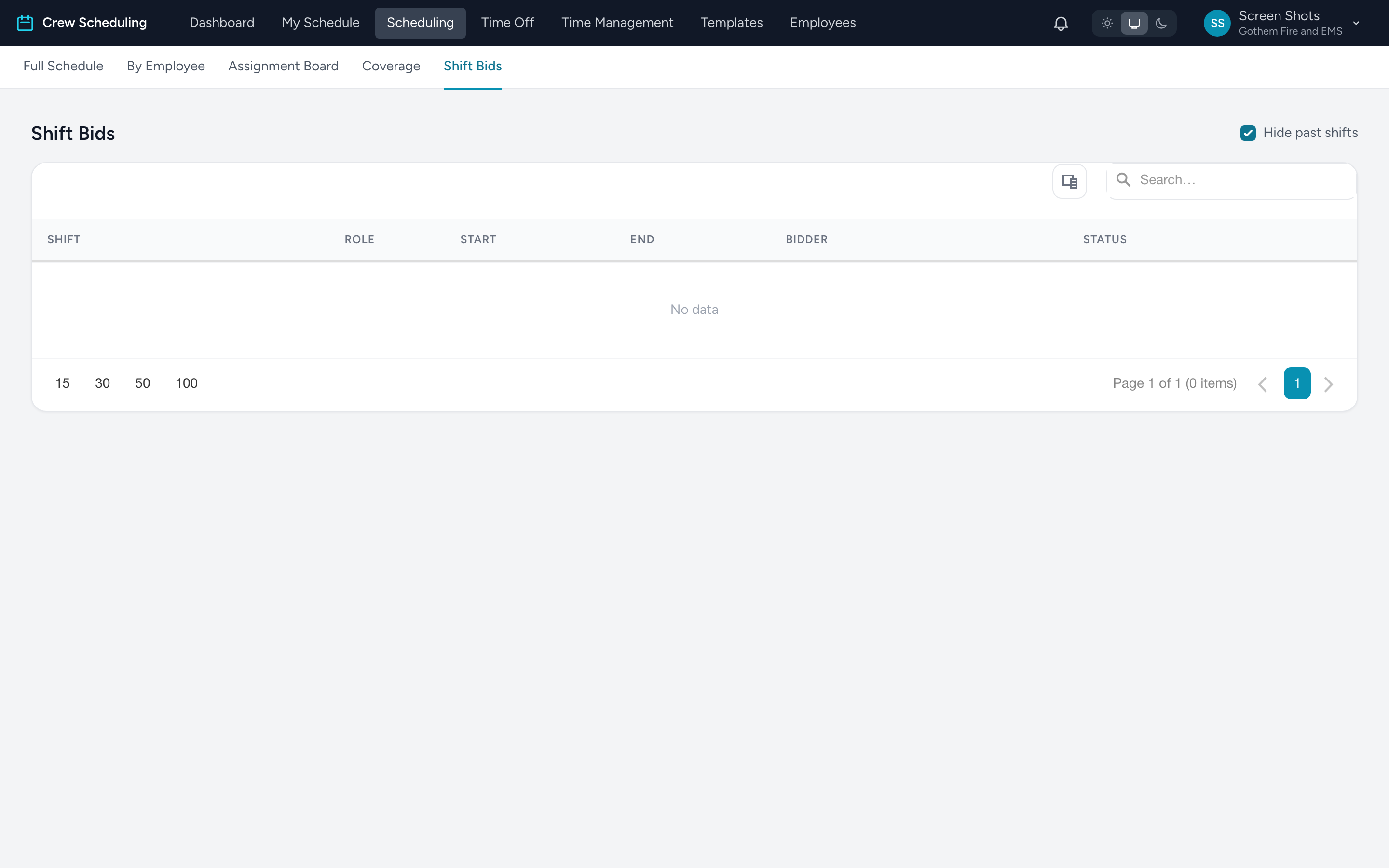
The Shift Bids tab under Scheduling lists every bid in the agency — one table for working the whole queue. (Bids also appear on each shift in the day overview, which is handier when you are focused on one day.)
Working the queue
- From the navigation, click Scheduling, then Shift Bids. Hide past shifts is on by default so you see decisions that still matter.
- Each row shows the shift, role, times, bidder, and bid status.
- On a pending bid, click Award to give the bidder the shift — the shift is assigned and every other pending bid on it is denied automatically. Or click Deny to decline just that bid.
Undoing an award
Approved a bid and plans changed? Click Cancel award on the approved row (available until the shift starts). The employee is unassigned and notified, and the shift reopens for bids.
Tip: deciding between two bidders? The day overview's bid table shows each bidder's hours for the week and what their hours become if approved — the overtime math is done for you.