
What it is
The Team Audit Snapshot is the first section on the Billing dashboard: a row of nine numbered tiles, one for each queue your team works. It answers one question at a glance: is anything sitting too long? The tiles follow the agency picked in the Agency dropdown at the top of the page.
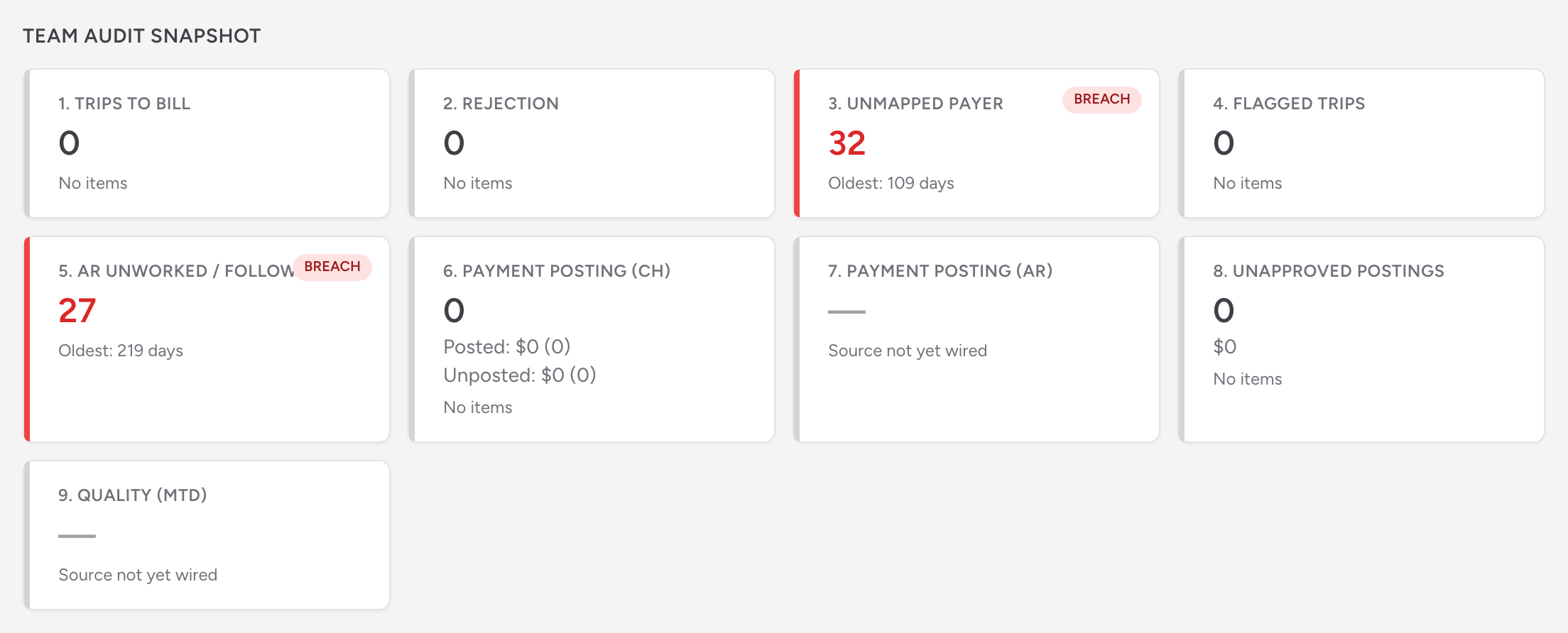
How to read a tile
- The big number is the count of items in that queue.
- A dollar amount appears under the count on tiles that track money.
- Oldest shows how many days the oldest item has been waiting. This age, not the count, drives the color.
- The label in the corner grades the age against the queue's target: ON TRACK (green) means the oldest item is within target, WATCH (yellow) means it is aging past the warning point, and BREACH (red) means it is past the limit. Targets are managed by the platform.
For example, on Unapproved Postings the tile stays green while the oldest waiting payment is 6 days old or less, turns to WATCH at 7 days, and shows BREACH once it reaches 14.
A tile showing a gray dash is not measuring anything yet. You can ignore it.
What each tile measures
- 1. Trips to Bill - claims that arrived in Billing and are still in New or Needs Review. Nothing goes out until these are worked. The clock starts the day the trip lands, not the date of service.
- 2. Rejection - claims your clearinghouse rejected or returned with an error, with no payment and no resubmission yet. Each needs a fix and a resend.
- 3. Unmapped Payer - claims whose insurance name does not match any payer record you have set up, so the claim cannot go out.
- 4. Flagged Trips - charts you sent back to the agency that are still waiting on their answer. Once the agency answers and resubmits, the claim becomes Agency Corrected in your unbilled queue and comes off this tile, because the work is yours again rather than theirs.
- 5. AR Unworked / Follow Up - AR accounts in the Unworked category, aged from the billed date or the last touch.
- 6. Payment Posting (CH) - payments received from your clearinghouse, split into Posted (approved) and Unposted (still pending) with a count and dollar figure for each. This tile is a money summary and never shows a color label; the aging alarm for the same queue is tile 8.
- 7. Payment Posting (AR) - not measured yet; shows a gray dash.
- 8. Unapproved Postings - clearinghouse payments still waiting for approval before they post, aged from the day the remittance arrived.
- 9. Quality (MTD) - not measured yet; shows a gray dash.
When a tile shows WATCH or BREACH
The color comes from the oldest item, so work the queue oldest-first. Clearing recent items will not turn a red tile green.
- Trips to Bill - open the Claims list and work the New and Needs Review claims, starting with the oldest.
- Rejection - open the rejected claims, fix what the clearinghouse objected to, and resubmit.
- Unmapped Payer - map the insurance name to a payer under Settings (see Managing payers), then the claims can go out.
- Flagged Trips - follow up with the agency on the charts still sitting with them. Corrected ones have already moved to Agency Corrected in the unbilled queue and are waiting on you to re-bill.
- AR Unworked / Follow Up - open the AR page's Unworked tab and start touching accounts, oldest first.
- Unapproved Postings - review and approve the pending payments so they post to their claims.
If you bill without a direct connection
The two payment tiles fill from remittance files. If your clearinghouse is not connected directly, they only move when you bring remittance files in yourself (see Importing remittance files). Payments you enter by hand (see Posting manual payments) post straight to the claim and skip the approval queue, so tiles 6 and 8 may stay empty. That is normal, not a problem.
For the rest of the dashboard, see The Billing dashboard.