
What a remittance file is
When an insurance company processes your claims, they send back a remittance file that tells you what they paid, what they adjusted, and why. Uploading this file on the Remittance Imports page auto-posts the payments and adjustments to the matching claims, so you do not have to enter them by hand. No connection to your clearinghouse is needed: you download the file from your clearinghouse web portal and upload it here. This is the return half of the manual loop that starts when you send an 837 out (see Transmitting claims and The EDI Exports page).
How to import
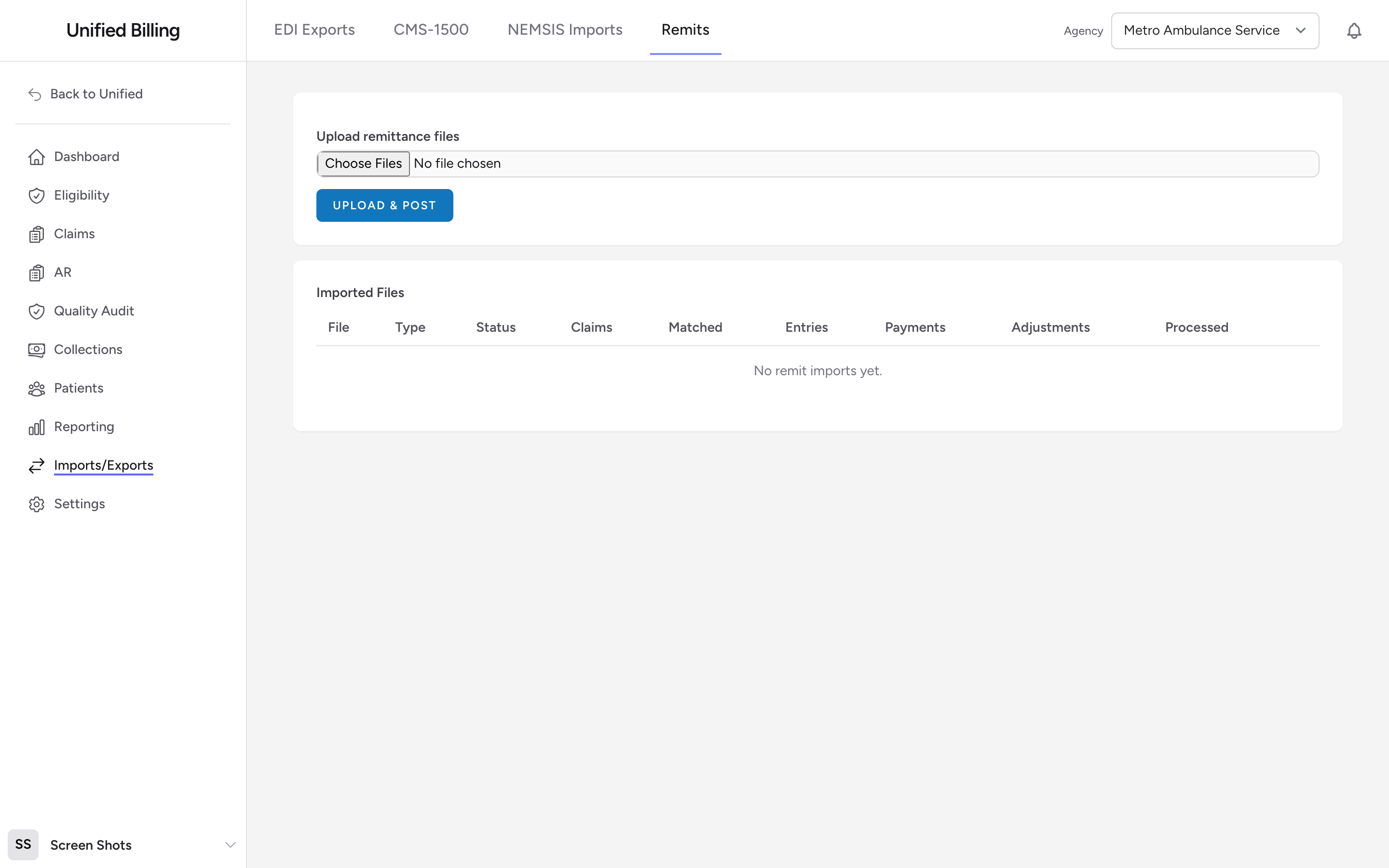
- Go to Imports/Exports in the menu, then click Remits.
- Click the file picker and choose one or more files. Accepted types:
.pdf,.txt,.edi,.835, and.5010. - Click Upload & Post.
- The page reloads with a success banner showing how many files were imported.
What each imported file tracks
The Imported Files table shows, for every file you have uploaded:
- File / Type / Status: the file name, detected type (for example 835 or PDF), and processing status.
- Claims and Matched: how many claims the file contained and how many matched a claim in Billing. Anything not matched appears as a red "unmatched" count under the file name.
- Entries, Payments, Adjustments: how many ledger entries were posted and the dollar totals.
- Processed: the date and time the file finished posting.
Click Details on any row to see the file's totals, the claim numbers that did not match, and a Skipped (already posted) list of claims the file would have double-posted. The posted payments themselves appear on each claim's ledger.
Example
You download this week's 835 from your clearinghouse portal. It contains payments for 42 claims totaling $38,500. You upload it, and 40 claims match automatically. Two are unmatched: one because the claim number had a typo and one because the claim had not been created yet in Billing. You open Details to get the claim numbers and amounts, then post those two payments by hand on the right claims (see Posting manual payments).
Tips
- Import remittance files as soon as you receive them. This keeps your AR balances current.
- Always open the Details view for any file with unmatched claims. Unresolved items mean payments sitting in limbo.
- Do not upload the same remittance file twice. Claims that posted the first time will post again and double-count the payment. Handle unmatched lines by posting them manually instead.
- If you consistently have unmatched claims, check that the claim numbers going out on your 837 match the numbers coming back on the 835.
- If a payer mails you a paper explanation of benefits instead of a file, post it from the claim (see Posting an EOB).