
What this section is for
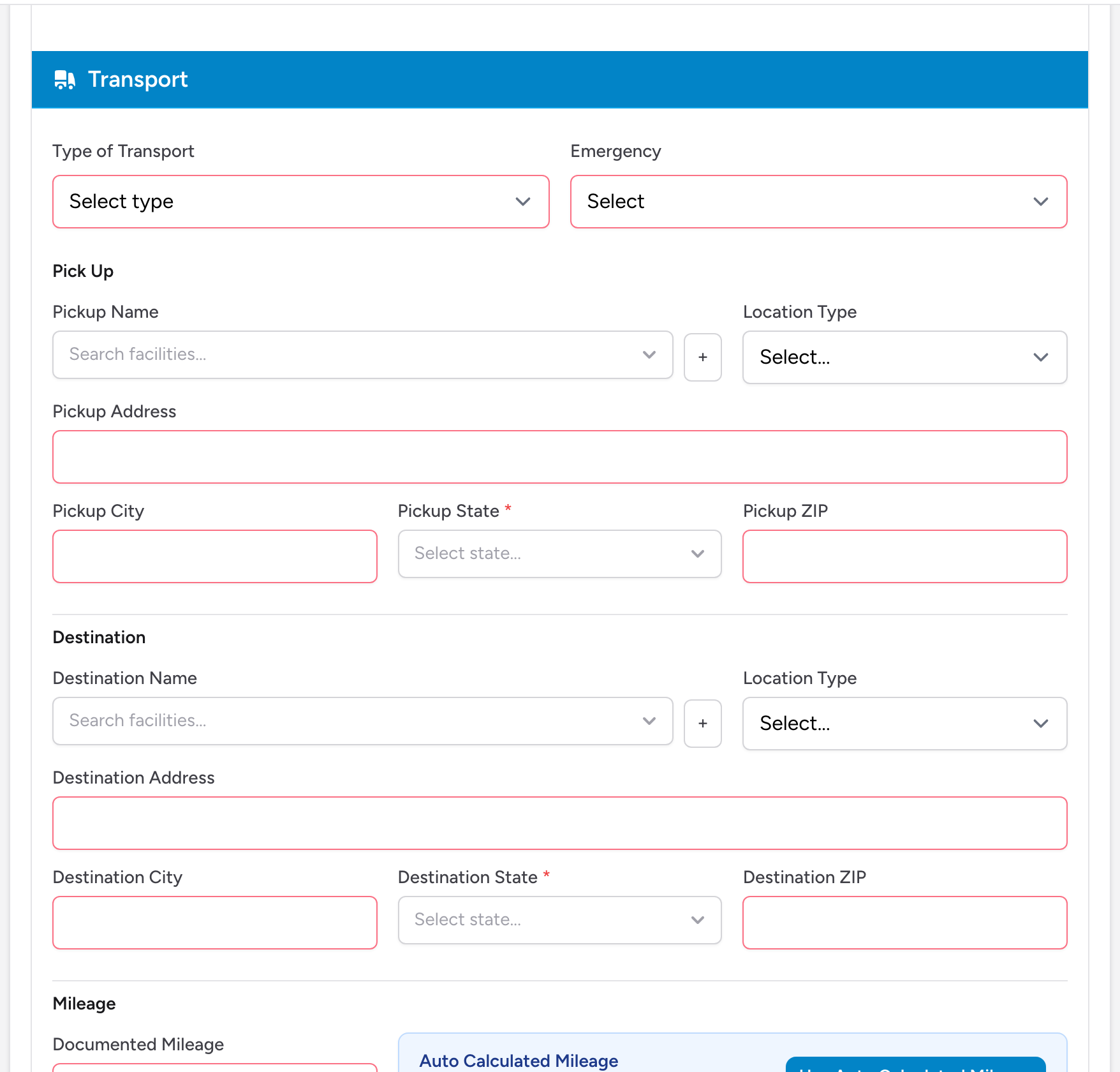
The Transport section describes the ambulance trip itself: where the patient was picked up, where they were taken, the type of transport, and the miles driven.
Fields in this section
- Type of Transport - pick Initial Trip, Return Trip, Round Trip, or Transfer Trip. If you pick Round Trip, a Round Trip Purpose field appears.
- Emergency - Yes or No. Emergency transports are reimbursed differently than non-emergency ones.
- Pick Up - search for the pickup facility, then enter or confirm the address, city, state, and ZIP. If the place is not in your facility list, click the + button next to the search box, fill in the Add New Location form, and click Save & Select.
- Destination - same fields as Pick Up, but for where the patient was taken. This is usually a hospital or medical facility. The same + button is available if the destination is not in your list.
- Location Type - pick the kind of place for both the pickup and the destination, for example Residence or Hospital. The pickup and destination types together set the transport modifier on your charge lines automatically. If you pick Residence, the patient's home address fills in for you. When Billing has already worked out the type from the imported chart, an Automatically Applied badge appears next to the field.
- Mileage - enter the Documented Mileage (the miles the crew recorded). The claim also shows Auto Calculated Mileage from the pickup and destination addresses. Click Use Auto Calculated Mileage to bill the calculated value; the button then reads Use Documented Mileage so you can switch back. The panel shows the difference between the two numbers, so a mismatch stands out at a glance. Billing mileage is rounded down to tenths under 100 miles and to whole miles at 100 or more; when rounding applies, a note under the field shows the value that will be billed.
Why miles matter
Insurance companies pay a base rate for the ambulance response plus a per-mile rate for the distance. If you enter the wrong mileage, you will be overpaid or underpaid. Either way, it creates problems. Overpayments have to be refunded, and underpayments mean lost revenue.
Example
Your crew picked up a patient at 123 Oak Street and took them to County General Hospital. It was a 911 emergency call. You select Initial Trip for Type of Transport, Yes for Emergency, search for the hospital as the Destination, and enter the pickup address. You set the pickup Location Type to Residence and the destination to Hospital. The Auto Calculated Mileage shows 8.4 miles, and the difference readout confirms it matches what the crew documented, so you move on.
Tips
- If the claim was imported from CloudPCR, the pickup and destination should already be filled in. Verify the miles match what the crew reported.
- For inter-facility transfers (hospital to hospital), make sure you have the correct addresses for both facilities so the auto-calculated miles are accurate.