
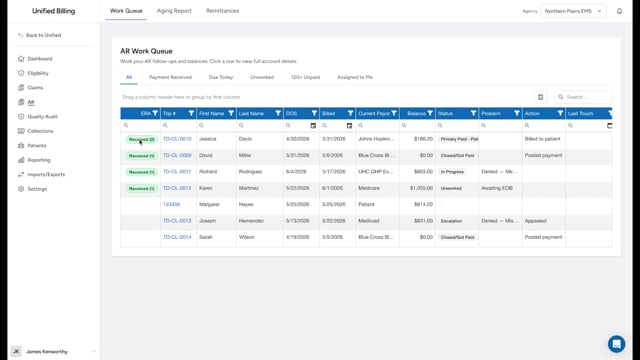
Why log your activity
Every time you work on a claim in the AR queue, whether you make a phone call, send a letter, or just review the status, you should log it. This creates a history that helps your team know what has been done and what needs to happen next.
How to log an entry
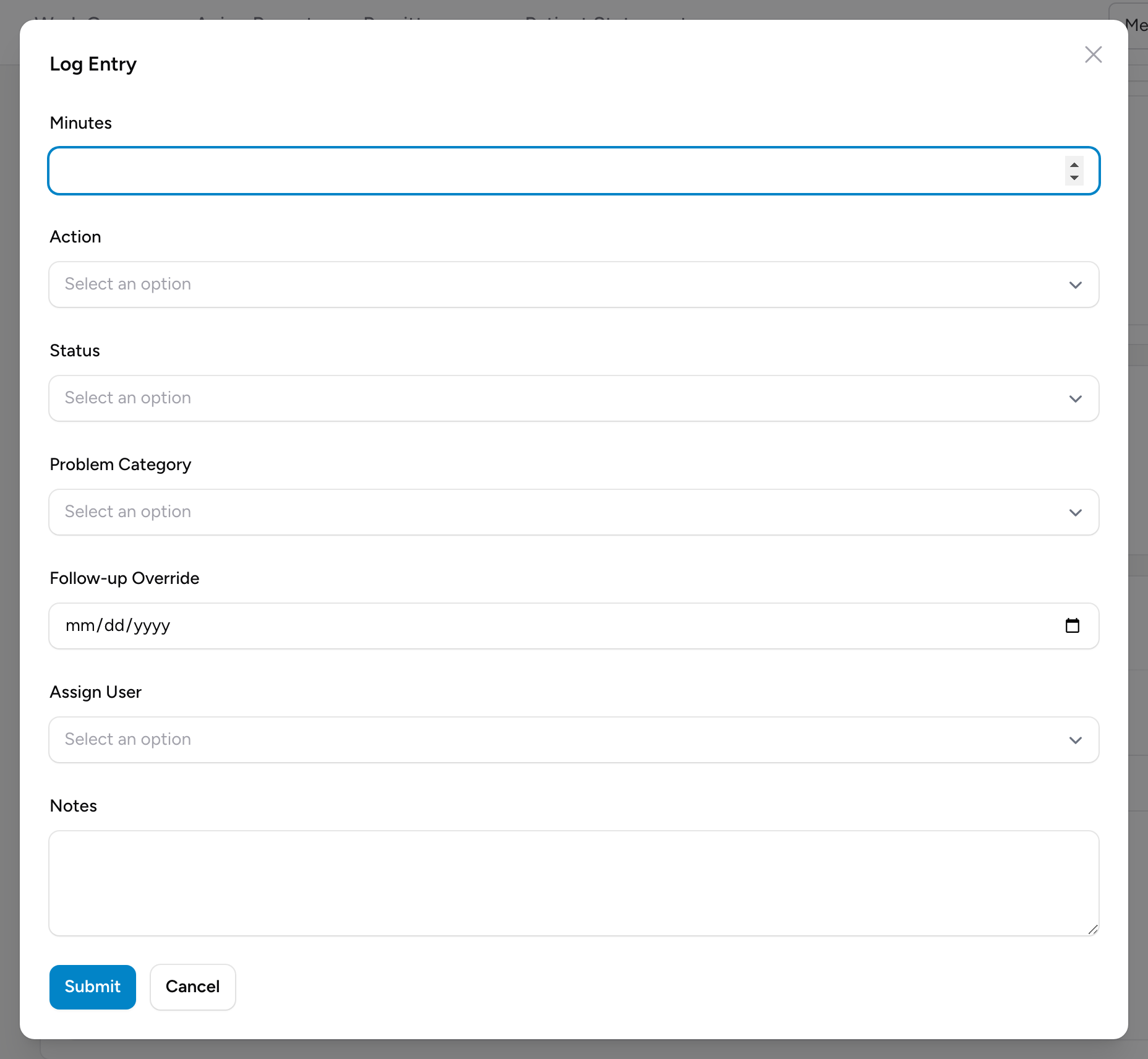
- Open the AR detail page for the claim.
- Scroll to the AR Log section and click Log Entry.
- Enter the number of Minutes you spent on this follow-up.
- Pick the action you took from the Action list.
- If the claim's status changed, pick the new Status.
- If the problem has changed, pick a new Problem Category.
- Set a Follow-up Override date if you want to change when someone checks back.
- Use Assign User if you need to reassign the claim to a teammate.
- Write a note in the Notes box describing what you did. Be specific: include the name of the person you spoke with, the reference number they gave you, or the reason for a denial.
- Click Submit.
You can also open the same form straight from the AR work queue: click a row's Actions button and pick Log Entry.
Example
You called Aetna about claim 2026-00412. The representative (Maria, reference #REF-88432) said the claim was denied because the Member ID was wrong. You correct the Member ID on the claim and plan to resubmit. In Log Entry you enter 8 minutes, pick an Action, pick a Status, set the follow-up to next week, and write this note: "Called Aetna, spoke with Maria, ref #REF-88432. Denied for incorrect Member ID. Corrected on claim, will resubmit." Click Submit and the entry shows in the AR Log.
Tips
- Write notes as if someone else will read them tomorrow. Include names, reference numbers, and next steps.
- Log a touch even if nothing changed. A note saying "Called payer, still processing, check again in 7 days" is valuable because it shows the claim is being worked.
- Tracking time spent helps your agency understand the true cost of following up on unpaid claims.