
A billing team is a group of users who work claims together. Teams are how you keep work assignments organized when more than one agency is in the picture.
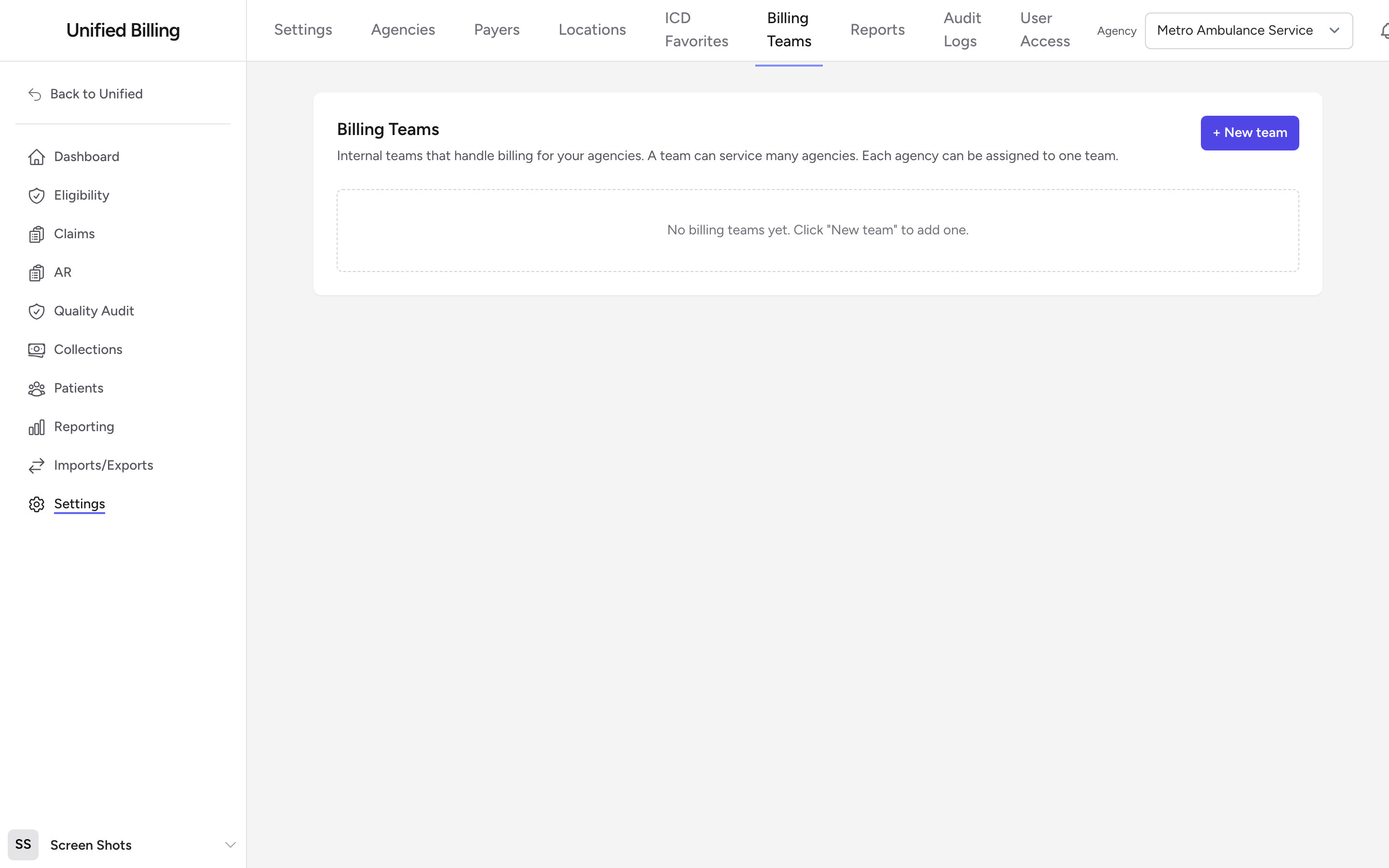
Before you start: Billing Teams live in Settings, which only company admins can open. If you do not see Settings in the menu, ask your admin.
When to use teams
If your company bills for one agency with one group of users, you may never need to create a team. Teams pay off when you bill for several agencies or run several billing pods on the same data. Example: one team handles Northern Plains EMS, a second team handles a second agency, and the weekly Team Audit and Staff QA reports break performance down by team.
Creating a team
- From the menu, click Settings, then Billing Teams.
- Click + New team.
- Fill in the form.
- Click Save team.
The fields
- Team name -- A short name that describes the team, like Northern Plains AR or Day shift billers.
- Contact email -- The address to use for team notifications. Optional.
- Lead user -- The person who runs the team. The lead is added to the members list automatically. Optional.
- Team is active -- On by default. Turn off to retire the team without deleting it.
- Members -- The users on the team. Pick each one from the Add a member dropdown and click Add. Click Remove next to a name to take them off.
- Agencies serviced by this team -- Pick each agency from the Assign an agency dropdown and click Add. An agency can only belong to one team, so agencies already on another team do not appear in the list.
Assigning a team from the agency side
You can also assign a team from inside an agency. Open the agency, click the Billing Team tab, pick the team from the Assigned billing team dropdown, and click Save. Either path produces the same result.
Tips
- Pick a lead before you save. The lead automatically becomes a member, so it is one less click.
- You can change membership at any time. People come and go from teams as roles change.