
What a payer is
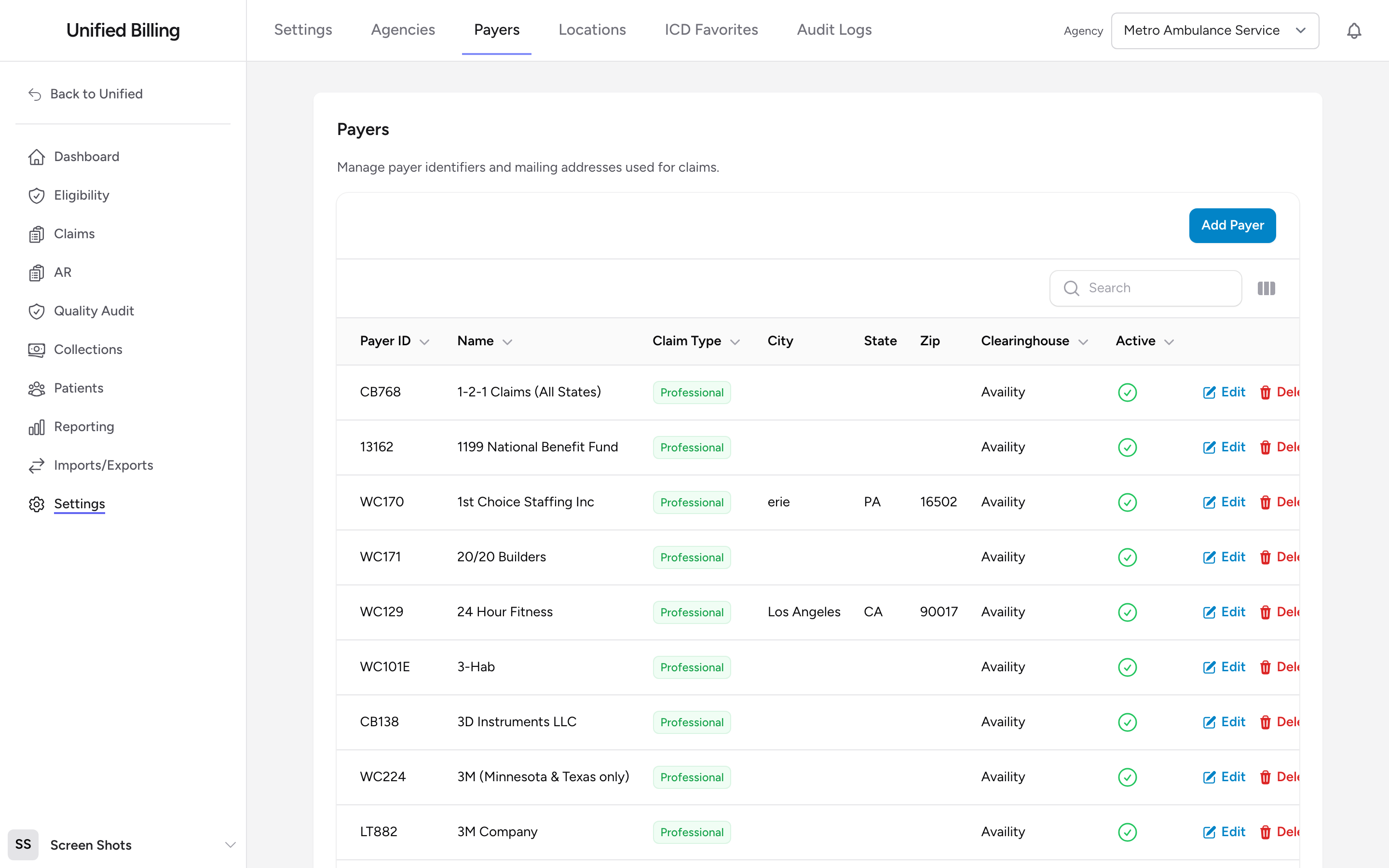
A payer is an insurance company or government program that pays for medical services. Billing keeps one list of payers. When a claim is assigned to a payer, Billing uses that payer record to generate the 837, or to print the mailing address on a paper claim (see CMS-1500 paper claims).
Adding a payer
- Go to Settings, then Payers.
- Click Add Payer.
- Fill in the form:
- Payer ID - the electronic identifier your clearinghouse uses for this payer (required).
- Name - the payer's name as you want it to appear on claims (required).
- Claim Type - Professional, Institutional, Dental, or Other (required; defaults to Professional).
- Clearinghouse - the clearinghouse this payer is listed with. The field is pre-filled with
Availity; leave it unless your agency submits through a different clearinghouse. - Active - switch off to hide the payer from new claims without deleting it.
- Address Line 1/2, City, State, Zip - the mailing address used for paper CMS-1500 claims.
Editing a payer
Click Edit in the payer's row. Update any field and save. Existing claims keep the payer information that was copied onto them at the time; new claims use the updated values.
Why the Payer ID matters
The Payer ID is what your clearinghouse uses to route the 837 to the right insurance company. It has to match exactly. Get it from the payer's provider portal or your clearinghouse's payer list.
Example
You start billing a new insurance company called HealthFirst. Open Settings → Payers, click Add Payer, enter Payer ID 12345, Name HealthFirst, Claim Type Professional, leave the Clearinghouse field as pre-filled, fill in the mailing address, and save. HealthFirst is now available in the payer picker when coding claims.
Tips
- Start with the payers you bill most often. You can always add more later.
- If electronic claims are being rejected for a specific payer, verify the Payer ID first. An incorrect number is the most common cause.
- Flip Active off for payers you have retired instead of deleting them. Historical claims still reference the record.