
Before you start: Settings lives in the user menu — click your name in the navigation, then Settings. Admins only.
The Preferences tab holds the agency-wide switches. Click Save Preferences at the bottom after changing anything.
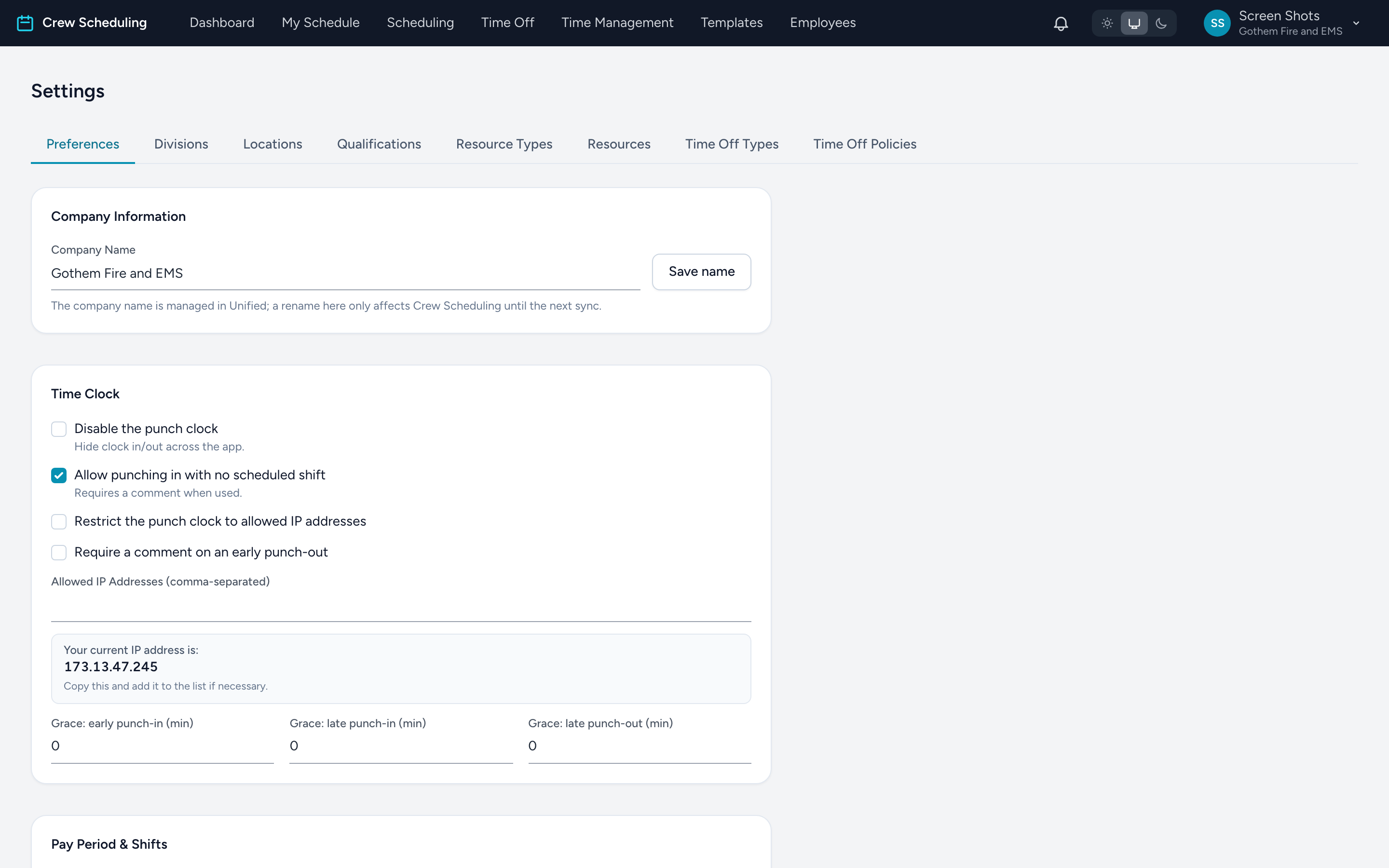
Company Information
The company name, with its own Save name button. The name is managed in Unified, so a rename here lasts only until the next sync — rename it in Unified to make it stick.
Time Clock
- Disable the punch clock — hides clock in/out across the app, for agencies that do not track punches at all. This turns punching off for everyone: crews lose the Punch Clock card and cannot clock in or out by any route. It is not a way to separate the schedule from timecards, and it does not change how the schedule behaves. Leave it off if your crews punch.
- Allow punching in with no scheduled shift — lets people clock in without a shift; the punch clock requires a comment when they do.
- Restrict the punch clock to allowed IP addresses — punching only works from the networks in the Allowed IP Addresses list (comma-separated). The box below shows your current IP address so you can add the station network you are on right now. To exempt one person, use the bypass switch on their profile.
- Require a comment on an early punch-out — makes leaving early explain itself.
- Grace windows — three numbers, in minutes: early punch-in, late punch-in, and late punch-out. Inside the window a punch is just a punch; outside it, the clock demands a reason and the timecard gets flagged for review.
The schedule never creates hours. Hours only ever come from a punch someone made or a punch an admin recorded. A scheduled shift that nobody punched for shows as a Missed Punch card so the gap is visible, and that card carries no hours and counts toward nobody's pay. There is no setting that stops those cards appearing, and none is needed.
Pay Period & Shifts
- Pay Period Frequency — Weekly, Bi-weekly, Semi-monthly, or Monthly — and the Pay Period Start Date.
- Generate Pay Periods — creates the periods from the start date through two years ahead. Save the frequency and start date first. Existing periods are kept, so it is safe to run again when the two years run down.
- Day Shift Start Time and Night Shift Start Time — these feed the Day shift / Night shift presets employees use when marking availability.