
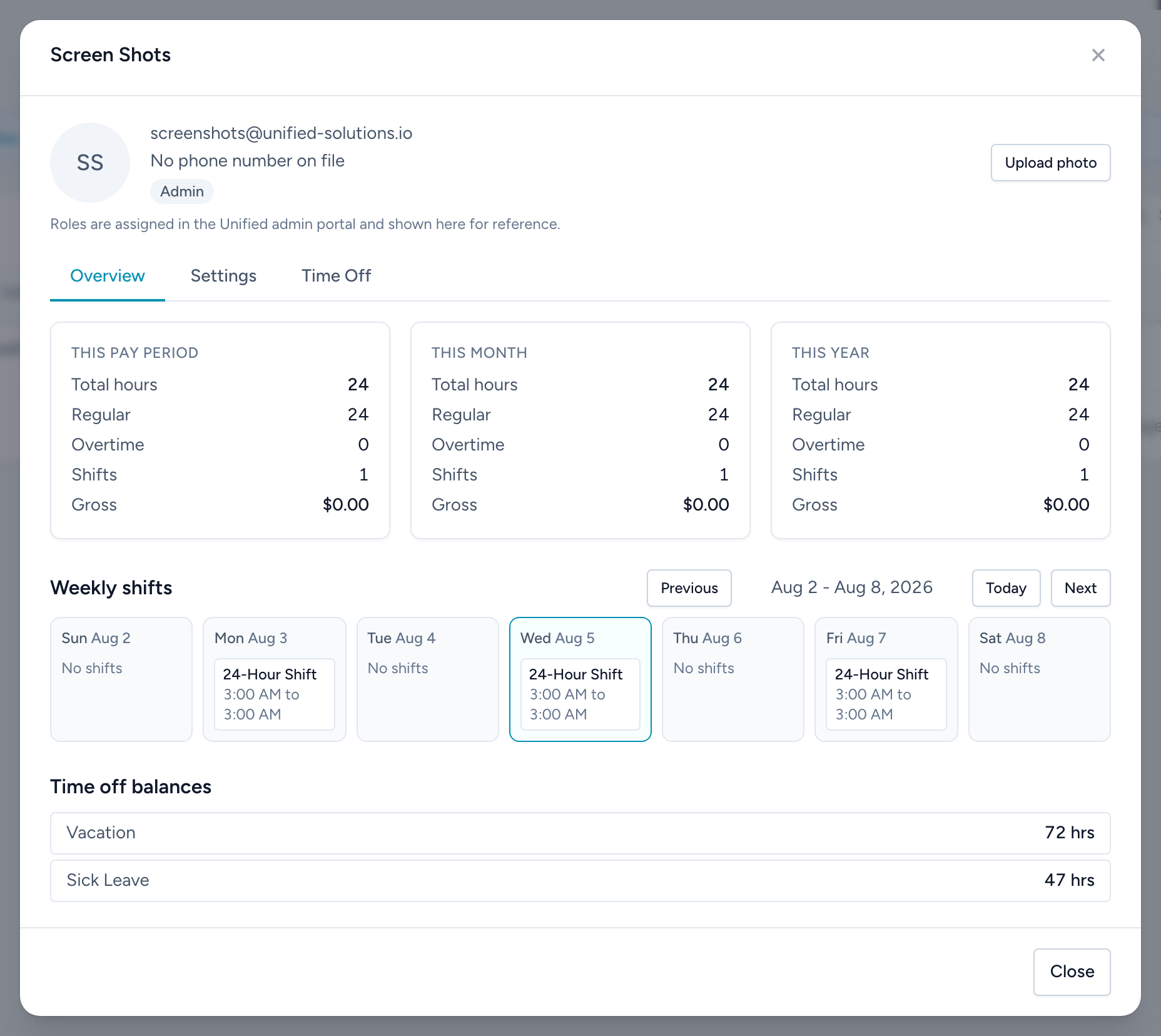
Click Manage on the employee list to open a person's profile. The header shows their photo, contact info, and roles, with Upload photo / Replace photo buttons (JPEG, PNG, or WebP). Three tabs below:
Overview
Hours, overtime, shifts, and gross pay for This Pay Period, This Month, and This Year; a Weekly shifts grid you can page through week by week; and their current time-off balances.
Settings
- Division and Start date. The start date matters for time-off policies with years-of-service rules.
- Hourly or Salary, with the matching rate. This drives every earnings number in the app.
- Qualifications — what they are allowed to work. Shift requirements check against this list, so keep it current.
- Bypass punch clock IP restriction — lets this one person punch from anywhere while the agency-wide network restriction stays on. For supervisors or remote workers.
Click Save when done.
Time Off
- Assigned policies — attach time-off policies so the person starts accruing. Assigning a policy also opens the matching balance.
- Balance adjustments — one-off corrections: pick the type, an amount in hours (negative subtracts), a reason, and click Add. Use it for starting balances when you first move onto Crew Scheduling, or an agreed correction. Every adjustment is listed with its reason, and can be edited or deleted later.