
Before you start: Employees is admin-only.
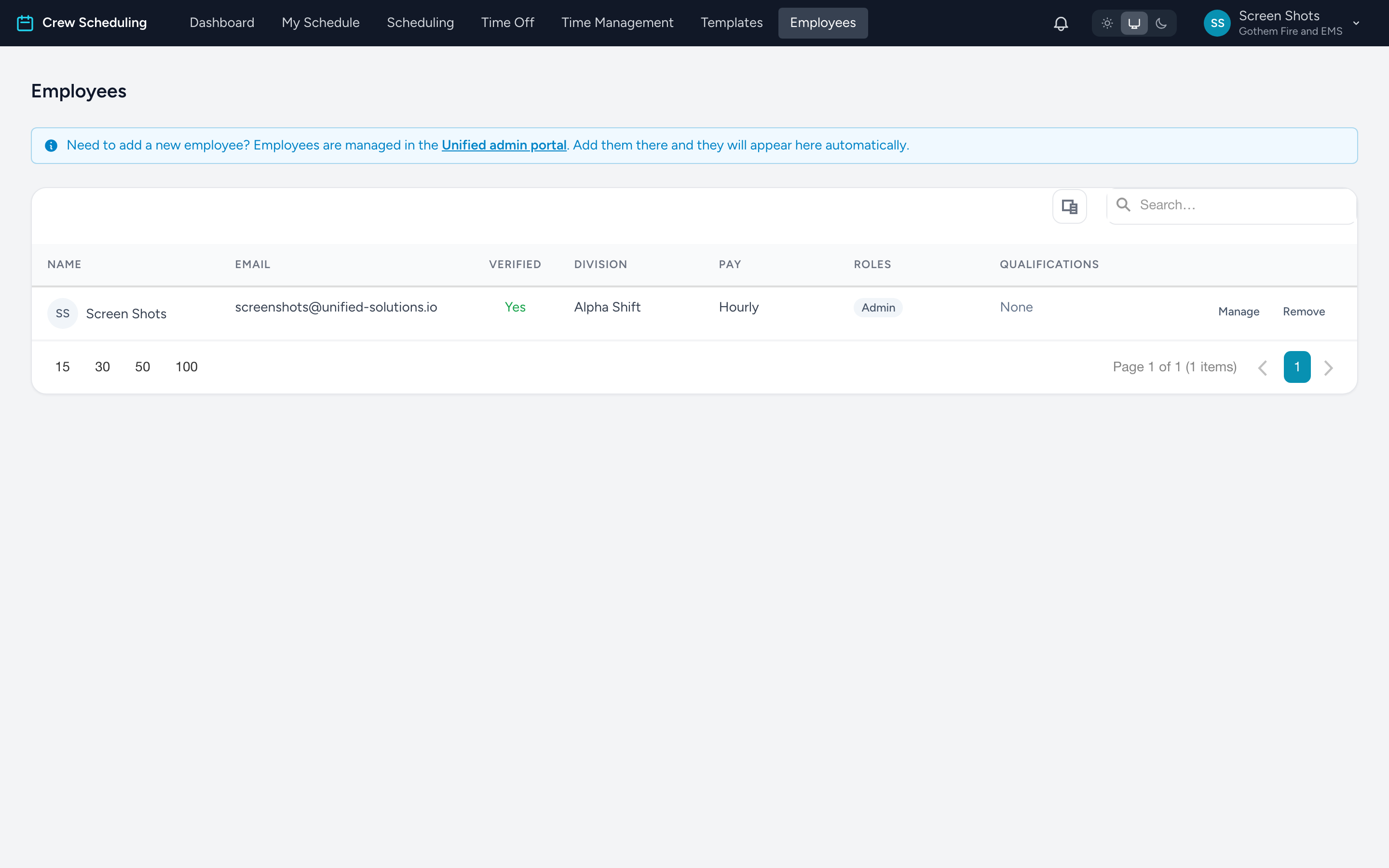
From the navigation, click Employees. Every crew member at your agency is listed with their photo or initials, email (and whether it is verified), division, pay type, roles, and qualifications. The grid sorts and filters like a spreadsheet.
Where new employees come from
You do not create employees here. People are added in the Unified admin portal — the banner at the top links to it — and appear in Crew Scheduling automatically. Roles are also assigned there; the list shows them for reference.
Managing someone
Click Manage on a row to open their profile — pay setup, qualifications, time-off policies, and stats. See Managing an employee.
Removing someone
Remove takes the person out of your agency in Crew Scheduling. Their shifts and timecard history stay for your records, but they lose access, roles, and qualifications here. You will be asked to confirm.