
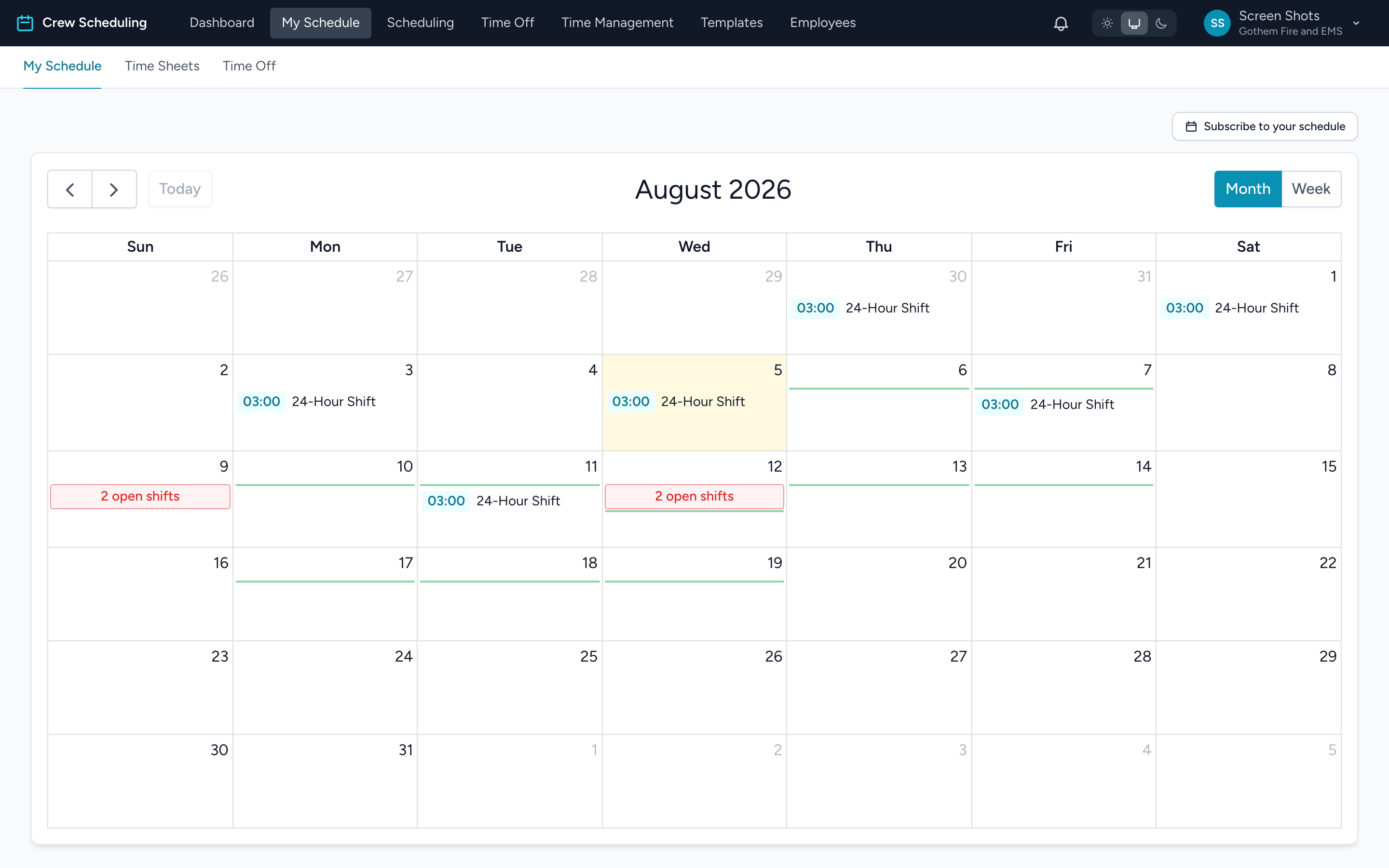
My Schedule is your personal calendar. From the navigation, click My Schedule.
Reading the calendar
- Your shifts — white cards with a time badge. A shift that runs past midnight (a 24 or 48 hour shift) shows on the day it starts.
- Open shifts — red entries. These are unfilled shifts you can bid on.
- Availability — green chips labeled with the hours you marked yourself available.
- Colored day tints — if your agency uses a primary rotation, its working days are washed in the rotation's color.
Use the buttons above the calendar to move between months, jump to today, or switch between the month and week views.
Opening a day
Click any day (or any entry on it) to open the Shift information window for that date. It has four tabs:
- My Shift — your shifts that day, with a Request shift off button on each.
- Shift Bids — open shifts that day you can bid on.
- Schedule — who else is working that day, grouped by shift.
- Availability — mark yourself available for extra work that day.
Tip: the calendar shows times in your device's own timezone. Exact shift times in the Shift information window are shown on your agency's clock.