
When you record a controlled substance on a chart, the medication entry asks for two more things: how much you wasted, and who watched you do it. This article covers both, plus the agency setting that decides whether missing waste documentation stops a chart from being submitted.
Before you start: You need an open PCR on the Timeline tab. The waste box only appears after you pick a controlled medication, so start by adding the medication the usual way. See Adding medications.
How CloudPCR knows a drug is controlled
Two things make a drug controlled. A list of common controlled medications (fentanyl, morphine, midazolam, ketamine, diazepam, lorazepam, hydromorphone and others) is recognized for every agency with no setup. On top of that, an administrator can flag any drug in your formulary.
To flag one, go to Settings, then Demographics, then Configuration, and open the configuration for editing. Under Medication Groups, open the group that contains the drug. Each medication in the group has a Controlled substance checkbox beside it. Tick it and save the group. As the page says, marking a medication as controlled turns on waste documentation for it on the ePCR.
When you pick a controlled drug in the medication entry, an amber Controlled Substance Waste box appears under the dose fields. If you mark the medication as not given using the PN button, the waste box goes away again.
Recording what you wasted
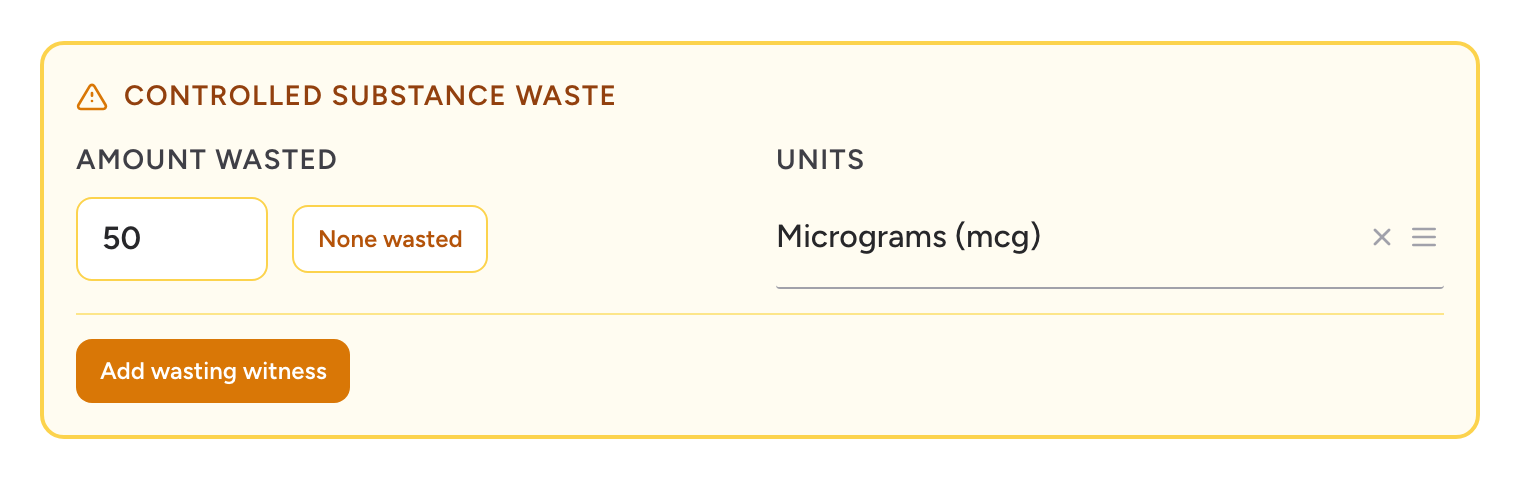
- In the Controlled Substance Waste box, type the leftover amount in Amount Wasted.
- Pick the Units that go with it. This list is shorter than the dose units list because rate units like "per hour" cannot describe a waste.
- If nothing was left over, click None wasted. That fills the amount with zero and clears any witness you had already attached.
Zero is a real answer and a blank field is not, so record something either way. A witness is only asked for once the amount is greater than zero.
Switch the Timeline to Legacy view and the medication form gains a Concentration field, marked optional, just above the waste box. It records what was in the vial: an amount in the first box and the measure in the second, for example 100 and mcg/2mL. It is worth filling in on partial doses, because it is what lets a reviewer see that the dose plus the waste adds up to the container.
Adding the wasting witness
Once you enter an amount above zero, an Add wasting witness button appears. Click it and the Wasting Witness window opens on top of the medication form. Pick one of the two buttons at the top.
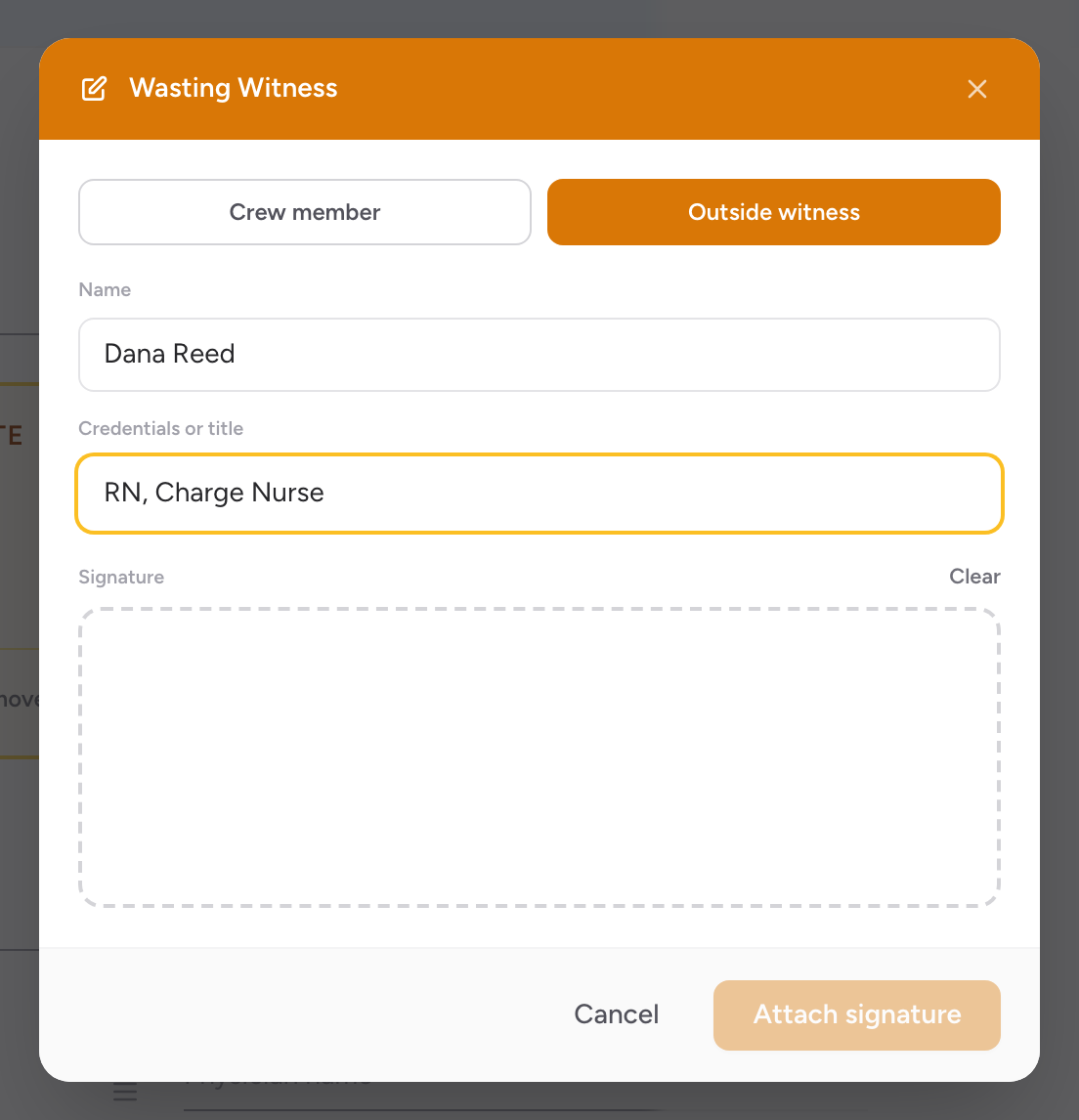
Crew member
Use this when a coworker watched the waste.
- Pick the person under Who witnessed it.
- Type their Email and have them type their Password. This is the same password they use to sign in to Unified Solutions.
- Click Verify. The button reads Checking... while it works, then the row is replaced by a green Verified as line with their name.
- The signature pad unlocks. Have them sign, then click Attach signature.
You cannot witness your own waste. If you type your own email, CloudPCR answers "The provider who gave the medication cannot witness their own waste." After five wrong tries in a minute it also asks you to wait before trying again.
Outside witness
Use this when someone outside your agency watched, most often a nurse at the receiving hospital. Type their Name and their Credentials or title, for example RN, Charge Nurse. There is no password step, so the pad is ready straight away. Have them sign and click Attach signature.
If you have no signal
A coworker can still countersign with no connection. Capture the signature and the entry is marked Countersign pending. The coworker confirms it from this chart once you are back online. Open the medication again, click Change next to the witness, and finish the password step. Until that happens the waste counts as incomplete.
What you see afterwards
There is no confirmation message. The witness shows as a chip in the waste box with a green check, their name, and their title, with Change and Remove next to it. Save the medication and the timeline entry gains a Waste group showing Concentration, Amount Wasted, Witness, Witness Title, and Verified.
The signature itself is stored with the chart and goes out with your state submission and on the printed PDF, but it is not shown back to you in the form. If a signature was captured by the wrong person, replace it rather than trying to view it.
The agency setting for submitting
Agency administrators choose how strict this is. From the navigation, click Settings, then Preferences, and scroll to Controlled Substances.
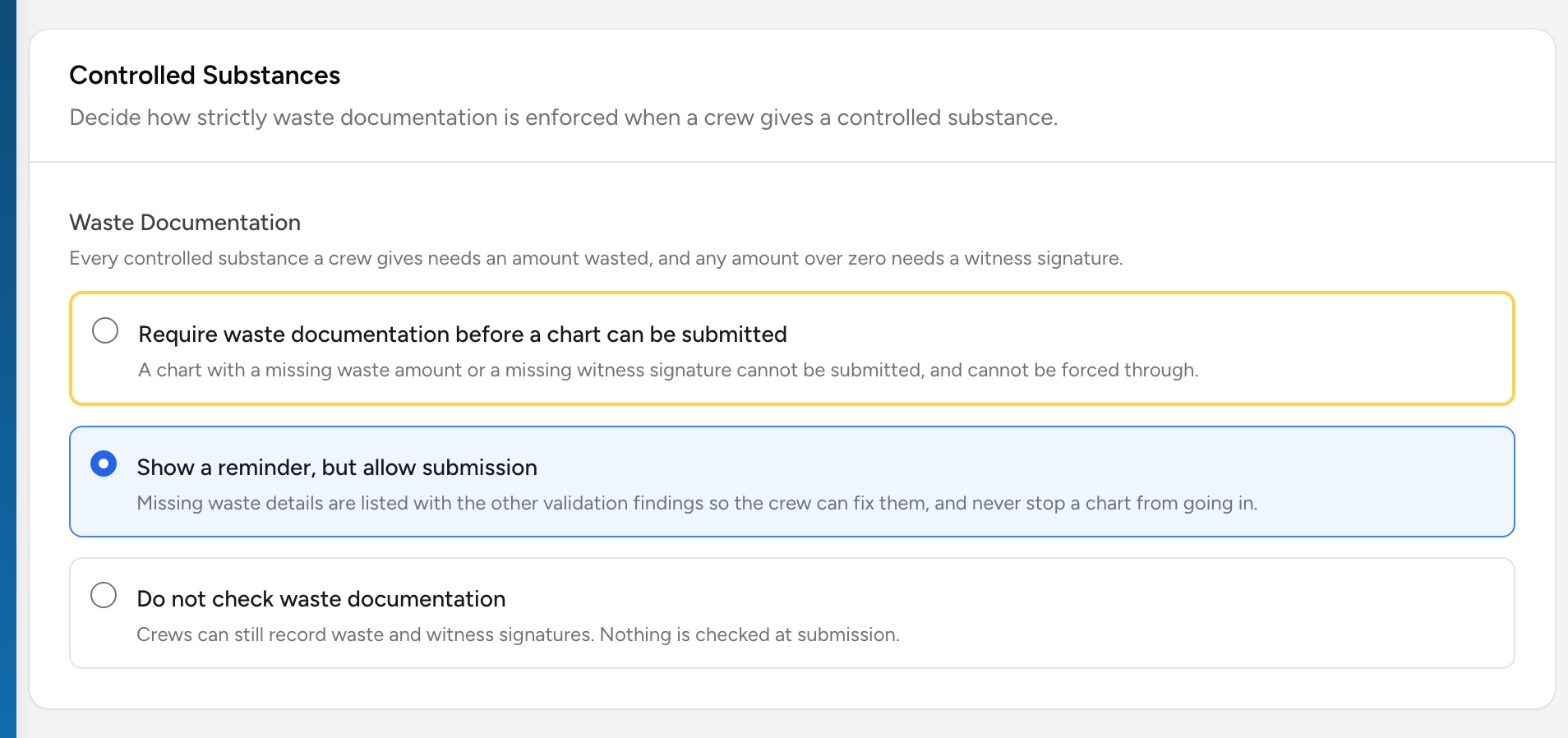
Under Waste Documentation there are three choices:
- Require waste documentation before a chart can be submitted. A chart with a missing waste amount or a missing witness signature cannot be submitted, and cannot be forced through.
- Show a reminder, but allow submission. This is the starting setting. Missing waste details never stop a chart from going in.
- Do not check waste documentation. Crews can still record waste and witness signatures. Nothing is checked at submission.
The choice saves the moment you click it. There is no Save button on this page.
On the strict setting, a crew who tries to submit an incomplete chart gets a Validation Issues Found window that names the problem, for example "1 controlled-substance waste record is incomplete. Waste documentation must be completed before this chart can be submitted." The only button offered is Review Issues. The usual Submit Anyway button is not there, which is the point of the setting.
Tips
- Capture the witness at the truck, not at the end of the shift. The nurse who watched you waste is gone by then.
- Fill in Concentration whenever you give part of a vial. It turns "50 mcg wasted" into a number a reviewer can check without calling you.
- Agencies that waste at the emergency department will use Outside witness most of the time. That is expected and is not treated as a problem.
- Try the strict setting on a quiet week before turning it on for good. It cannot be overridden once a chart is short of a signature.
Where to look next
Charts that are still missing something show up in Controlled Documentation Review, and the witness picture across the whole agency is in Waste and Witness Compliance. Submitted charts also send their medication records to Drug Tracking, where they appear on the Administrations page.