
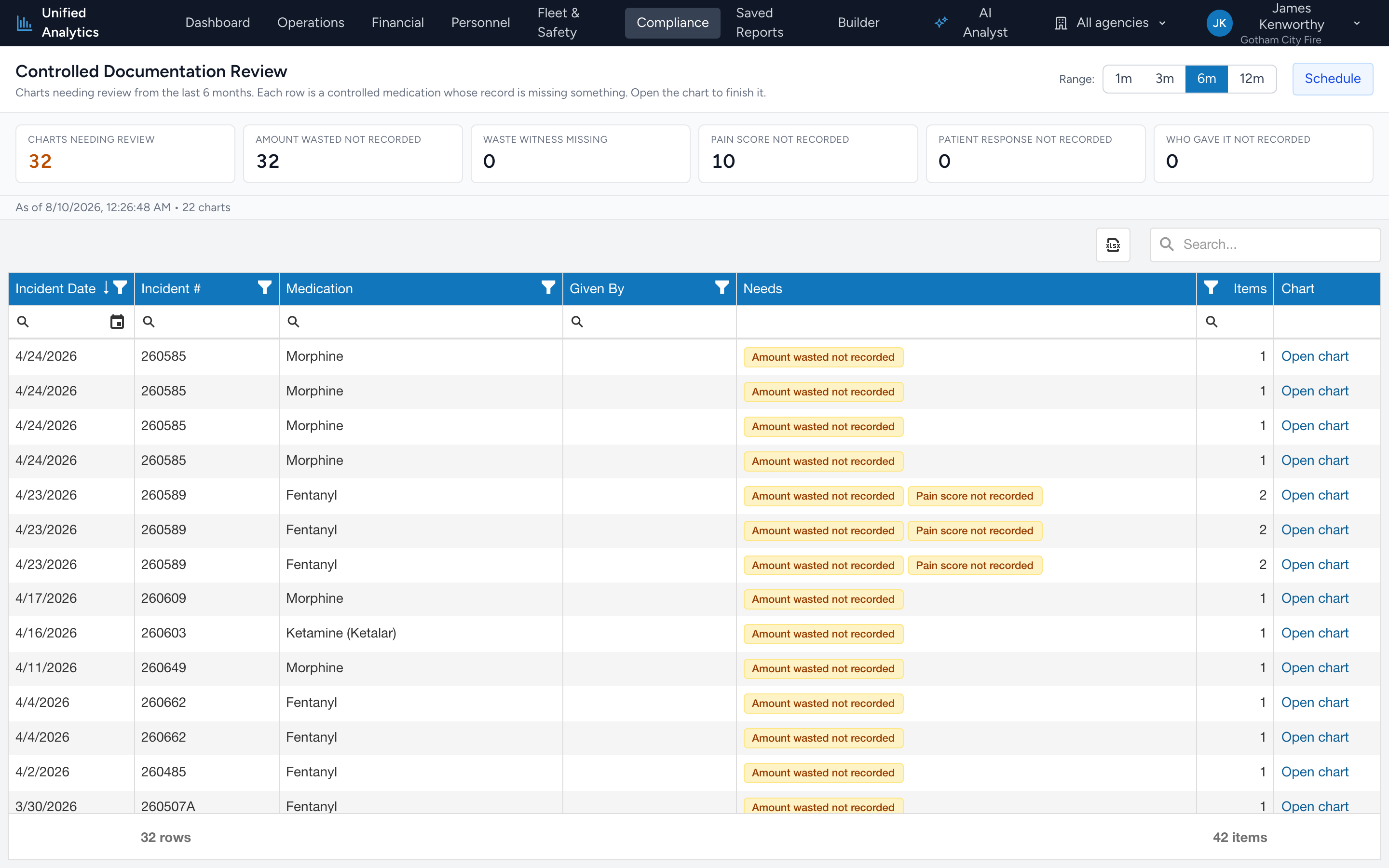
Controlled Documentation Review is a work queue. Each row is one controlled medication whose record is missing something a controlled-substance file needs, with a link straight to the chart so you can finish it.
Before you start: Fixing a row means editing the chart in CloudPCR, so you need permission to open and amend charts there.
How to use it
- From the navigation, click Compliance.
- Click Controlled Documentation Review.
- Pick a Range. The tiles across the top count how many charts are missing each item.
- Click Open chart on a row. The chart opens in a new tab.
- Fill in what is missing and save. The row drops off the next time the report loads.
What counts as needing review
- Amount wasted not recorded — the waste field is empty. Zero is a valid answer; blank is not.
- Waste witness missing — waste was recorded but no one signed as the witness, or an employee countersign was never finished.
- Pain score not recorded — no pain score anywhere on the chart. For a controlled analgesic this is the number that justifies the dose.
- Patient response not recorded — the response to the medication was left blank.
- Who gave it not recorded — no crew member was selected as administering.
Reading the grid
Columns are Incident Date, Incident #, Medication, Given By, Needs, Items, and Chart. A chart with two problems shows two chips in the Needs column and a 2 under Items. Sort by Items to clear the worst ones first.
These are charts needing review, not violations. Most are a field someone meant to come back to at the end of a busy call.
Tips
- Work oldest first. The longer a chart sits, the less anyone remembers about the call.
- Use the search box on a medic's name if the same person keeps showing up. That is a training conversation, not a discipline one.
- An empty page with a green Nothing to review note means nothing in the window needs attention.
Where the data comes from
CloudPCR, live. Fix a chart and the row disappears on the next load.