
The Administrations page is the record of every dose your crews gave a patient. Some rows arrive on their own from a submitted chart. The rest are logged here by hand, which is what agencies without CloudPCR do.
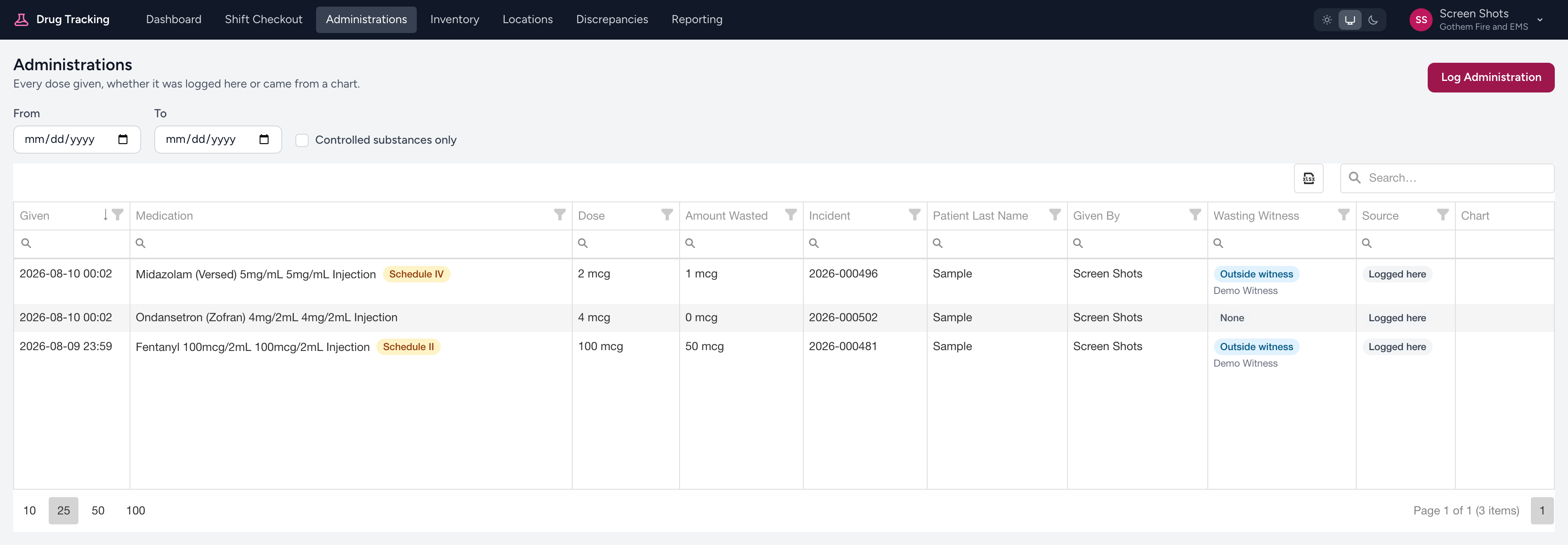
What you see
From the navigation, click Administrations. Company admins see every dose. Everyone else sees the doses they gave, which the line under the heading tells you.
Each row shows when the dose was given, the medication (with its schedule beside it when it is a controlled substance), the dose, the amount wasted, the incident number, the patient last name, and who gave it. Three columns are worth knowing:
- Wasting Witness reads None, Outside witness, Countersigned, or Awaiting countersign, with the witness name underneath when there is one. Rows awaiting a countersign are tinted amber so they stand out.
- Source reads From chart for a dose that came across from CloudPCR, or Logged here for one someone typed in.
- Chart has an Open ePCR link on rows that came from a chart. It opens that patient care report in a new tab. Rows logged by hand have nothing here, because there is no chart to open.
Above the list, From and To narrow the dates and Controlled substances only hides everything else. All three apply as soon as you change them. The search box at the top right of the list searches every column, and the small spreadsheet icon next to it downloads what you are looking at.
Logging a dose by hand
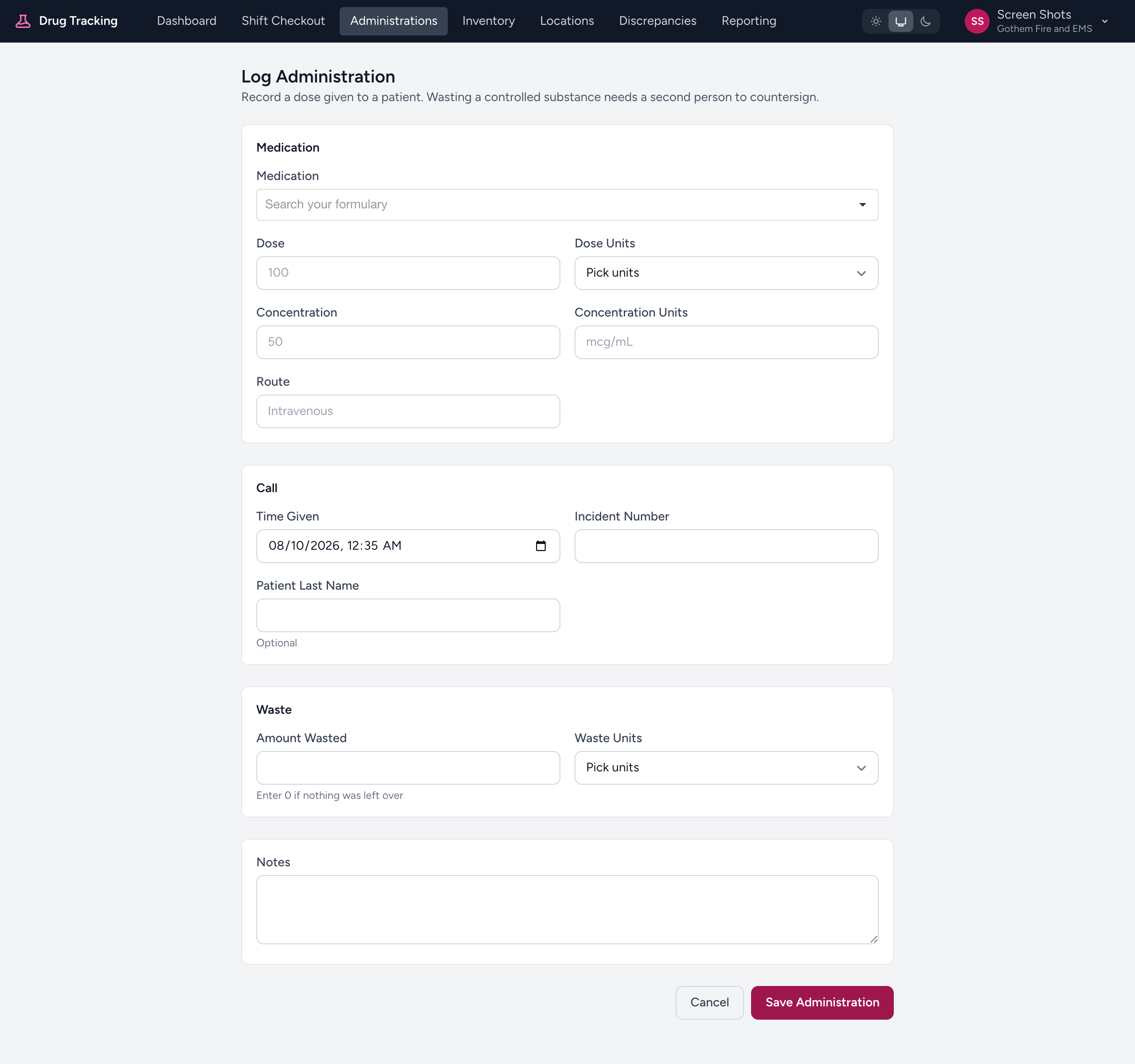
Click Log Administration at the top right. The form is one page of sections rather than a set of steps, so you can fill it in any order.
- Under Medication, start typing in the Medication box and pick the drug from your formulary. Controlled drugs are labelled in the list, and once you pick one an amber tag appears showing its schedule.
- Fill in Dose and Dose Units, and where it helps, Concentration, Concentration Units, and Route.
- Under Call, check Time Given (it starts at the current time) and type the Incident Number. Patient Last Name is optional.
- Under Waste, enter the Amount Wasted and pick the Waste Units. Enter 0 if nothing was left over.
- Add anything else worth knowing under Notes, then click Save Administration.
Only three things are actually required: the medication, the incident number, and the time given. When it saves you land back on the list with a banner reading "The administration was logged."
Important: A saved administration cannot be edited or deleted. Check the drug, the dose, and the incident number before you click Save Administration.
If your agency puts Unified QR labels on its controlled vials, a Used Vial section appears once you pick one of those drugs. Scan the label on the vial you drew from, or use your phone as the scanner. If the label is torn or unreadable, tick The label is missing or unreadable, say what happened, and add a photo of the vial if you have one.
The witness step
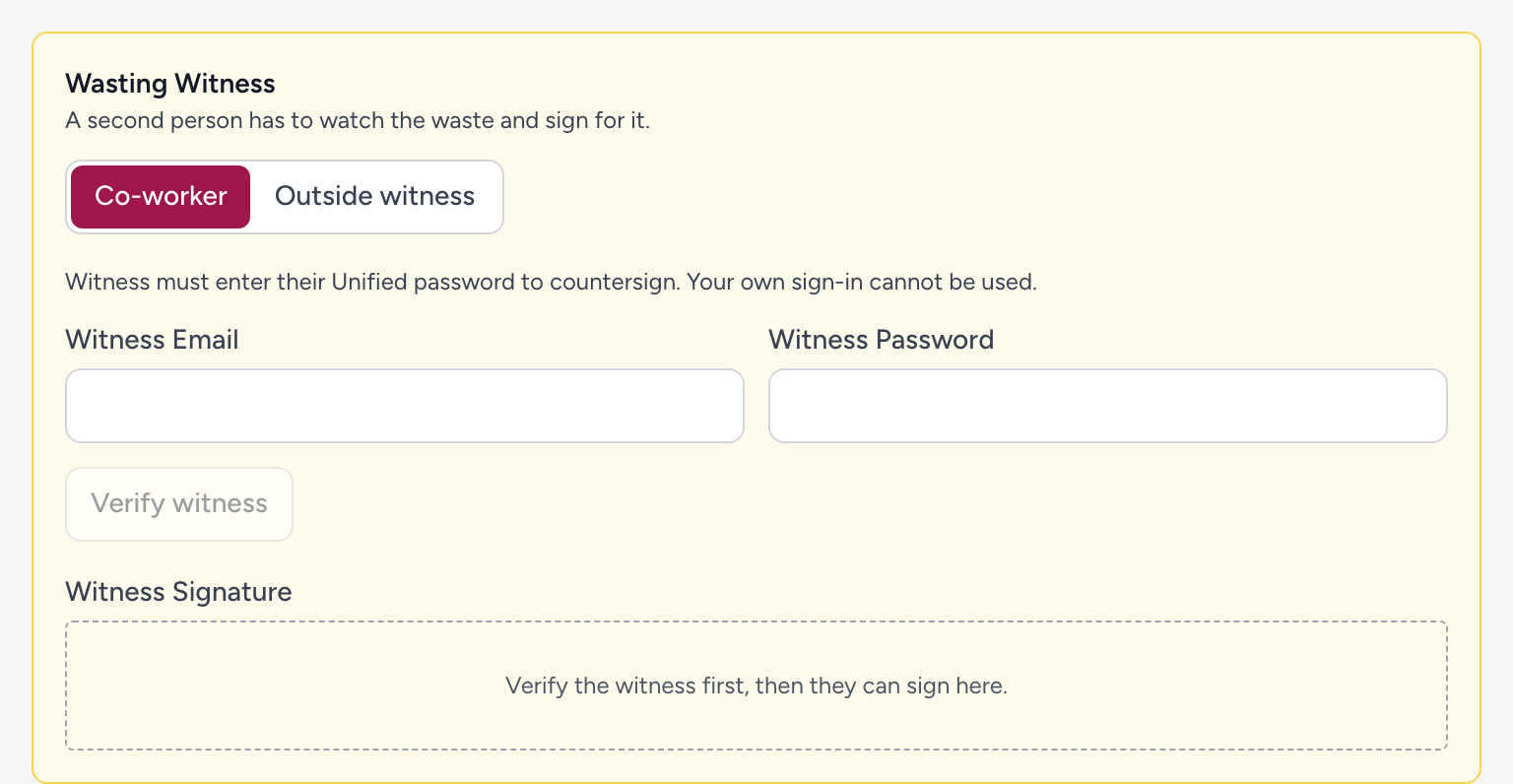
A Wasting Witness section appears when the drug is controlled and you wasted something. Pick one of the two buttons.
- Co-worker. Type their Witness Email and have them type their Witness Password, which is the password they use to sign in to Unified Solutions. Click Verify witness. Their name appears in green and the signature area unlocks for them to sign.
- Outside witness. Use this for a hospital nurse or anyone else outside your agency. Type their Witness Name and Title or Facility, for example RN, County General. There is no password step, so they can sign straight away.
You cannot countersign your own waste. Type your own email and the page tells you so before you get as far as the password. If a password is typed wrong five times in a minute, wait a minute before trying again.
A countersignature only stays good for about fifteen minutes. If the form sits open longer than that, the witness enters their password once more before you save.
Doses that came from a chart
When a crew submits a chart in CloudPCR, every medication on it comes across to this page on its own. You do not log those a second time. They arrive marked From chart with an Open ePCR link, and they bring their waste amount and witness with them.
A controlled dose from a chart usually lands as Awaiting countersign, because the crew captured the signature at the truck rather than typing a password. That is normal, and the crew finishes it from the chart itself. See Documenting controlled substance waste.
Tips
- Tick Controlled substances only and sort by Wasting Witness to find the records that still need a signature.
- Use the same incident number your crews use on the chart. It is what ties the two records together when someone goes looking.
- Logging a dose here does not change your stock counts. Counts are still reconciled at checkout.
Where to look next
The agency-wide view of waste and witnesses lives in the Analytics app under Compliance. See Waste and Witness Compliance and Administration and Custody Cross-Check.