
The dashboard is the first thing you see when you open Drug Tracking. It is designed to answer one question fast: is anything off?
Regular crew members see their own active checkout. Admins see additional cards with agency-wide par status, a weekly usage summary, and expiring stock counts.
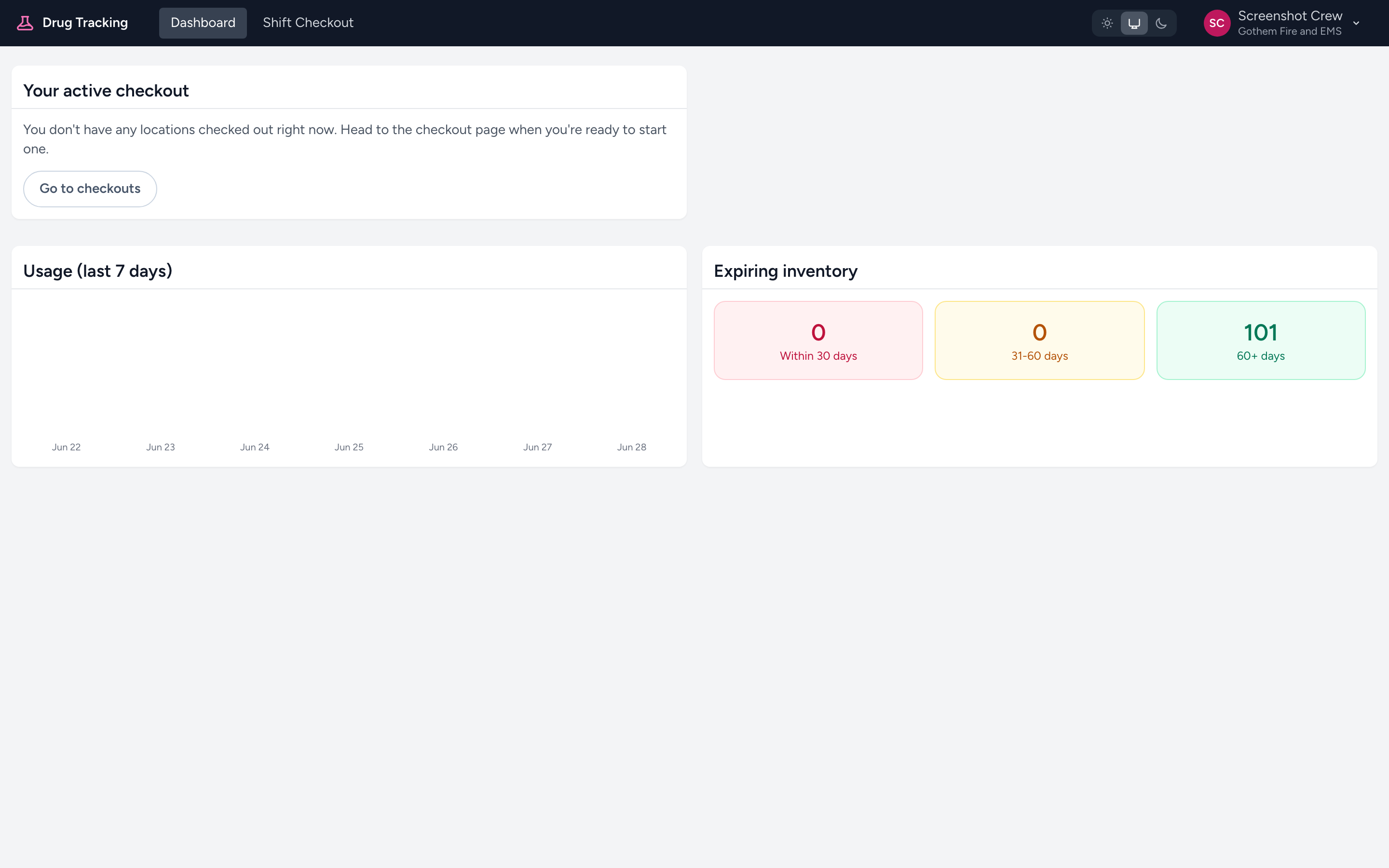
Your active checkout
This card shows any checkout you have started but not yet checked in. It is useful if you had to pause a checkout mid-shift. Click Resume checkout to pick up where you left off. If you do not have one in progress, the card links to the Shift Checkout page to start a new one.
Active checkouts (admin view)
Admins also see every active checkout across the agency — crew member, location, and when the checkout was started — along with quick links to Discrepancies and Manage.
Par status (admin view)
Admins see a Par status card with two tabs: Under par (items stocked below the expected level) and Over par (items stocked above the expected level). Each item shows the product, location, par or max target, actual count, and the size of the gap. The list is capped at the twenty biggest gaps.
For example, if your Medic 7 drug box should have 4 vials of Epinephrine 1:10,000 but only has 2, Epinephrine will appear under Under par with the location and the shortfall.
Items removed (last 7 days) (admin view)
A simple bar chart showing how many inventory items were removed each day for the past week. It helps you spot patterns — for instance, whether replacements spike on weekends.
Inventory expiring soon (admin view)
Three counts side by side: stock expiring in 0-30 days, 31-60 days, and 60+ days. These are totals, not an item list — if the 0-30 number is high, open a drug from Inventory to see its lots and expirations, or use the Reporting link (the Analytics app) for an agency-wide view.
Tip
Admins: make it a habit to glance at the dashboard before a busy shift. If something is already flagged as under par, your crew can grab the replacement from supply before they even start the verification.