
When you are ready to finish
Once every location shows Verified, you can finish the checkout.
Step by step
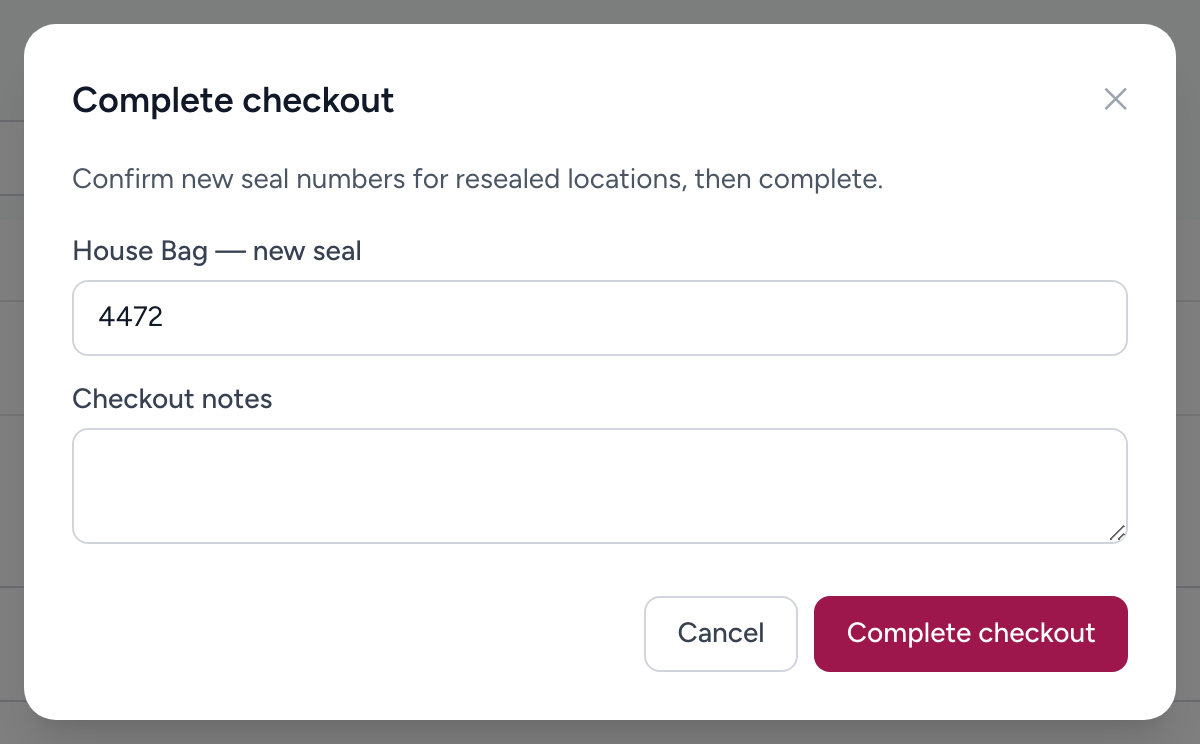
- Click Complete at the top of the checkout. It stays disabled until every location is verified.
- For each sealed location, enter the new seal number you placed when you closed it back up.
- Add closing notes if needed — for example, "Replaced expiring Morphine, notified station supply" or "Seal was already broken on arrival, previous crew aware."
- Confirm to finish.
What happens after
The checkout is saved as a permanent record. Your name, the date and time, and every detail of the verification are locked in. Admins can find it later under Manage Checkouts.
Can I change something later?
While the checkout is active you can keep working any item, or click Cancel to stop (it is kept in your history as cancelled). After you complete it, ask your supervisor if you need a correction.
Example
You have finished Medic 12's drug box. Everything matched except one short Midazolam, which you replaced and documented. You click Complete, enter the new seal number, add the note "Shift change with Engine 5 crew, all narcotics verified and accounted for," and confirm. The checkout is done.
Tip
Write a brief note even when nothing was wrong. "All items verified, no issues" makes it clear the checkout was thorough.