
Admins can see and manage every checkout across the agency, not just their own. This is where you confirm shifts ran their checkouts and clear one that a crew left open.
Before you start: This page is for agency admins.
Open it
From the menu, go to Shift Checkout, then open Manage Checkouts. The page reads "Review location checkouts and force-close stuck ones."
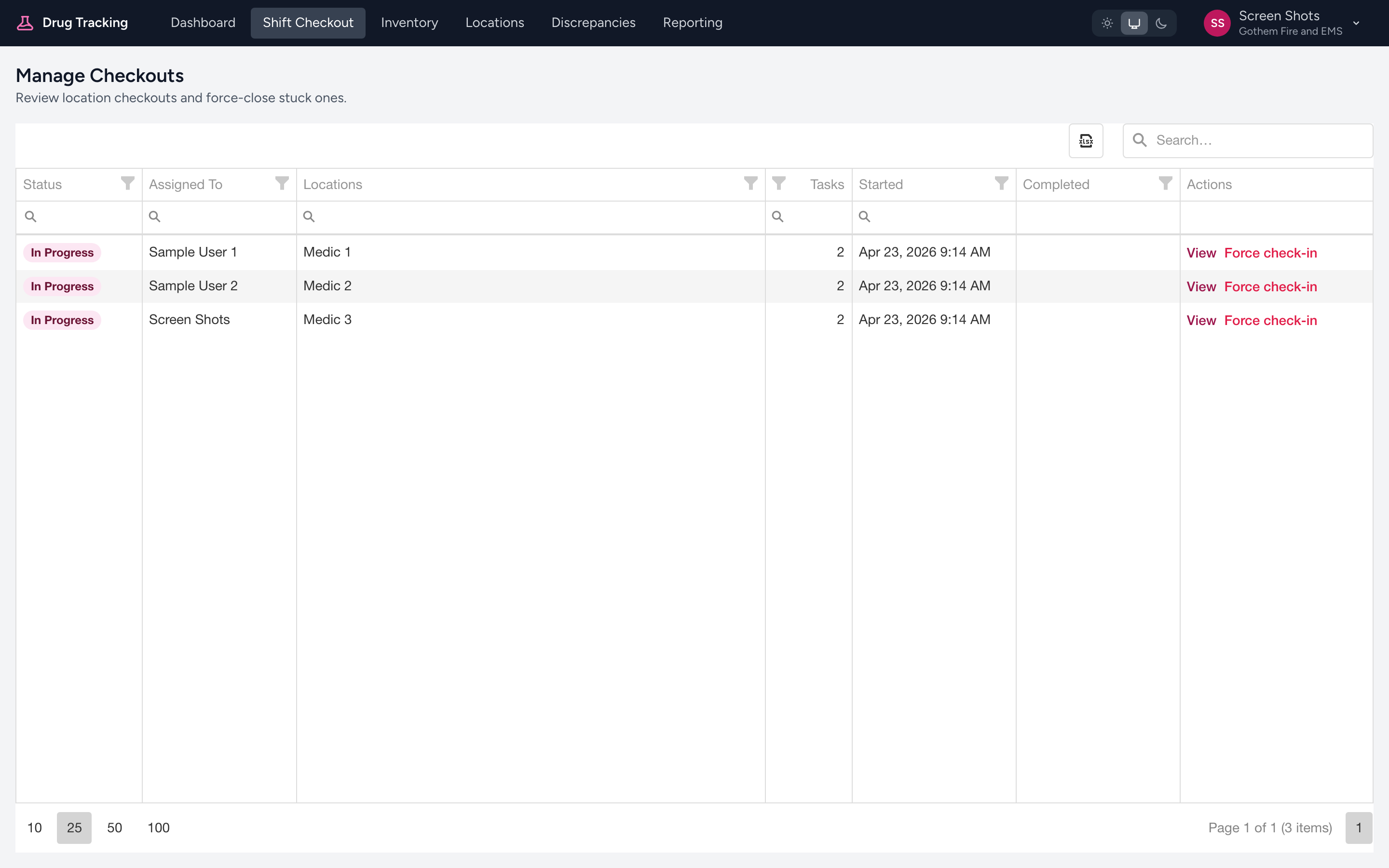
What each row shows
- Status — Completed, In Progress, or Cancelled.
- Assigned To — the crew member who started it.
- Locations and Tasks — what the checkout covered.
- Started and Completed times.
Force check-in
If a crew started a checkout and never finished it, the location stays checked out and others cannot work it. Click View to see the detail, then Force check-in to close it. You are asked for a reason, which is recorded.
Example
Monday morning, Medic 12 still shows In Progress from the weekend — the crew ran the drug check but never clicked Complete. You open Manage Checkouts, click View on that row, confirm the counts look done, and Force check-in with a short reason.
Tip
For agency-wide reporting over time, use the Reporting link, which opens the Analytics app. See Where to find reports.