
How it works
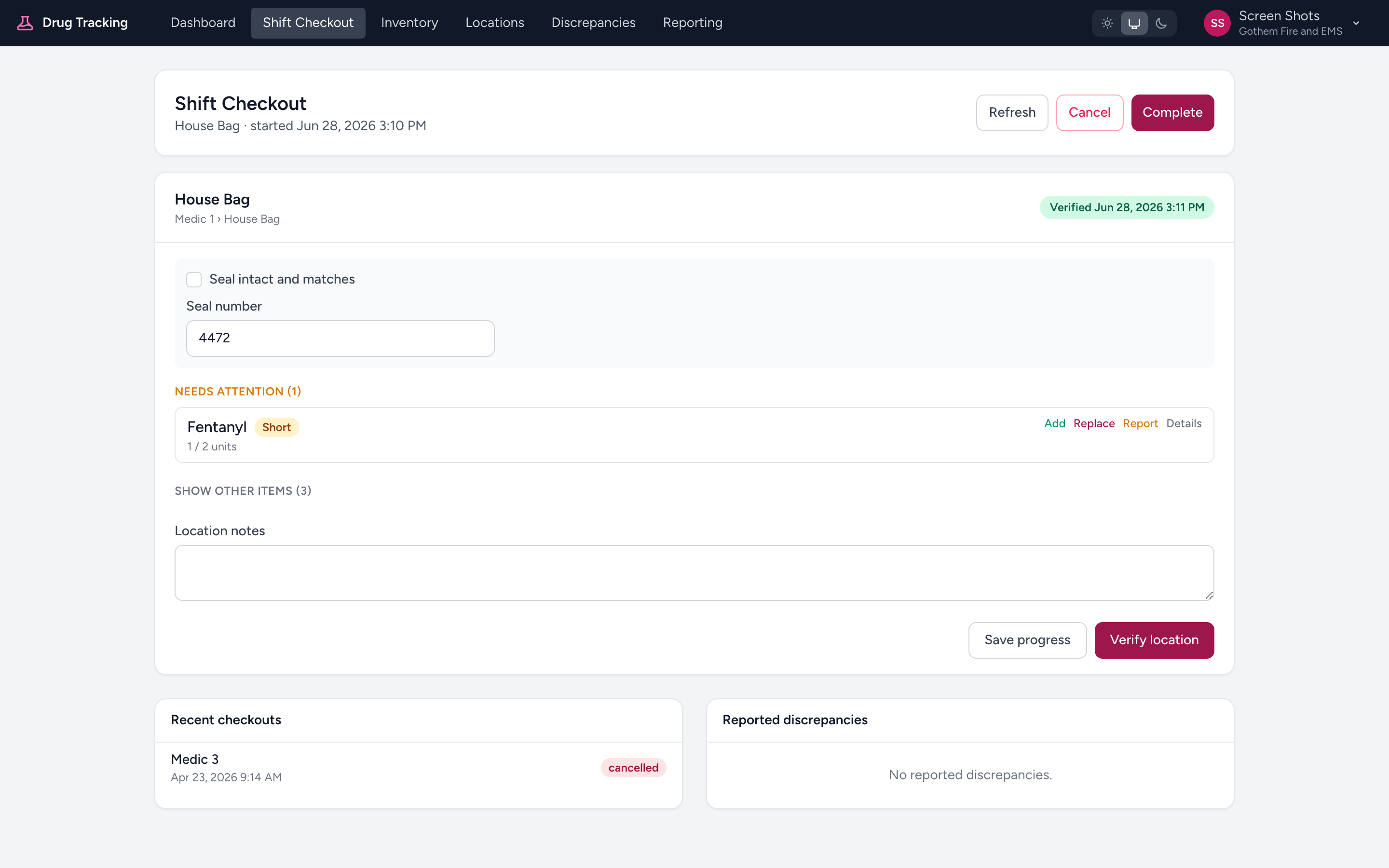
After you start a checkout, each location shows as its own card. Items that need a look are grouped under Needs attention; the rest are tucked behind a Show other items toggle so you can focus on what matters.
Verifying a location
Go through the physical drug box and compare each item to its expected count. If the location is sealed, confirm the seal first (enter the number and check Seal intact and matches). When the location is correct, click Verify location — its badge changes from Pending to Verified. Click Save progress any time to pause and come back later.
Reporting a problem
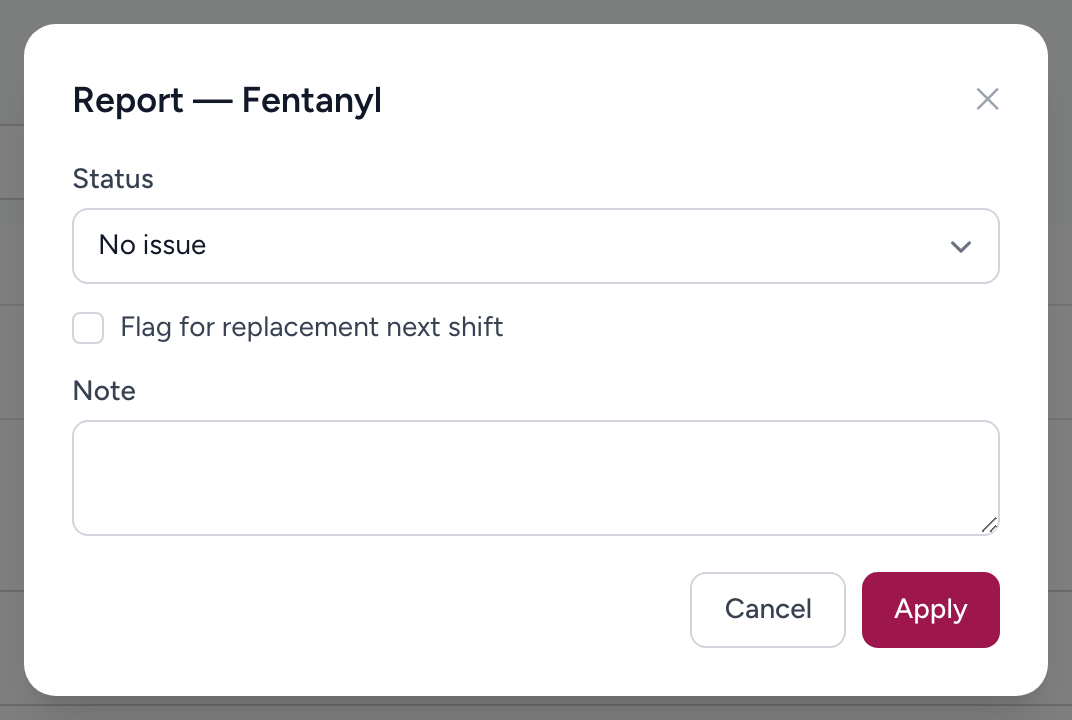
If an item is off, click Report on that item and pick a Status:
- Short — you have fewer than expected.
- Over — you have more than expected.
- Replace next shift — fine to run with now, but it should be swapped soon (for example, expiring stock).
Enter the quantity (or the dose, for items tracked by dose), check Flag for replacement next shift if it needs swapping, add a note, and save. What you report shows up for your admins on the Discrepancies page.
Other things you can do to an item
Each item also has Details (see every lot on hand), Add (add stock), and Replace (swap a vial). See Replacing a drug during checkout.
Example
On Medic 12 the Narcotics compartment should have 2 Fentanyl, 2 Midazolam, and 2 Morphine. You count 2 Fentanyl (good), 1 Midazolam (short), and 2 Morphine where one expires tomorrow. You click Report on Midazolam, set Short with quantity 1, and on the Morphine you either Replace it now or Report it as Replace next shift. Then you click Verify location.
Tip
Use Show other items on a second pass to make sure nothing you flagged is still unresolved before you verify the location.