
Where to find it
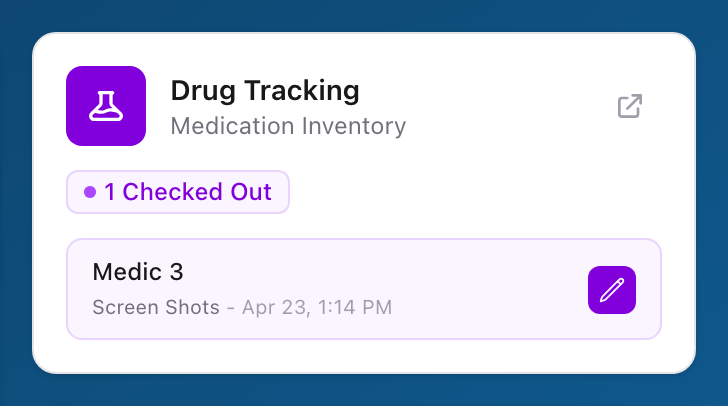
After you sign in to Unified Solutions, the dashboard shows a tile for each app your agency uses. The Drug Tracking tile is one of them. Click the arrow icon in the top right corner of the tile to open the app.
What the tile shows
The tile gives you a quick snapshot of active checkouts across your agency. You will see:
- A status badge — either All Clear (no locations currently checked out) or X Checked Out (the count of active checkouts).
- A list of active checkouts, each showing the location name, the crew member who started it, and when it was started.
- A pencil icon next to each checkout that takes you straight to the Shift Checkout page to continue work.
If there are more than three active checkouts, the list shows page controls so you can flip through them without opening the app.
When the numbers update
The tile refreshes each time you load the dashboard. If you just finished a checkout and the numbers still look off, refresh the page.
Tip
If you do not see the Drug Tracking tile at all, your agency may not have enabled it for your account. Ask your supervisor or agency admin to check your app access.