
Unified Solutions

Go Live checklist for Digital Forms

Everything an agency administrator sets up before crews start filling forms on real charts: access, library forms, your own forms, and a practice run.

Updated Nov 25, 2026

Here is everything your agency needs to set up before your crews start filling forms from Digital Forms on real calls. Most of it is done once by an administrator. After that, crews only ever see the finished forms, on the chart.
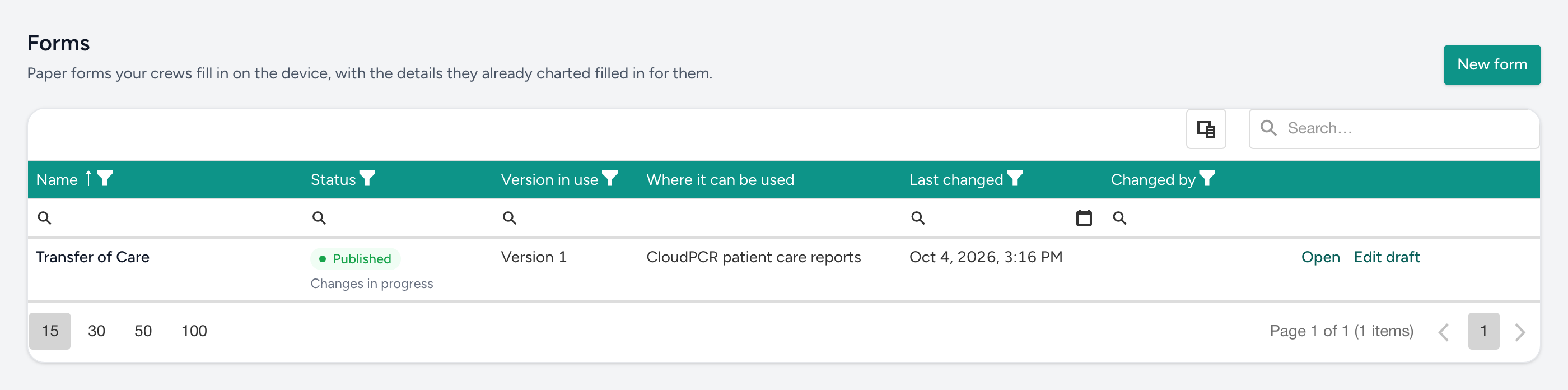
The Forms page in Digital Forms, listing a Transfer of Care form marked Published, with Open and Edit draft links.

Work through the checklist below in order. Each item links to the article that covers it in detail.

Go Live checklist

  1. 1

    Give the right people access

    • Access to Digital Forms is set in SSO, per person, like every other app.
    • Give the Admin role in Digital Forms to the people who will build and publish forms. Give everyone else User, which lets them look at forms but not change them. See Setting a role for one application.
    • Crews do not need a Digital Forms role to fill a form on a chart. They fill forms inside CloudPCR. See Who can do what in Digital Forms.
  2. 2

    Check the Library first

    • Before you build a form yourself, open Library. Unified Solutions publishes national forms and forms for your state there, ready to use.
    • If a form you need is there, click Add to my forms and you are done with that form. See Adding a library form.
  3. 3

    Build the forms that only your agency uses

  4. 4

    Test every form before you publish it

    • Run Try a test fill with both A typical call and A long call. Fix anything that does not fit. See Try a test fill.
    • Open Try filling it in and fill the form the way a crew member would, signatures included. See Try filling it in.
  5. 5

    Publish

    • Click Publish in the editor, or Publish version 1 on the form's page. Crews can pick the form from then on. See Publishing a form.
  6. 6

    Show your crews where forms live on the chart

    • Forms appear in the Forms section at the top of the Documents tab of every chart in CloudPCR. See Filling a form on a chart.
    • A saved form is kept with the chart's other documents, marked Complete or Incomplete.
  7. 7

    After go live

    • Once your forms are published, open a practice chart in CloudPCR, go to the Documents tab, and fill one form from start to finish, signatures included.
    • Check the saved PDF against the paper original.
    • If anything prints in the wrong place, fix it in Digital Forms and publish a new version.