
A repeating row is a table on the form with one row per item: vital signs, treatments, home medications. You set up the first row, say how many rows the paper has, and Digital Forms fills one row per item from the chart.
Setting one up
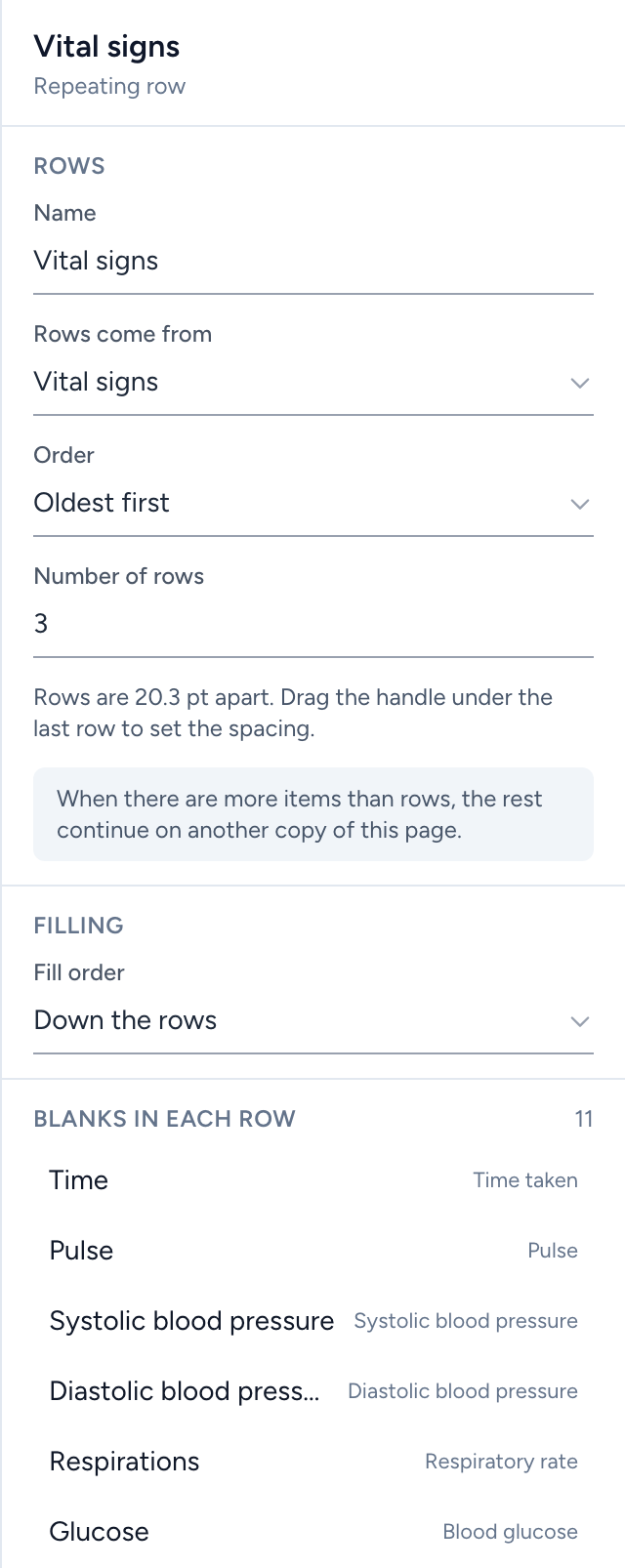
The quickest way: with nothing selected, look under Tables found on this page on the right. Click one and it becomes a repeating row.
By hand:
- Place a blank for each column of the first row only.
- Shift-click to select them all, then click Make these a repeating row.
- Set Rows come from, for example Vital signs, one row per set.
- Set the Number of rows printed on the paper.
- Drag the handle under the last row to set the spacing.
- Click each blank under Blanks in each row and set what fills it, for example Time taken or Pulse.
Rows can come from vital signs, home medications, allergies, treatments given by EMS (medications and procedures merged in time order), and crew on the call. Choose Nothing, filled in by hand for a table the crew fills themselves.
Other settings
- Order: Oldest first, Newest first, or As they are listed. Oldest and newest use the row's time blank.
- Fill order: Down the rows, or Down, then across to the next set for a table printed in side-by-side sets. The medication list on the transfer form is 8 rows in 2 sets, so it holds 16.
- Row positions: if the printed rows are not evenly spaced, nudge a single row up or down. Space evenly puts them back.
When there are more items than rows
Nothing is left off. "When there are more items than rows, the rest continue on another copy of this page."
Example: the transfer form has 3 vital sign rows and 3 treatment rows. A call with 8 sets of vitals and 5 treatments prints like this:
- Page 1: vitals 1 to 3, treatments 1 to 3, and everything else.
- Page 2: vitals 4 to 6, treatments 4 and 5.
- Page 3: vitals 7 and 8.
Each table continues on its own, and the form gets as many extra copies as the longest one needs. On a form with several pages, the extra copy comes straight after the page it continues.
Page numbers
When a form needs extra copies, every page prints "Page 1 of 3", "Page 2 of 3" and so on, centred at the bottom. A form that fits on its own pages prints no page number, so it looks exactly like the paper original.
What prints on the extra copies
Only the continued rows and the page number, unless you choose otherwise. Turn on Repeat on continuation pages for a blank, such as the patient's name and the incident number, and it prints on every copy too. That way a faxed or stapled page 2 can still be matched to the patient. Signatures never repeat.
What crews can do with rows
On the chart, crews see the rows as they will print and can add, remove and reorder them before saving, for example to leave off a set of vitals recorded in error. The extra pages appear and disappear as they do.