
The Forms page is where Digital Forms opens. It lists every form your agency has, your own and the library forms you added.
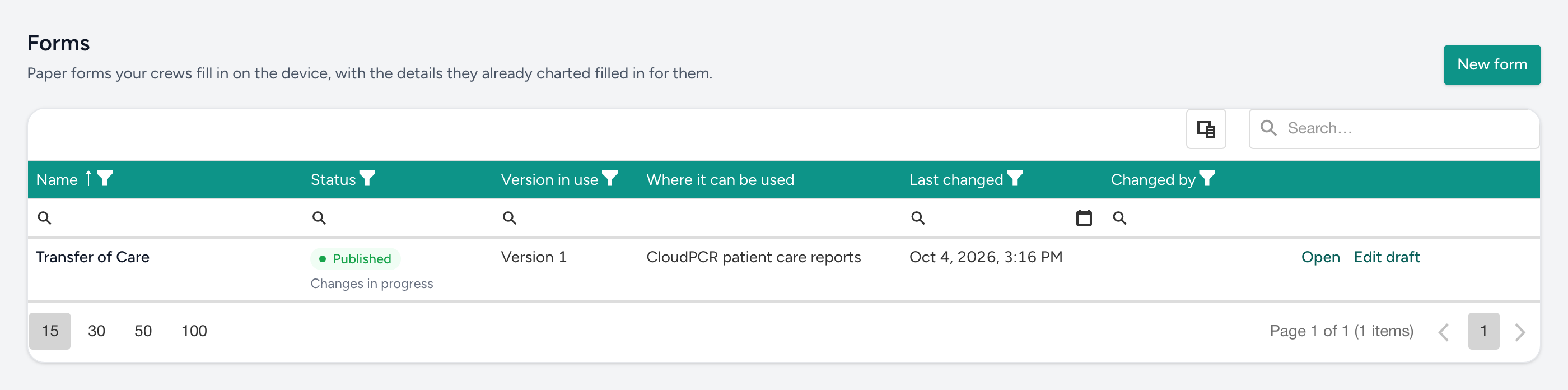
The columns
- Name: the form's name. Library forms carry a blue Library badge, with "national" or your state.
- Status: Draft (not published yet), Published (crews can pick it), or Retired (crews can no longer pick it). Under the status you may see Changes in progress, which means a new version is being worked on, or A newer version is available on a library form.
- Version in use: the version crews get today, or Not published yet.
- Where it can be used: where crews pick the form. Today that is CloudPCR patient care reports.
- Last changed and Changed by.
The links on each row
- Open goes to the form's page. See Publishing a form.
- Edit draft opens the editor on the draft. Admins only.
- Make changes starts a new version of a published form. Admins only. See Changing a published form.
- On library forms: View, Move to the latest version and Remove. See Moving to a newer library version, or removing it.
Finding a form
Type in the search box above the table to find a form by any of its columns. Click a column heading to sort by it.
When the page is empty
An agency with no forms sees No forms yet, with a New form button for admins and a Browse the Library button for everyone.