
A form stays a draft, and crews cannot see it, until you publish it. Publishing makes the current draft the version crews get.
Before you start: You need the Admin role in Digital Forms. Run Try a test fill with a long call first.
The form's page
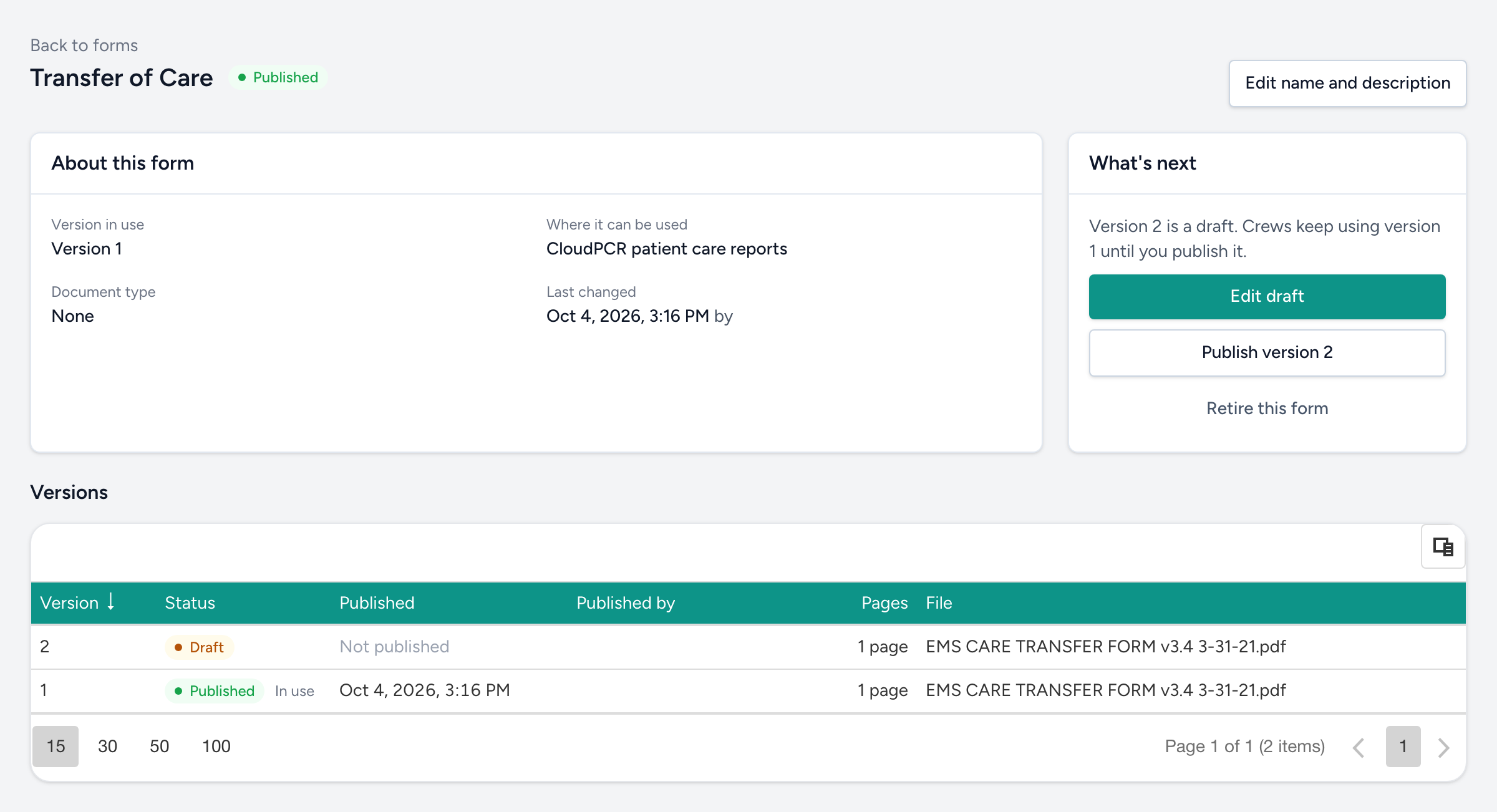
Click a form's name on the Forms page to open it. It shows About this form, a What's next card with the buttons that apply right now, and the list of Versions.
Publishing
From the editor:
- Save your changes.
- Click Publish along the top.
The editor's Publish button stays off until the form is saved, the Problems list is empty, and every suggestion has been looked at. Hover over it to see which one is holding it back.
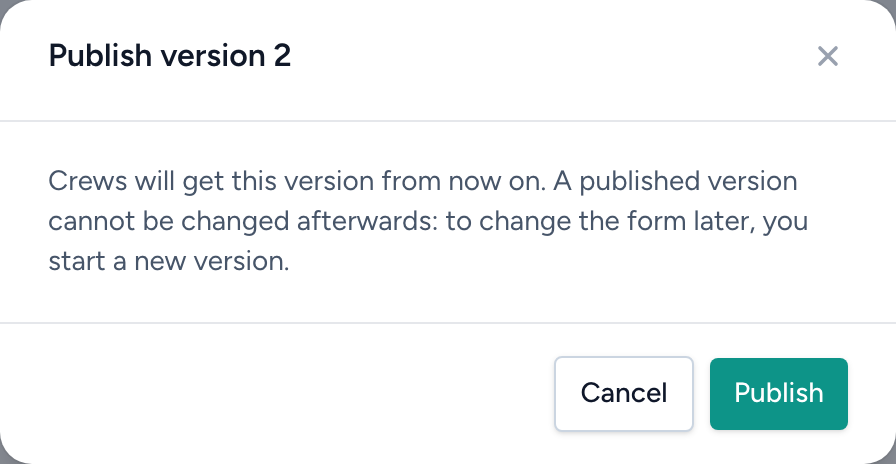
Or from the form's page: click Publish version 1 in the What's next card, then Publish.
When it is done you see "Version 1 of Transfer of Care is published."
If something is wrong, you see Not ready to publish (or This form cannot be published yet in the editor) with the list to fix.
What happens next
- Crews can pick the form in the Forms section of a chart's Documents tab. It can take a few minutes to appear there.
- The version cannot be changed any more. To change the form later, you start a new version. See Changing a published form.
Changing the name or description
Click Edit name and description on the form's page, change them, and click Save. This does not need a new version.