
Each blank can be filled from the chart, or left for the crew to fill in by hand. You choose this with Filled from in the blank's settings.
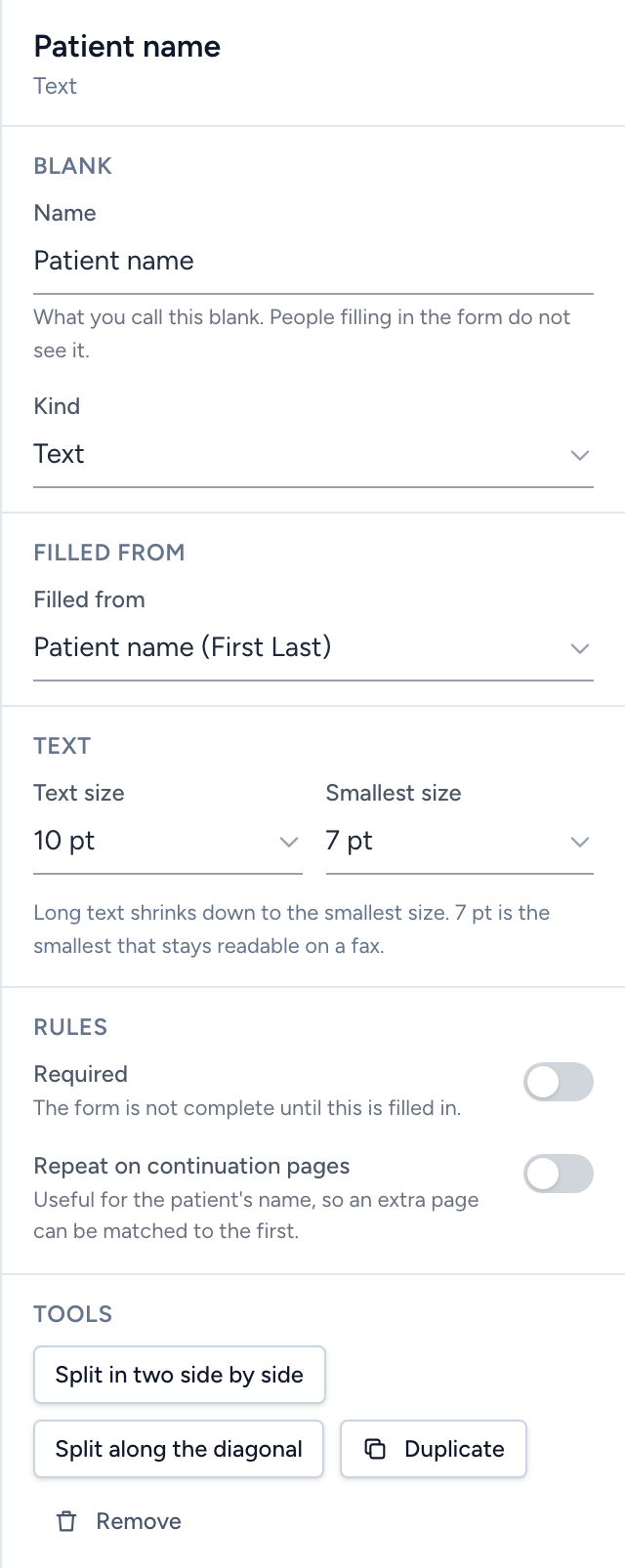
Setting what fills a blank
- Click the blank on the page or in the Blanks list.
- Under Filled from, search for what belongs there, for example "date of birth", and pick it.
- Click Save at the top when you are done.
The list holds what a CloudPCR chart can supply: agency details, incident details, patient details, insurance, times, the chief complaint and impression, history, exam findings, and more. Several things come in more than one shape so the form gets exactly what it prints, for example Patient name (First Last), Patient name (Last, First), and the first and last names separately; or Patient gender and Patient gender as a letter (M or F).
Pick Filled in by hand for anything the chart does not hold. The crew types it on the form.
Tick boxes and circled choices
When a tick box or circled choice is filled from the chart, you also set when it is marked:
- If the information has a fixed set of answers, pick one under Ticked when (or Circled when).
- Otherwise type the text it should match under Ticked when it reads.
Example: on the transfer form, the NKDA box is a tick box filled from No known drug allergies, ticked when the answer is yes.
One item from a list
Some information is a list, such as vital signs or crew members. A single blank filled from a list needs to know which item to show. Set Which item:
- The first one or The last one.
- A specific one, then an Item number: 1 is the first item, 2 the second. Use this for a form with two crew member blanks.
- Let the person choose: the crew member picks which one when they fill the form. This is the default, and the right choice for a form with one set of vitals, because which set belongs there is a clinical call.
A Several lines blank filled from a list prints every item instead. Set How items are joined: commas, semicolons, slashes, or each item on its own line. Allergies on the transfer form work this way.
If the form has a table, one row per item, use a repeating row instead. See Repeating rows and continuation pages.
What crews see
On the chart, values that came from the chart are marked From the chart. The crew can still change them. A change stays on the form; it never changes the chart.