
A role decides what a person can do once they are signed in. Roles are set per application, so the same person can be an Admin in one application and a User in another. You set all of them in one place.
Before you start: You need to be an administrator for your agency to open System Admin. If you do not see it in your menu, ask another administrator at your agency to make the change. The person you are setting a role for also needs a Unified Solutions account already.
Step by step
- Click your name in the menu.
- Click System Admin.
- Stay on the Users tab. Every person at your agency is listed, and the Application access column shows the role each one currently has in each application.
- Find the person and click Edit on their row.
- Scroll to Application Access. There is one selector per application your agency uses.
- Set the application you want to change, then click Save changes.
You will see a User updated message, and the Application access column on their row updates to match.
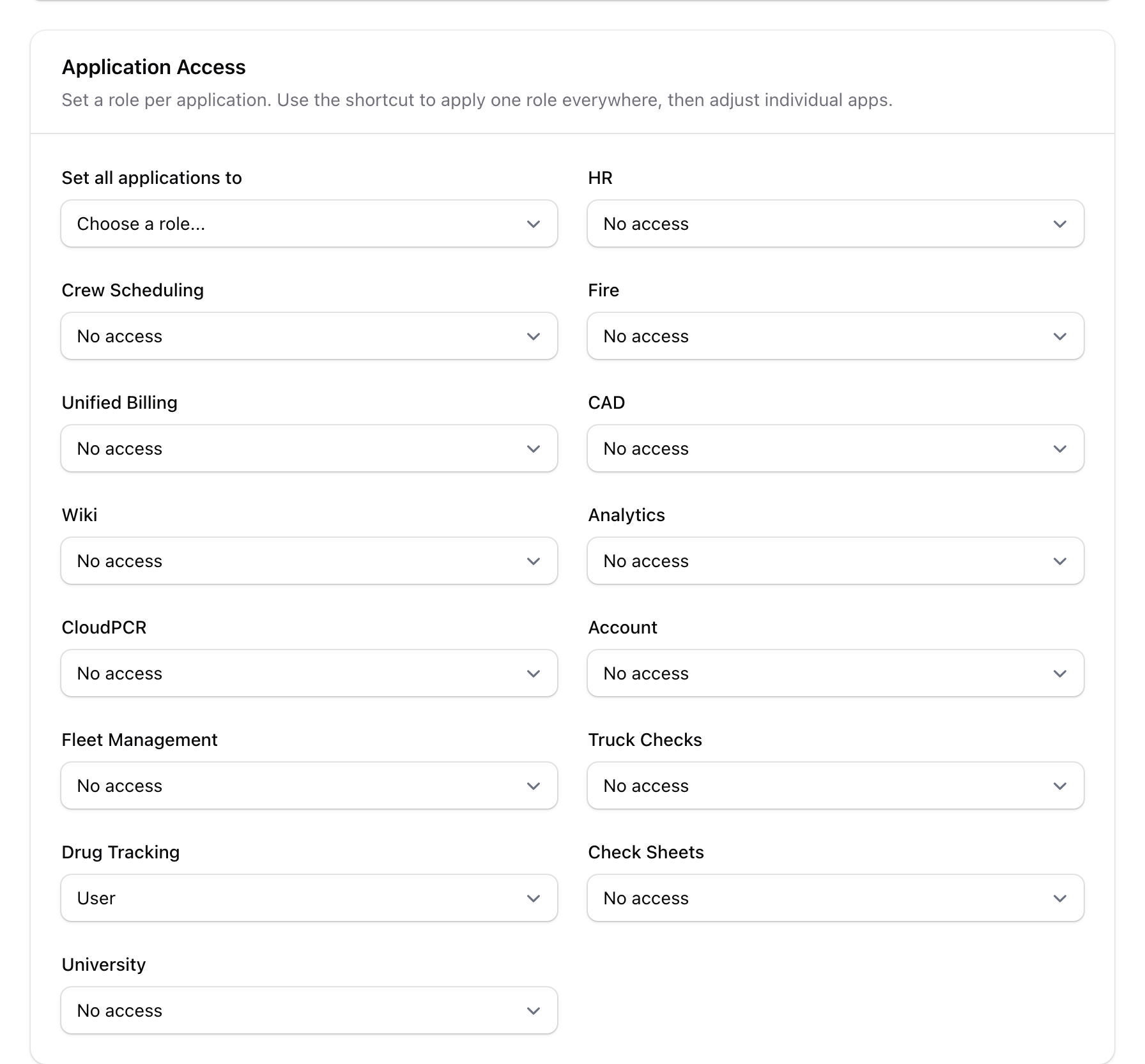
Setting the same role everywhere
If someone needs the same role in every application, use Set all applications to at the top of the section. It fills in every selector at once, and you can then change individual applications underneath it. Only roles that work in every application appear in that shortcut.
The roles you can choose
- Admin gives full access within that application, including its settings.
- User gives standard access. This is what a new person starts with.
- Billing is available for CloudPCR and limits the person to the Billing page. See below.
- No access leaves the selector empty and keeps the person out of that application entirely.
Not every role is offered for every application. A selector only lists the roles that mean something in that application, so the choices differ from one row to the next.
The Billing role in CloudPCR
Set someone's CloudPCR role to Billing when they work your billing queue and nothing else. When they sign in to CloudPCR they land on the Billing page, where they can work the charts your billing team has sent back and open those charts to read them.
They will not see My PCRs, All PCRs, QA PCRs, Patients or your agency settings. Typing the address of one of those pages sends them back to Billing.
An Admin already has the Billing page, so there is no reason to give someone both. Pick Billing when you want the page and nothing else, and Admin when they need the rest of CloudPCR too.
For what the person actually does once they are there, see Working charts the billing team sent back.
When the change takes effect
If the person is signed in to the application while you change their role, have them sign out and sign back in. The new role is picked up when they next sign in.
An application is missing from the list
Only the applications your agency has turned on appear in Application Access. If one you expect is missing, check the Applications tab, or ask support through the chat bubble.
Questions people ask
Can I set the Billing role while importing users from a file? No. The CSV import only accepts admin or user, and it applies that one role to every application. Import the person first, then click Edit on their row and set the applications individually.
Can I give one person different roles at two agencies? Yes. Roles are set per agency, so switch to the other agency first and set that agency's roles separately.
Related
- Choosing an agency, if you work at more than one.
- Getting help, to reach support.