
How the picker works
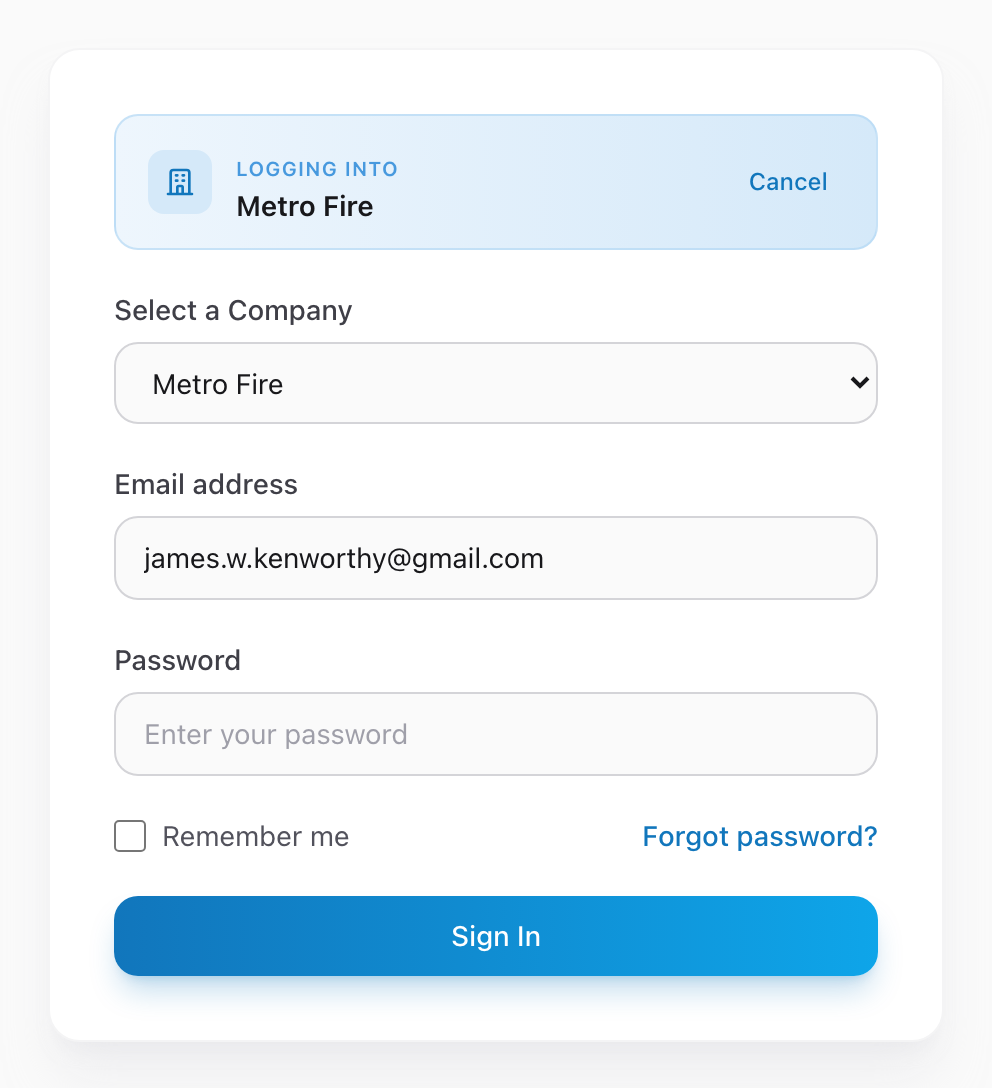
When you type your email on the sign-in page, Unified Solutions checks which agencies you belong to. If your email is linked to more than one agency, a banner appears right on the sign-in form that says Logging into followed by the agency name. The system picks one of your agencies automatically so you can keep going if that one is where you need to work.
If you want to work in a different agency, click Change at the right side of that banner. A dropdown opens with every agency your account can access. Pick the one you want, enter your password, and click Sign In.
If you only work for one agency
You will never see the banner or the Change button. The system knows there is only one option and goes straight into sign-in as usual.
Switching agencies later
Once you are signed in, your agency is locked in for that session. To switch to a different agency, sign out and sign back in. During sign-in you can click Change again and pick the other agency.
An example
Say you are a paramedic who works part-time at Metro Fire and part-time at Gothem Fire and EMS. You type your email on the sign-in page. A banner appears that says Logging into Metro Fire. That is not where you are working today, so you click Change, pick Gothem Fire and EMS from the dropdown, enter your password, and sign in. The dashboard loads with Gothem's tiles and notifications. Tomorrow you are at Metro Fire, so you sign out, sign back in, and leave the banner alone — Metro Fire is already auto-selected.
Each agency is separate
Everything you see — PCRs, truck checks, personnel records — belongs to the agency you are currently working in. You will never accidentally mix data between agencies. If you need to see something from your other agency, switch to it first.