
The welcome email
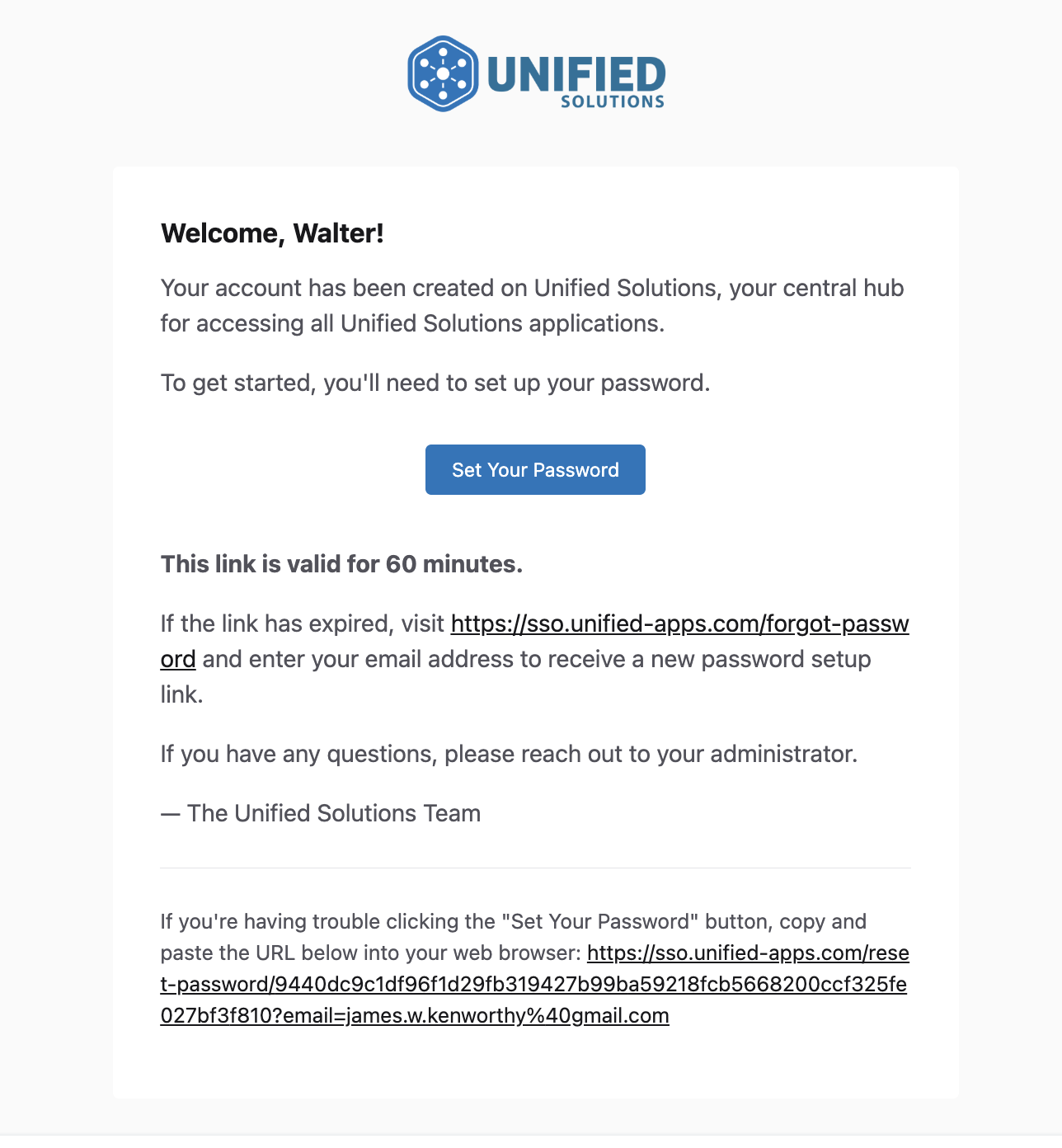
When your account is created, Unified Solutions sends you a welcome email. Open it and click the link inside to set your password for the first time.
Step by step
- Open the welcome email in your inbox.
- Click the link inside the email.
- You will be taken to a page where you can choose a password.
- Enter the password you want to use, then enter it again to confirm.
- Click Reset Password.
- You will be taken back to the sign-in page. Sign in with your new password.
If you did not get the email
- Check your spam or junk folder first. This is the most common reason.
- Wait a few minutes — some email systems are slow.
- If it still has not arrived, go to sso.unified-apps.com, click Forgot password?, enter your email address, and click Send Reset Link. This sends a fresh link that works the same way as the welcome email.
This only happens once
After you set your password, your account works like any other. You will not have to go through this again unless you forget your password later.
Not sure which email to use?
Your agency chose the email address for your account when they set it up. If you are not sure which email they used, ask your supervisor or your agency administrator. It is usually your work email.