

Who this is for: the Dashboard Settings gear is only shown to agency administrators. If you do not see a gear hanging below the navigation, your account does not have permission to change which tiles appear. In that case, ask an agency admin for help.
Where to find the setting
On the dashboard, look for the settings icon (a gear) hanging below the navigation bar in the middle of the page. Click it to open the Dashboard Settings panel. You will see a list of every app your agency uses, each with a toggle switch next to it.
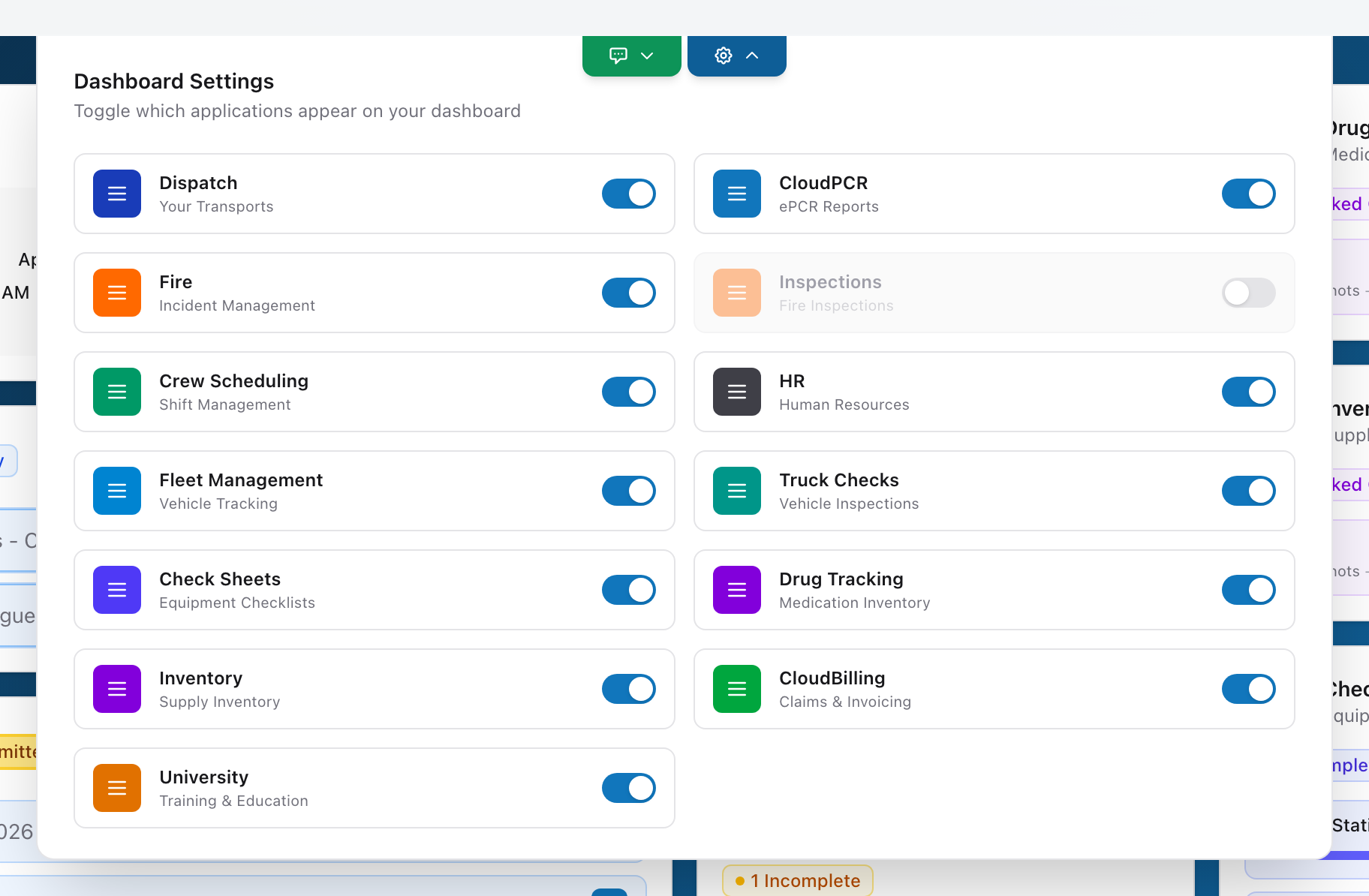
Showing or hiding a tile
- Open the Dashboard Settings panel by clicking the gear icon.
- Find the app you want to show or hide.
- Turn the toggle on to show it, or off to hide it.
- Close the panel. The dashboard updates right away.
When this is useful
If your agency uses six apps but only works with two of them day to day, hiding the other four keeps the dashboard clean for everyone. You can always turn them back on later if your agency's responsibilities change.
Does this affect other people?
Yes. Tile visibility is set per agency, not per user. When an administrator hides a tile, it is hidden for every user at that agency. This keeps everyone at the same agency looking at the same dashboard.
Tip: If you just set up a new agency and you are not sure which tiles you need, leave them all on for the first week. Once you know which apps your team actually uses, hide the rest.