

How it works
Your email address is what you use to sign in. When you change it, the new address has to be verified before it takes effect. This protects you from typos and keeps your account secure.
Step by step
- Click your name in the menu.
- Click My Settings.
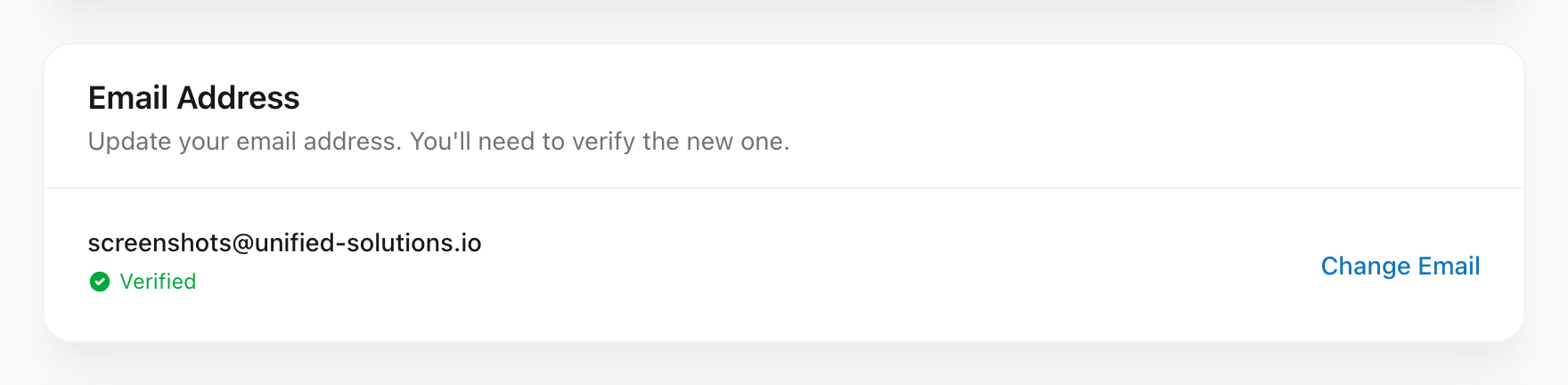
- In the Email Address section, click Change Email.
- Enter your new email address.
- Click Update Email.
- Check your new email inbox for a verification message.
- Click the verification link in that email.
- Once verified, your sign-in email changes to the new one.
Until you verify
Your old email address stays active until you complete the verification. If you never click the link, nothing changes. You can still sign in with your old email as if you never started the process.
An example
Your agency gave you a new work email — jsmith@newdomain.com instead of the old jsmith@olddomain.com. You go to settings, type in the new email, and click save. You get a verification email at jsmith@newdomain.com, click the link, and from now on you sign in with the new address. If you try signing in with the old one, it will not work anymore.
Tip: Double-check the new email address for typos before clicking save. If you send the verification link to a misspelled address, you will not be able to complete the change.