
Signatures on a form are always signed on the form, on the screen, every time. "A signature is never copied from the chart." A signature on the form is never copied into the chart's own signatures either.
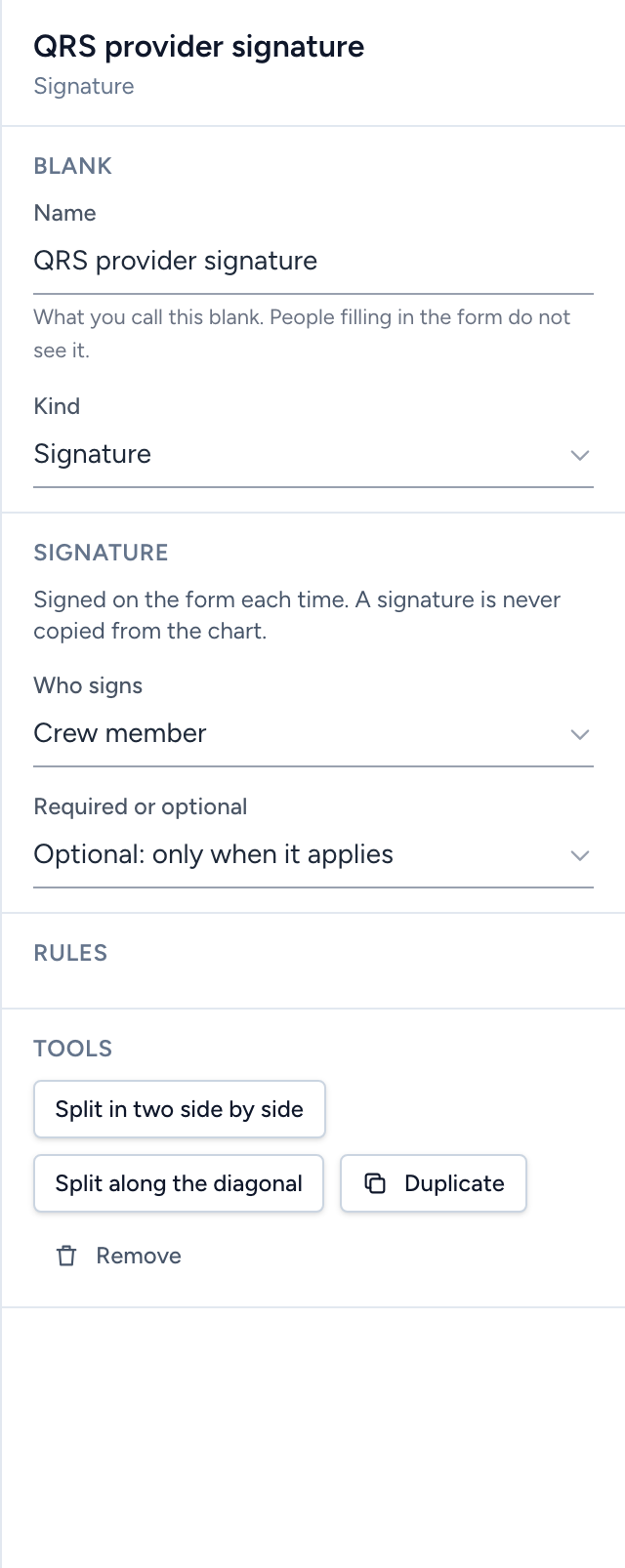
Setting up a signature
- Select the signature blank, or add one with Add a blank, Signature.
- Set Who signs: Patient, Parent or guardian, Other representative, Witness, Crew member, Physician or other healthcare professional, Sending facility, or Receiving facility.
- Set Required or optional. Required means the form is not complete without it. Optional is for a signature that only applies sometimes, such as a refusal block on a form most patients do not refuse.
Crew member signatures
When Who signs is Crew member, the crew picks who is signing from the crew on the call. That fills the printed name and the certification number for them.
Printed names
Add a Printed name blank beside the signature and set Belongs to signature. When nothing else fills it, the name the signer gives is printed there.
When someone cannot sign
Crews do not need a separate blank for this. Every signature on the chart has a Could not sign choice, with Unable to sign or Refused to sign and a typed reason. See Filling a form on a chart.
Example
The Pennsylvania transfer form has three signatures: the EMS provider, the receiving healthcare provider, and the QRS provider. Set the first to Crew member and required, the second to Receiving facility (or Physician or other healthcare professional) and required, and the QRS one to Crew member and optional, since not every call has one.