
Try filling it in opens the form on the same fill screen your crews use on the chart, filled with made up information. "Nothing you do here is kept." Use it to feel how the form fills before crews do.
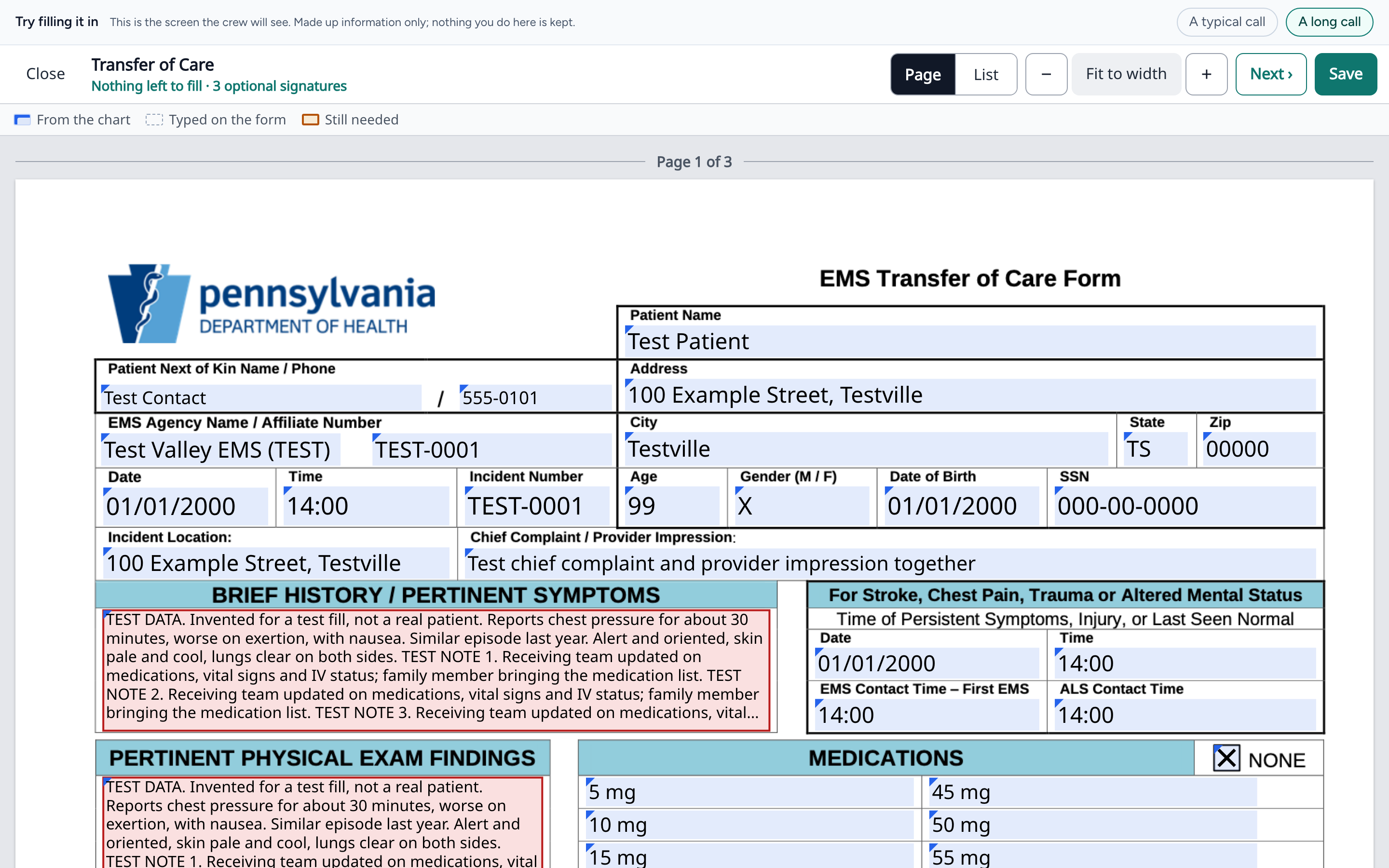
What to try
- In the editor, click Try filling it in. Pick A typical call or A long call.
- Click Next and follow it through every required blank and signature, the way a crew member would.
- Change a value that came from the chart, add or remove a row, and sign each signature.
- Click Save. The screen shows the saved PDF, with "Saved as complete" or "Saved as incomplete" and what is still needed.
- Click Download the PDF, Back to the form, or Close.
What to look for
- Does Next stop at every blank that really is needed, and only those? If not, change Required on the blank.
- Does each signature say the right signer? If not, change Who signs.
- Is every tick box ticked when it should be?
For a full walkthrough of the fill screen, see Filling a form on a chart.