
You punch in and out from the Punch Clock card on the Dashboard.
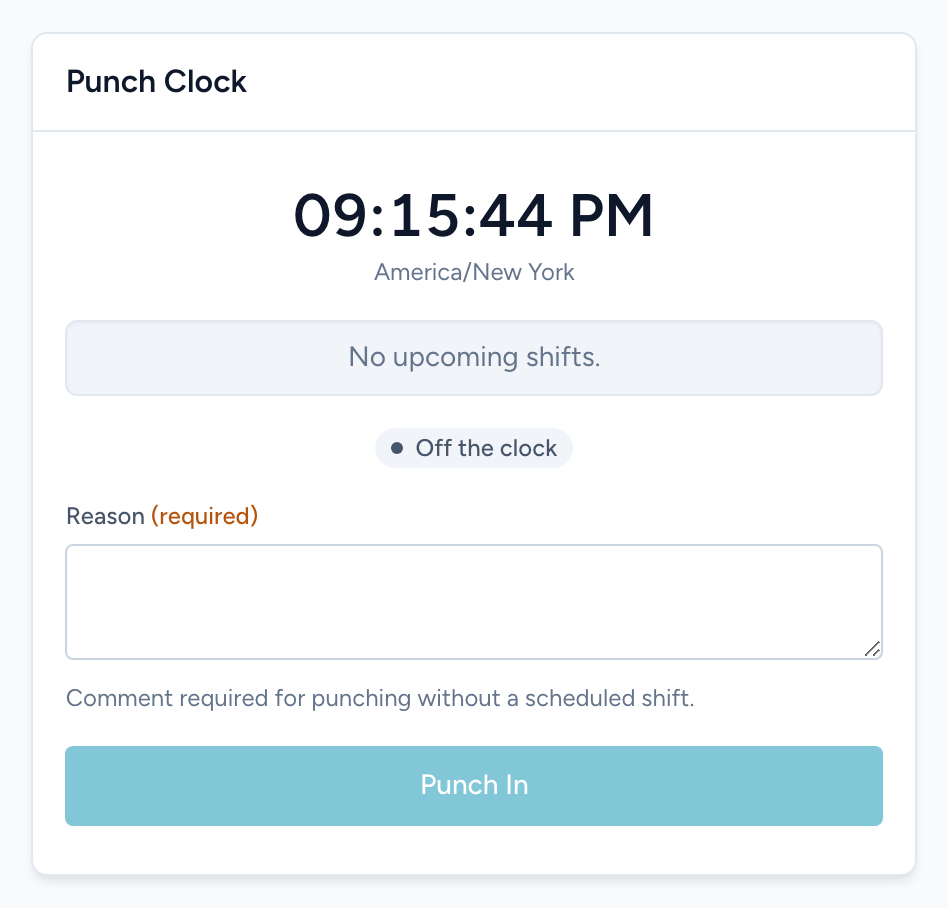
Punching in
- From the navigation, click Dashboard.
- Check the Punch Clock card. It shows the current time in your agency's timezone, your next scheduled shift, and whether you are On the clock or Off the clock.
- Click the big punch button. Its label tells you exactly what will happen — for example Punch in or Punch out.
- The status badge flips, and the card shows the time you have been on the clock since.
When it asks for a reason
Your agency sets grace windows for early and late punches. Inside the window, you just punch. Outside it — punching in early, punching in late, or punching without a scheduled shift — the card shows a Reason box you must fill in before the button works. A short note like Sent out on an early call is enough; it lands on your timecard where your supervisor can read it.
You can also attach a note to any normal punch: click Add a comment under the status badge before punching.
If the punch button is missing
- "The punch clock is currently turned off for your agency." — your agency does not use the punch clock. Nothing is wrong with your account.
- A network restriction message — your agency only allows punching from approved locations, like the station. Punch from a station computer or the station Wi-Fi. If you believe you should be exempt, ask your administrator — they can allow it per person.
- "Punching in without a scheduled shift is turned off for your agency." — you have no shift right now and your agency requires one. Check My Schedule to see when your next shift starts.
Tip: forgot to punch out? Do not punch in and out again to fix it. Use a punch change request from your Time Sheets so an admin can set the real times.