
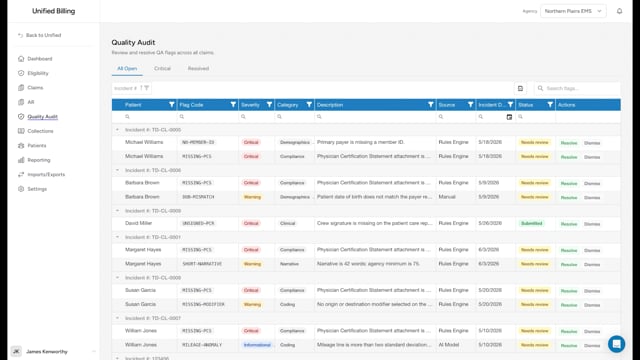
What resolving means
When you fix the problem that triggered a QA flag, you resolve it. This marks the flag as handled and clears it from the open queue. You can also dismiss a flag if it is a false alarm, meaning the information is actually correct but the rule flagged it anyway.
How to resolve a flag from the work queue
- Click Quality Audit in the menu.
- Find the flag in the list and read the description.
- Click the flag's row to open the claim, fix the problem (for example, add the missing date of birth or correct a diagnosis code), then come back to Quality Audit.
- Click Resolve on the flag row.
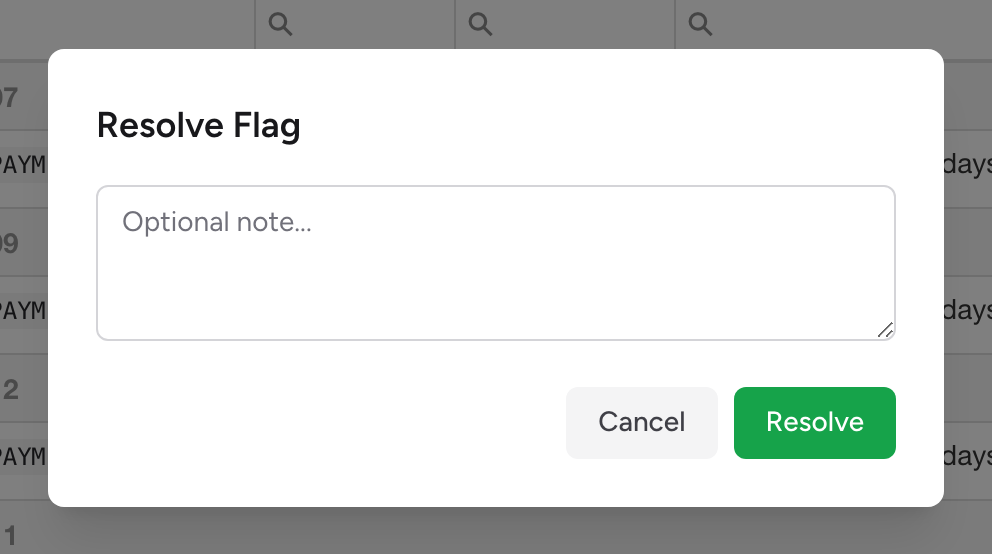
- A modal opens. Type an optional note explaining what you fixed.
- Click Resolve in the modal.
Dismissing a flag
If the flag is wrong, the data is correct but the rule caught it anyway, you can dismiss it instead of resolving it.
- Click Dismiss on the flag row.
- In the modal that opens, type a note explaining why you are dismissing it. For example: "Miles are correct. This was a 120-mile inter-facility transfer."
- Click Dismiss.
Working one claim at a time
The queue groups flags by incident number, so all of a claim's flags sit together. To focus on a single claim, see QA flags on a claim.
Example
A flag says "Missing patient address." You click the flag's row, go to Demographics on the claim, add the patient's address, then come back to Quality Audit. You click Resolve on the flag, type "Added patient address from insurance card copy," and click Resolve in the modal. The flag moves to the Resolved tab.
Tips
- Always add a note when resolving or dismissing. A blank resolution tells your team nothing about what happened.
- If you are dismissing a lot of flags from the same rule, the rule may need to be adjusted. Let your administrator know.