
When to use the standalone form
Sometimes you need to check eligibility before you have a claim in the system. Maybe you are verifying coverage for a scheduled transport, or you want to check a patient's benefits before their next appointment. The standalone eligibility request form lets you do this without creating a claim first.
Before you start: make sure an agency is selected in the agency selector. Billing will not create the request without one.
How to create a request
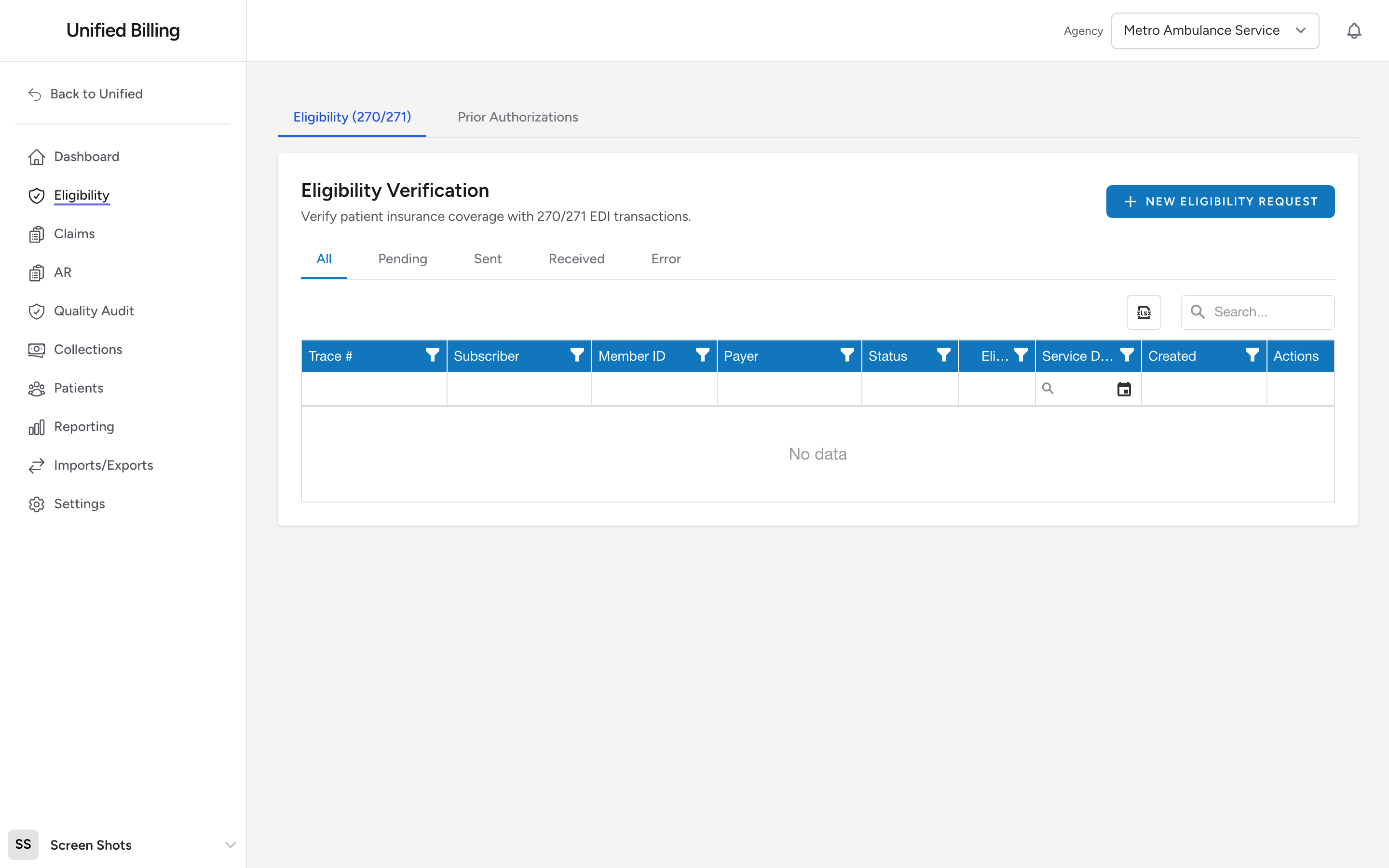
- Click Eligibility in the menu.
- Click New Eligibility Request.
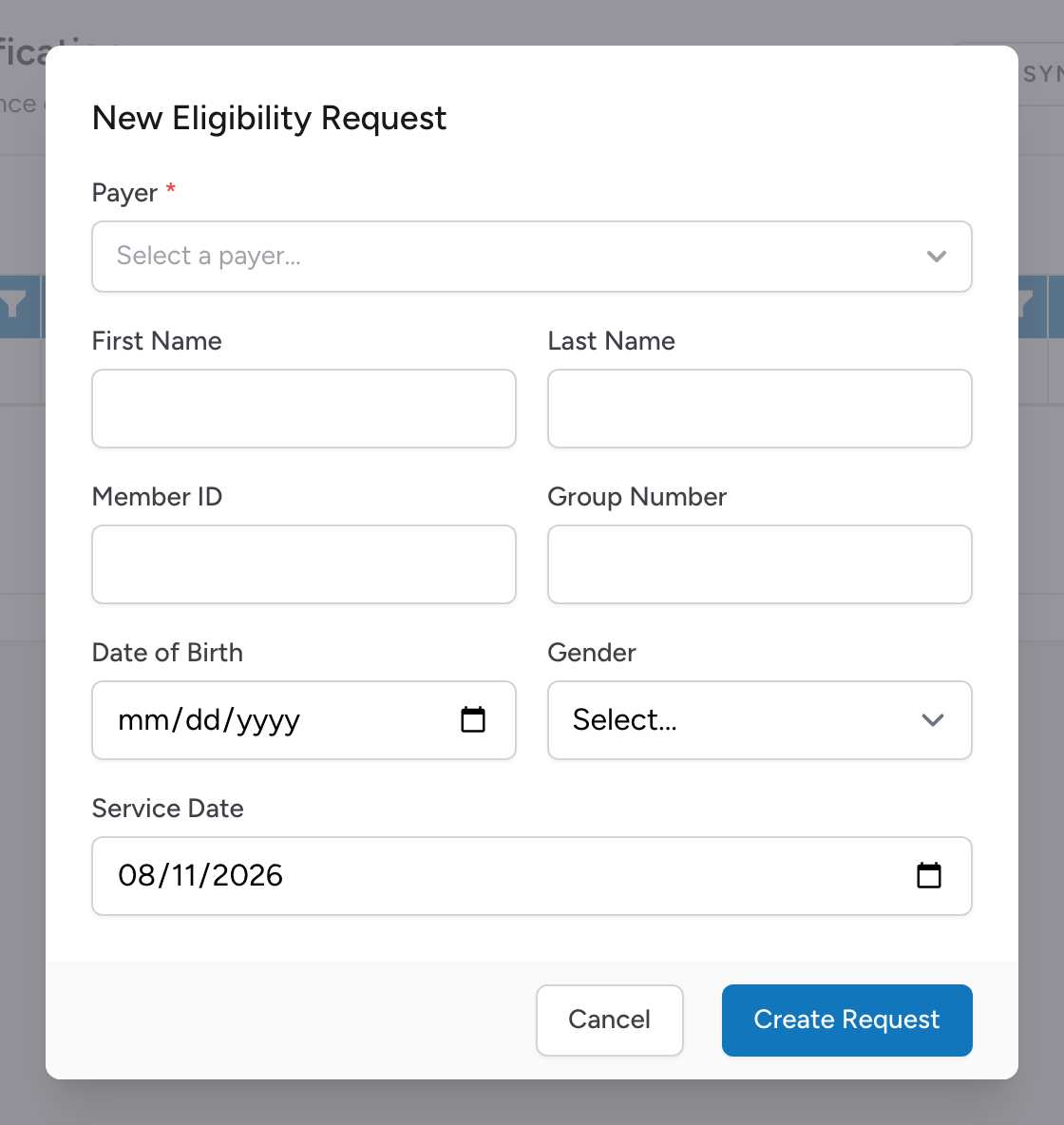
- Select the payer you want to check with.
- Enter the subscriber's first name, last name, Member ID, date of birth, and gender. Add the group number from the insurance card if you have it.
- Enter the service date, the date the service will happen or already happened.
- Click Create Request.
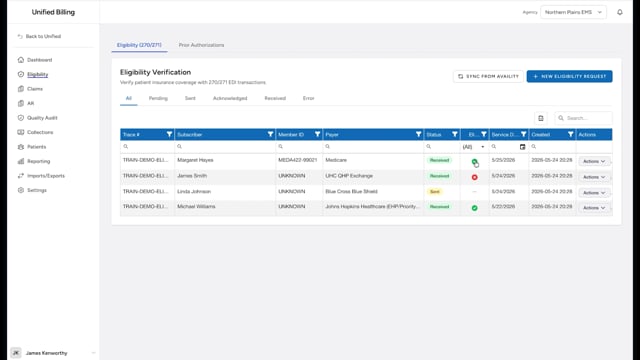
What happens next depends on how your agency sends files. If your clearinghouse connection is set up, Billing sends the request for you and the request shows on the Eligibility page as Sent. The response comes back on its own, and you can click Sync from Availity to pull new responses from your clearinghouse right away. If your agency submits files by hand, Billing downloads the 270 file to your computer; send it to the clearinghouse you use for eligibility checks, and the request shows as Pending until you upload the 271 response.
Viewing the response
Once a 271 response is back, the request row shows Received in the Status column and a green check or red X in the Eligible column. If your agency submits files by hand, upload the 271 against the original request first (see uploading eligibility responses). Click Actions, then View Response to see the full coverage details, including the plan name.
Example
Your agency has a scheduled inter-facility transfer next Tuesday for a patient with Medicaid. You want to confirm coverage before dispatching the ambulance. Go to Eligibility, click New Eligibility Request, fill in the patient's Medicaid information and next Tuesday's service date, then click Create Request. If your clearinghouse connection is set up, the response comes back on its own within a few minutes. If your agency sends files by hand, you send the downloaded 270 file to your clearinghouse and upload the 271 against the request when it comes back.