
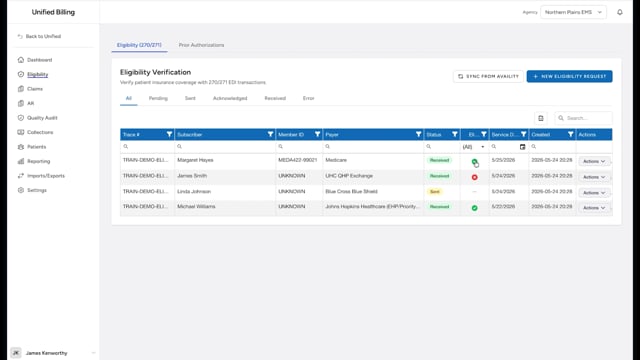
What validation does
Validation checks your claim for missing or incorrect information before you submit it to an insurance company. Think of it as a spell-check for billing. It catches mistakes that would cause the claim to be rejected.
Issues vs. warnings
Validation results fall into two categories:
- Issues - problems that must be fixed before the claim can be submitted. For example, a missing patient date of birth or no insurance payer on the claim.
- Warnings - things that look unusual but might be intentional. For example, a diagnosis code whose format looks unusual. You should review warnings, but they do not block submission.
The validation panel
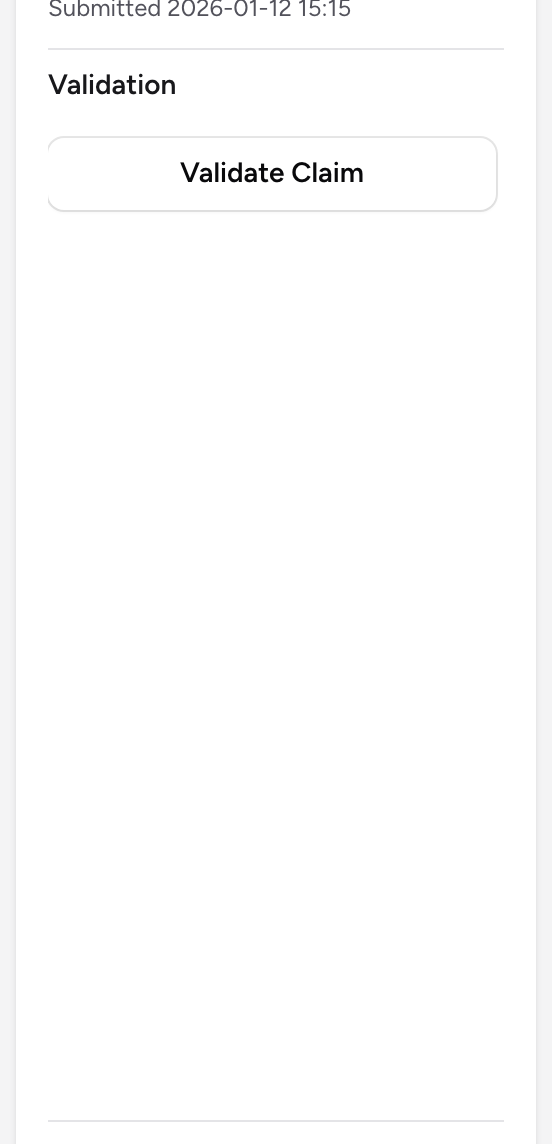
The Validation panel sits in the right-hand column when you open a claim. After you run validation, it lists all issues and warnings so you can work through them one by one.
How to validate a claim
Clicking Validate Claim saves the claim first, so everything you have typed is included. A claim with open issues cannot be submitted. The Submit button runs the same checks and stops if anything is still wrong; see Submitting a claim.
- Open the claim.
- Click the Validate Claim button in the right-hand panel.
- Review the results. When the claim is clean, the panel shows a green All validations passed message. The button reads Validated until you change the form again.
- Fix each item the panel lists. When you reopen the claim, each issue becomes a link that jumps straight to the field that needs attention.
- Run validation again to confirm everything is clean.
Example
You validate a claim and see three items: "Patient DOB" (issue), "Payer name is required." (issue), and a warning that the primary diagnosis code format looks unusual. You fill in the date of birth in the Patient section, add the insurance in the Payers section, and confirm the diagnosis code is the one you meant. You validate again and see the green All validations passed message.
Tips
- Get in the habit of validating every claim before you submit it. It takes a few seconds and prevents rejections.
- If a payer is marked as self-pay or as a paper claim, validation skips the electronic-filing fields that do not apply, like the payer number and subscriber details. You are never blocked by requirements meant for electronic claims. See CMS-1500 paper claims.
- If the same issue keeps appearing on many claims, there may be a setup problem. Check your agency settings or talk to your administrator.