
What audit logs are
Audit logs keep a running record of authentication and claim-access events in Billing: sign-ins, sign-outs, failed logins, claim views, claim edits, claim status and submission events. Every entry is immutable, which is what makes the log useful for HIPAA and internal compliance.
Before you start: Audit Logs live in Settings, which only company admins can open. If you do not see Settings in the menu, ask your admin.
Viewing audit logs
- Go to Settings, then Audit Logs.
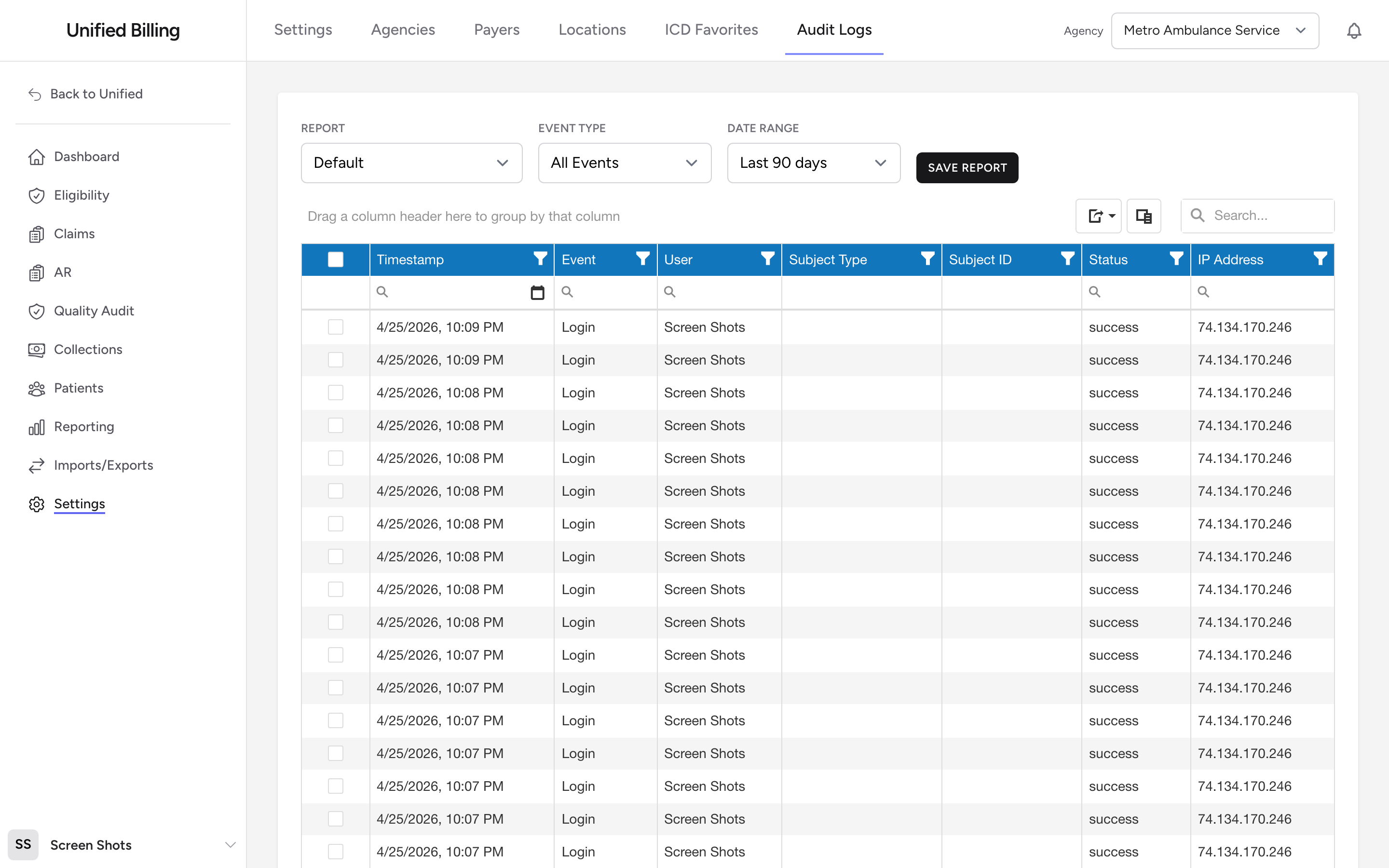
- The page opens to the Default report, with the last 90 days of events.
The page controls
- Report - switch between the built-in reports (Default, Authentication Events, Claim Activity) and any reports you have saved.
- Event Type - narrow the grid to a single event category.
- Incident # - type an incident number to narrow the log to one claim's activity.
- Date Range - preset windows (All dates, Today, Last 7 days, This month, Last month, Last 90 days, Last year, Year to date) or a custom Start/End pair.
- Save Report / Update / Delete - save the current filters, columns, sorts, and date range as a named report (private or visible to your company). Update and Delete only appear when you own the active report.
Columns available
Out of the box the grid shows Timestamp, Event, User, Incident #, Subject Type, Subject ID, Status, and IP Address. Use the column chooser in the grid toolbar to turn on others: Category, Email, Failure Reason, User Agent, Session ID, Edit Session, Before Data, After Data, and Metadata are all available.
Clearinghouse events
If Billing sends your claims to your clearinghouse for you, the log also records acknowledgement events. The events labeled Claim Rejected by Availity and Claim Marked Accepted in Availity record when your clearinghouse rejected a claim, and when a biller marked a claim accepted after fixing it. If you bill without a clearinghouse connection, for example by printing CMS-1500 paper claims or uploading claim files yourself, those two events will not appear in your log.
Example
A claim's status changed unexpectedly. Open Audit Logs, switch the Report dropdown to Claim Activity, type the run number into the Incident # box, and you can see every action taken on that claim with the user, timestamp, and before/after data. Save the view as "Claim history search" if you use it often.
Tips
- Audit entries cannot be edited or deleted. That is what makes them trustworthy for compliance reviews.
- Use the Export button in the grid toolbar to send a filtered audit view to Excel for an auditor.