
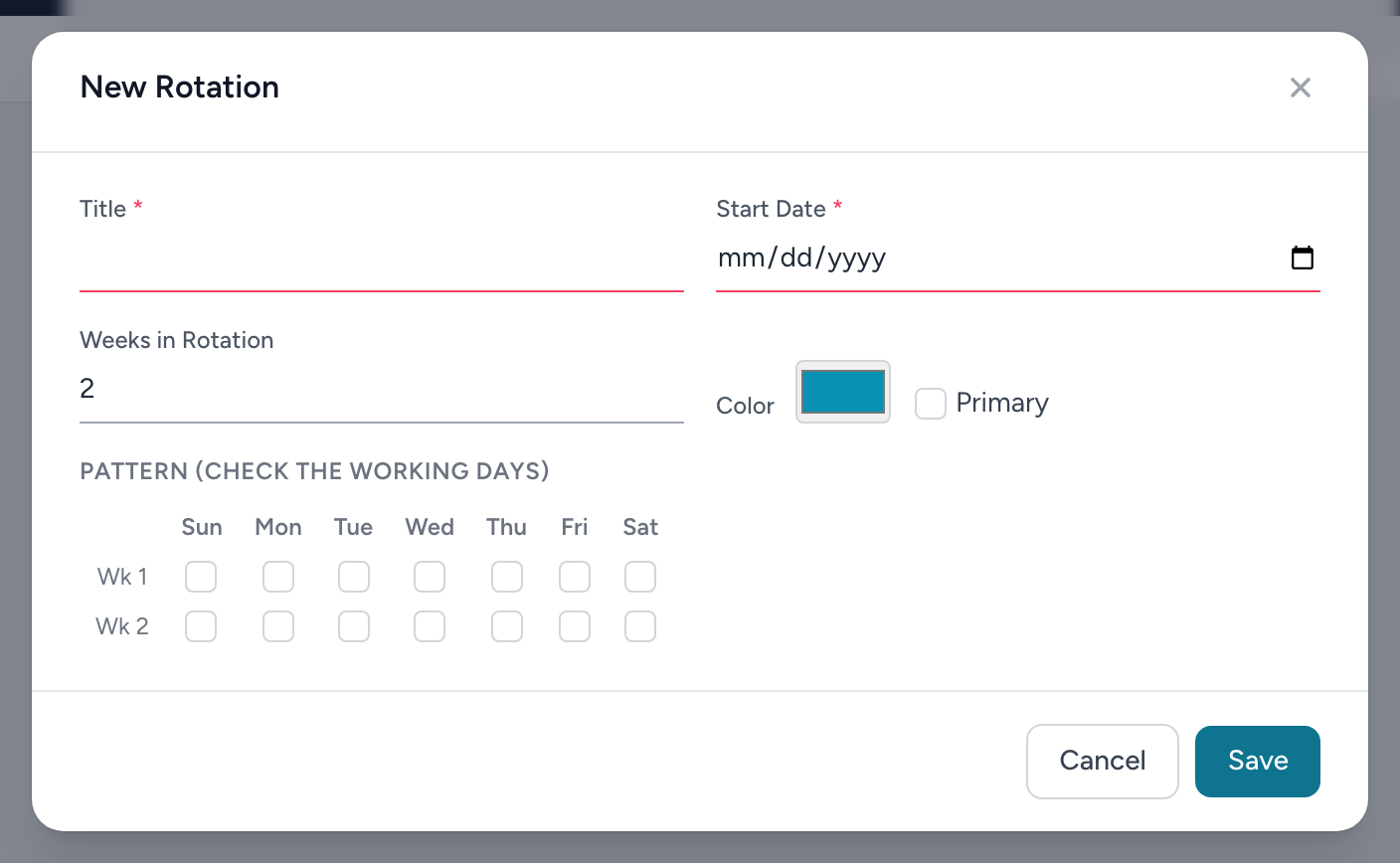
A rotation is a repeating pattern of working days — the classic 24/48, a two-week platoon cycle, every-other-weekend. Templates reference rotations, so one pattern can drive many templates.
Creating a rotation
- From the navigation, click Templates, then the Rotations tab, then + New Rotation.
- Give it a Title and a Start Date — this must be a Sunday, because rotations count whole weeks from that day.
- Set Weeks in Rotation — a 3-week cycle repeats every 3 weeks.
- In the pattern grid, check the working days in each week.
- Pick a Color, and tick Primary if this is the agency's main rotation.
- Click Save.
The primary rotation
The primary rotation's working days are tinted in its color on the schedule calendars — the admin Full Schedule and every employee's My Schedule — so everyone can see the cycle at a glance.
Example: a 24/48
A 24/48 works out to a 3-week pattern: week 1 check Sun / Wed / Sat, week 2 check Tue / Fri, week 3 check Mon / Thu. Pair it with a template whose times are 06:00 to 06:00, Next day, and publishing produces the classic one-on, two-off cycle.