
Use this for time off that is not tied to one scheduled shift — vacations, appointments on days you are not yet scheduled, and anything in the future. From the navigation, click My Schedule, then the Time Off tab.
Submitting a request
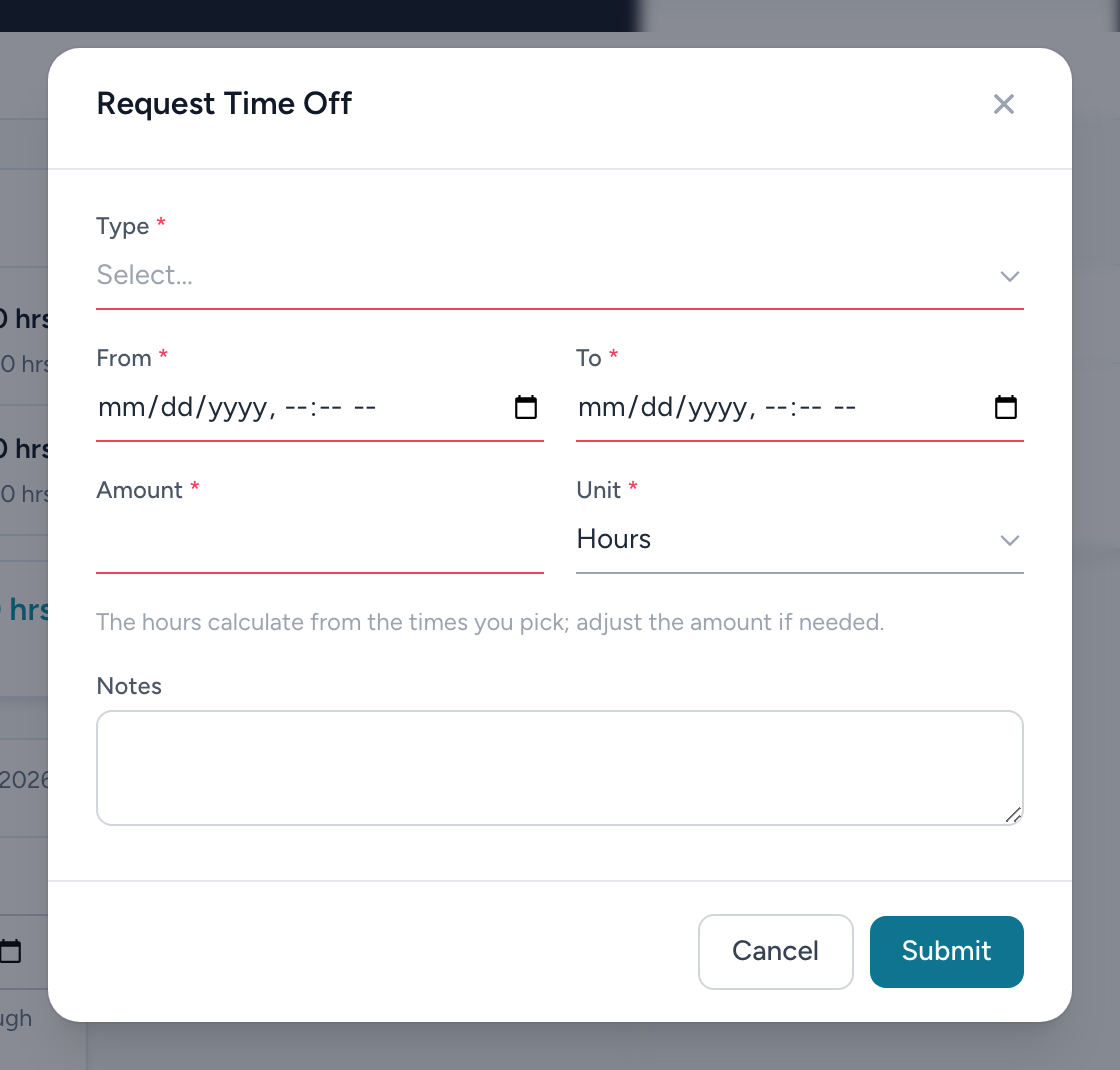
- Click Request time off.
- Pick the Type (your agency's list — PTO, Sick, and so on).
- Set From and To — date and time, not just the date. For a full week off, run it from the morning of the first day to the end of the last.
- The Amount of hours calculates from the times you picked. Adjust it if your real usage differs — for example a five-day window where you only burn 40 scheduled hours. You can also switch the Unit between Hours and Days.
- Add Notes if useful, and click Submit.
Tracking, editing, and cancelling
Your requests appear in the Upcoming Time Off list with a status badge: Pending, Approved, Rejected, or Cancelled. Click Edit on a request to open it:
- Pending requests — change the From and To times and click Save changes (the hours recalculate), or click Cancel time off to withdraw it.
- Approved requests — cancel only. Cancelling returns the deducted hours to your balance.
If a request was denied, the balance was never touched. If you are short on hours, check your balances and the calculator before resubmitting.