
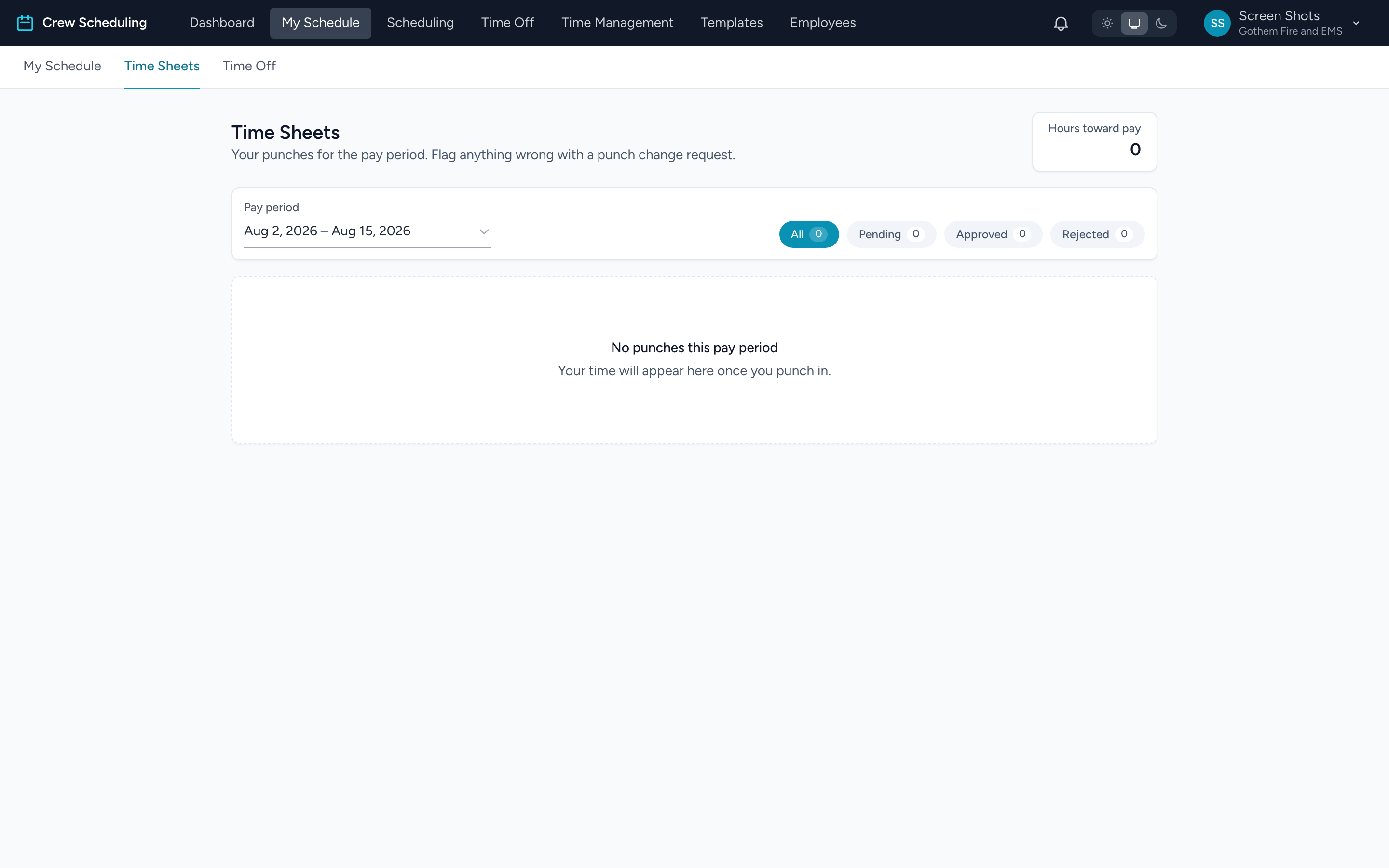
Time Sheets shows every punch you made in a pay period and what it adds up to. From the navigation, click My Schedule, then the Time Sheets tab.
Reading the page
- Hours toward pay — the box in the top corner. This is the number your paycheck is built from.
- Pay period — pick which period you are looking at. Filter pills narrow the list to All, Pending, Approved, or Rejected.
- Each row is one shift: the date, the shift name, your punch-in and punch-out times, the hours, and a status — Awaiting review until an admin approves it.
The colors and chips
- Punch times show green when on time and red when outside the grace window, with a chip saying which way: In Late, Out Early, and so on.
- Missed Punch — a scheduled shift with no punches at all, highlighted in red. Fix it with a punch change request.
- In progress — you are still on the clock for this row.
- Change request pending — you asked for a correction and an admin has not decided yet.
- Excluded from pay — an admin rejected these hours and removed them from your totals. The reason is in the row's comments.
Comments
Click the arrow on the right of a row to read the notes attached to that punch — yours, your admin's, and any automatic notes from time changes. You can add your own note in the box at the bottom.