

Why templates
Every shift you put a unit on duty. Most days, that unit is the same configuration — same call sign, same vehicle, same home station, same typical crew. A template captures that so you do not have to re-enter everything from scratch each morning.
What a template holds
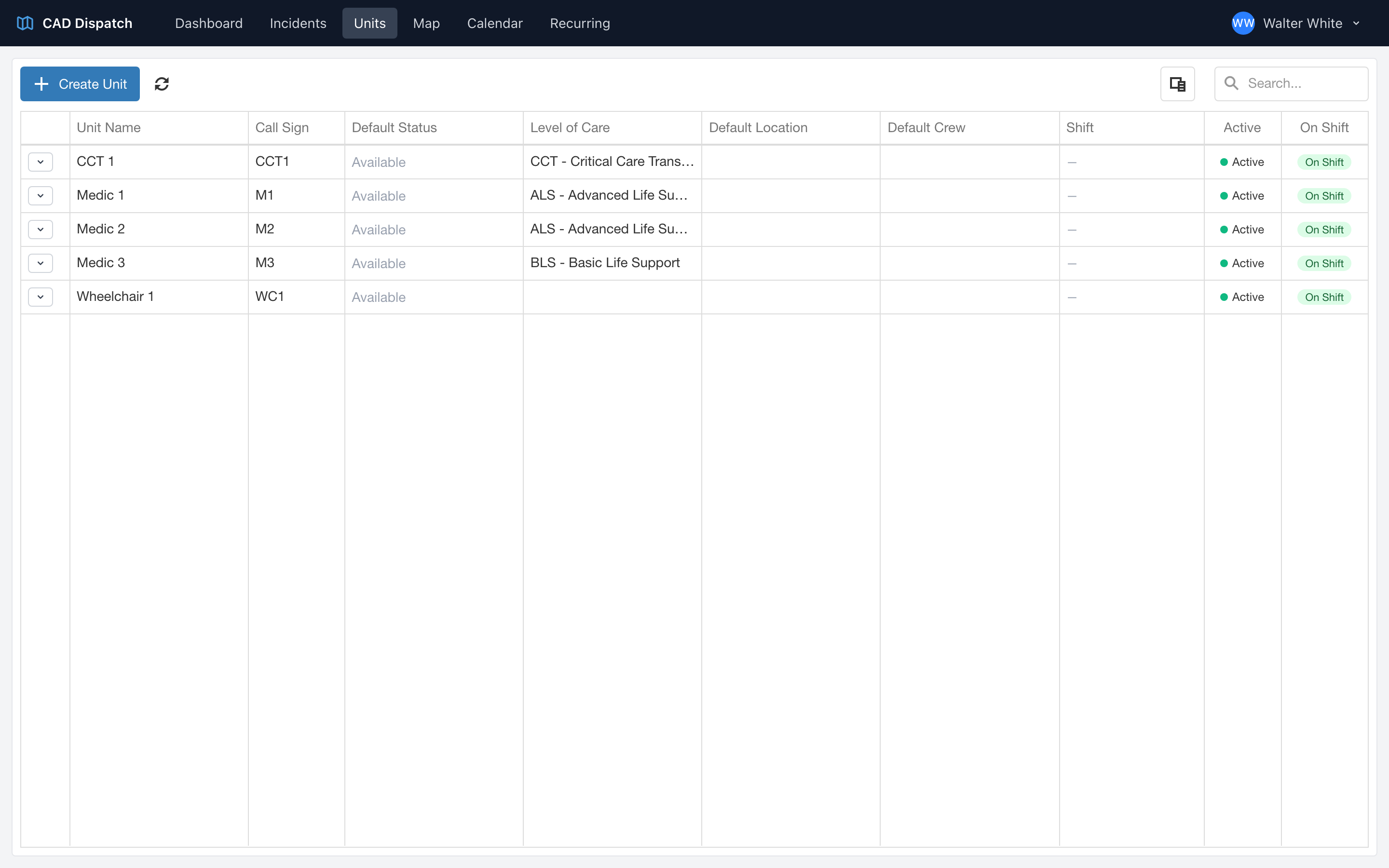
A unit template defines the defaults for one of your units:
- Name — for example, Medic 1.
- Call sign — for example, M1.
- Default vehicle — picked from your Fleet Management list.
- Default level of care — pick from the list your agency uses.
- Default location — the unit's home station, picked from your CloudPCR locations.
- Default crew members — the typical crew assigned to this unit.
Building a template
- From the navigation, click Units.
- Click Create Unit.
- Fill in each field.
- Click Create Template to save the new template, or Save Changes if you are editing an existing one.
An example agency
If you run two medic units, a critical care unit, and a wheelchair van, you would build four templates:
- Medic 1
- Medic 2
- CCT 1
- Wheelchair 1
Templates are starting points
Every shift when you actually put a unit on duty, you can override any field — a different crew, a backup vehicle, a temporary call sign — without changing the template. The template just saves you from re-entering everything from scratch. See Activating a unit for a shift.