

Why activation
A unit template is the blueprint. Activation is the moment the unit actually goes on duty for a specific shift. Only active units can be dispatched.
Step by step
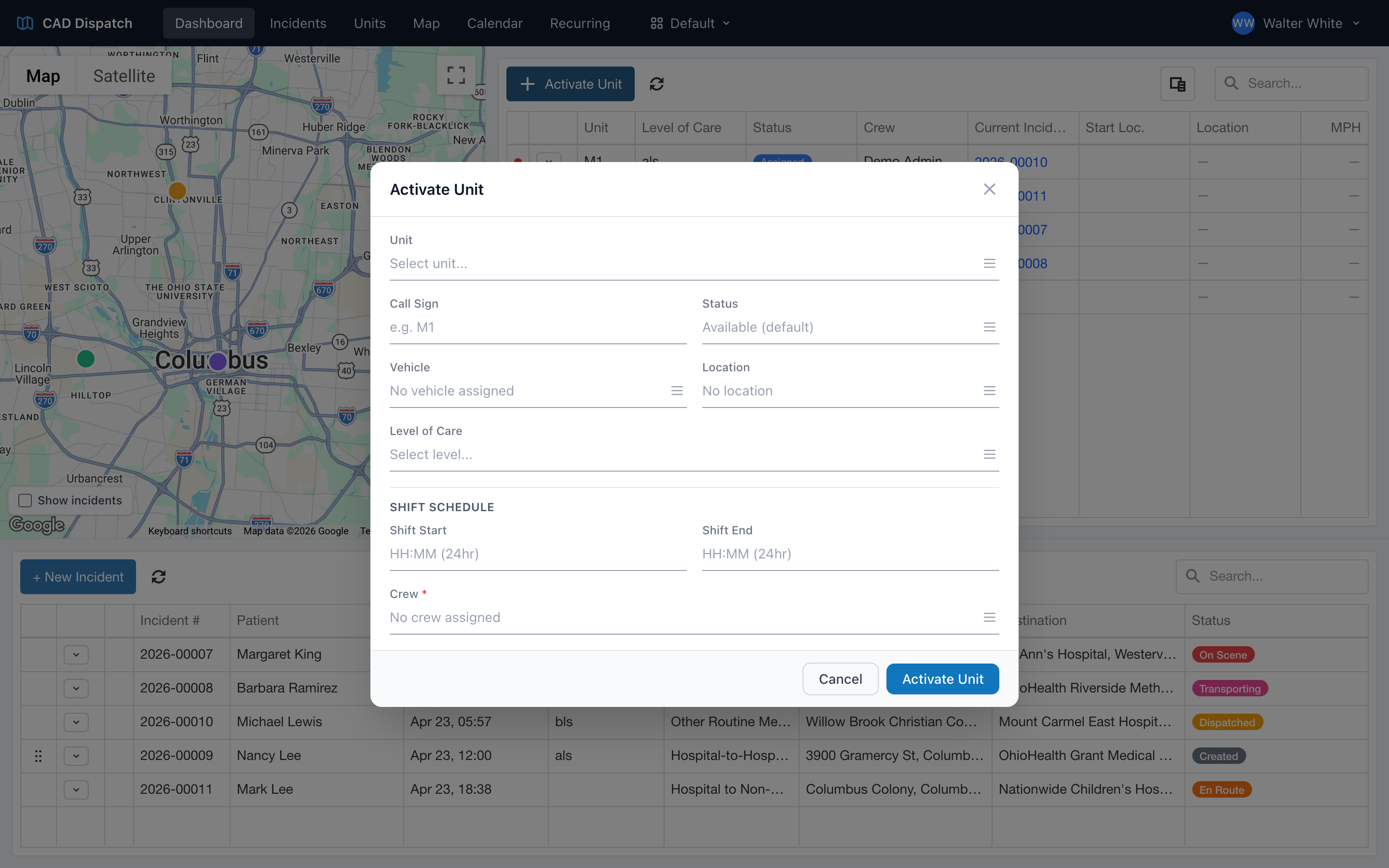
- From the dashboard, click Activate Unit above the active units table.
- Pick the unit template for the unit you are activating — for example, Medic 1.
- The form fills in with the template's defaults: call sign, vehicle, crew, location, and level of care.
- Adjust anything that is different today:
- If a different crew is working, update the crew members. At least one crew member is required — CAD will not let you activate a unit with an empty crew.
- If you are using a backup vehicle, pick the backup from the dropdown.
- If today's call sign is different from normal, change it here.
- Click Activate Unit to put the unit on duty, or Save Changes if you are editing an already-active unit.
The unit appears in your active units table and on the map. It is available for dispatch immediately.
Activating more than one instance of the same template
Some agencies run the same unit template across multiple shifts — for example, Medic 1 day shift and Medic 1 night shift. You can activate the same template more than once; each activation is its own active unit with its own crew and shift times.
Tip: Activating a unit takes about thirty seconds when your template is set up well. If you find yourself editing lots of fields on every activation, the template probably needs adjusting to match your real defaults.