

The status flow
As the crew works through the call, you progress the incident step by step:
- Dispatched / En Route — the crew is headed to the pickup.
- On Scene — the crew has arrived at the pickup.
- Transporting — the patient is loaded and the crew is moving to the destination.
- At Destination — the crew has arrived at the destination.
- Completed — the run is finished.
How to progress the status
- Find the incident on the dashboard incidents tile or on the Incidents page.
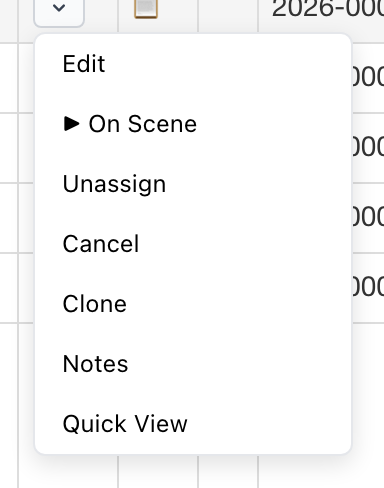
- Click the ... actions menu on the incident row.
- The menu shows the next logical status. Click it.
- Both the incident and the assigned unit update at the same time, and the timestamps sync to the ePCR in CloudPCR.
Why both the incident and unit update
The unit status and the incident status stay in sync automatically. When an incident goes to On Scene, the unit working it also shows as On Scene on the active units table and the map. You only have to click the progression once — both places update.
Canceling a call
To cancel a call entirely, click Cancel from the actions menu. CAD asks you for a reason. The incident moves to Canceled and the unit is released.
Tip: Because status progressions sync to CloudPCR in real time, the crew's ePCR timestamps match your dispatch board exactly. That keeps your dispatch records and the crew's documentation consistent without anyone re-entering times.