

What the page shows
The incidents page is where you go for the full picture. It is the same data as the dashboard incident list, just bigger and with more controls.
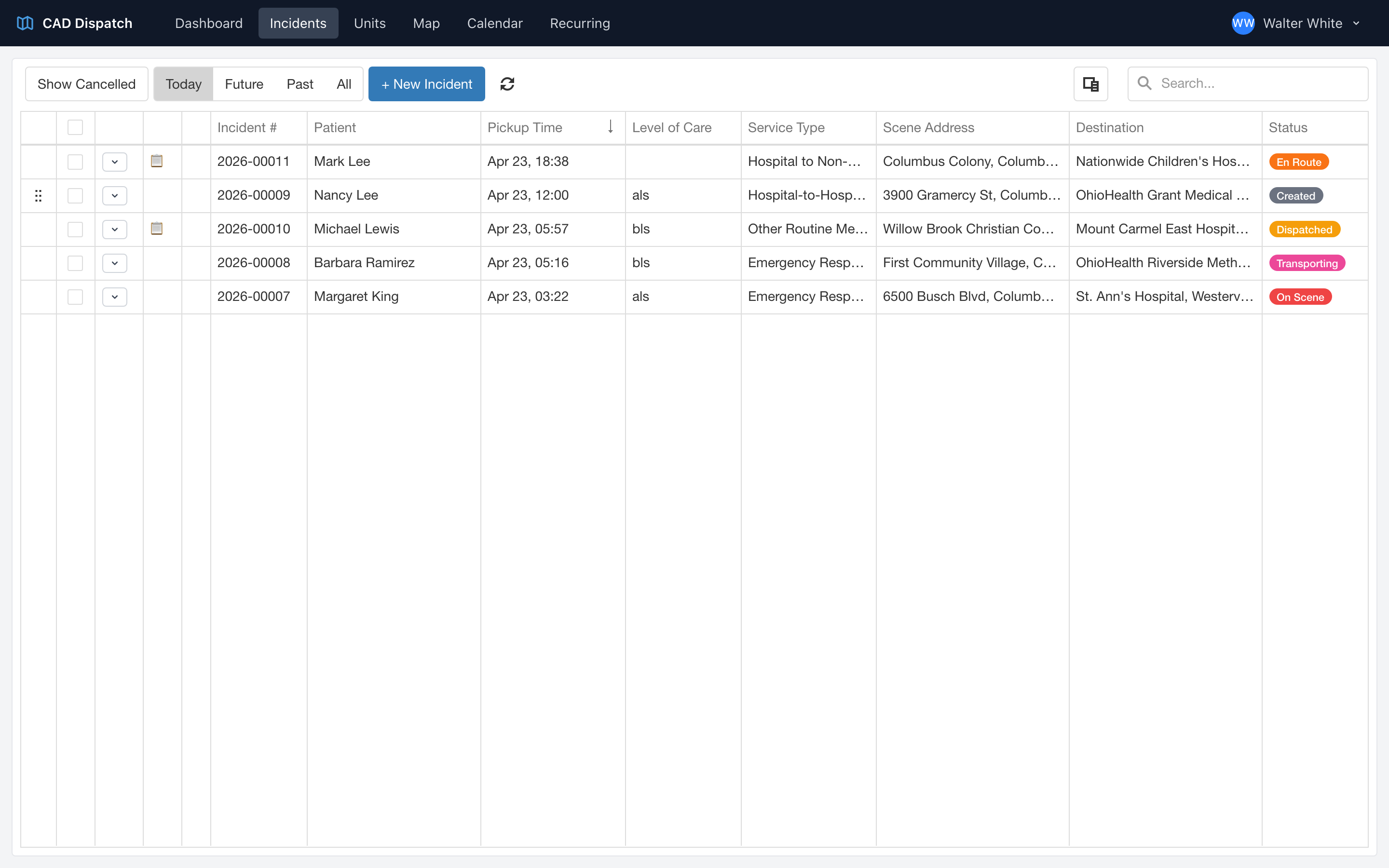
Searching
Use the search box in the toolbar to look for incidents by Trip ID, incident number, patient name, or address. The list narrows as you type. Searching an incident number finds the trip even when that number belongs to the second unit on the call.
Trip ID and Incident # columns
The Trip ID column shows the number the trip was given when it was entered. The Incident # column lists every incident number issued on that trip, one line per responding unit, and stays blank until a unit takes the call. Click either column heading to sort by it.
Filtering
- Date filter — All, Today, Future, or Past.
- Show Cancelled — turn on to include canceled incidents in the list. Off by default.
Choosing your columns
Click the column chooser button in the toolbar to pick which columns show up. Any columns you do not need can be hidden to keep the list compact. Your choices stick.
Actions on a row
Every incident row has a ... button that opens an actions menu. From there you can edit the incident, dispatch it, assign it to a unit without dispatching yet, progress it through its next status, cancel it, or clone it. See Progressing an incident through its statuses for details on how progression works.
Tip: If an incident has a small repeating-arrows icon next to it, that incident is part of a recurring schedule. Changing it affects only that one occurrence, not the whole series.